
Related guides:
- vendor tiering model
- how to determine vendor risk scores
- vendor reassessment frequency
- vendor security questionnaire template
- vendor due diligence checklist
Still finding vendors on the credit card statement? SecureSlate vendor risk management builds your vendor register from your integrations and domain, tiers every vendor and keeps the due diligence in one place.
Key takeaways
- A vendor inventory is the list everything else in third-party risk depends on. You cannot assess, review or offboard a vendor you never wrote down.
- This workbook scores each vendor on data access, system access, business impact and personal data, then sets a High, Medium or Low tier for you.
- Review dates, renewal warnings and missing DPA or security assurance are flagged automatically.
- The dashboard shows vendors and spend by tier and category, ready for a quarterly vendor review.
What a vendor inventory is
A vendor inventory, also called a vendor register or third-party inventory, is one list of every outside company that handles your data, touches your systems or keeps your business running. For each vendor it records who owns the relationship, what the vendor can reach and how much risk that creates.
Most small teams already have three partial lists: the finance team's list of who gets paid, the IT team's list of apps in SSO, and the security team's list of vendors that got a questionnaire last year. None of them is complete. The inventory joins them into one place so you can answer the questions customers and auditors ask:
- Who are your vendors? All of them, including free tools and contractors.
- Which ones matter most? Ranked by the data and access they hold, not by spend.
- What have you checked? The assurance you hold for each one and when it was last reviewed.
The point of scoring is proportion. A design tool with no customer data needs a light check at renewal. A payment processor with production access needs a current SOC 2 report, a signed DPA and an annual review. The tier tells you which is which.
What is in the template
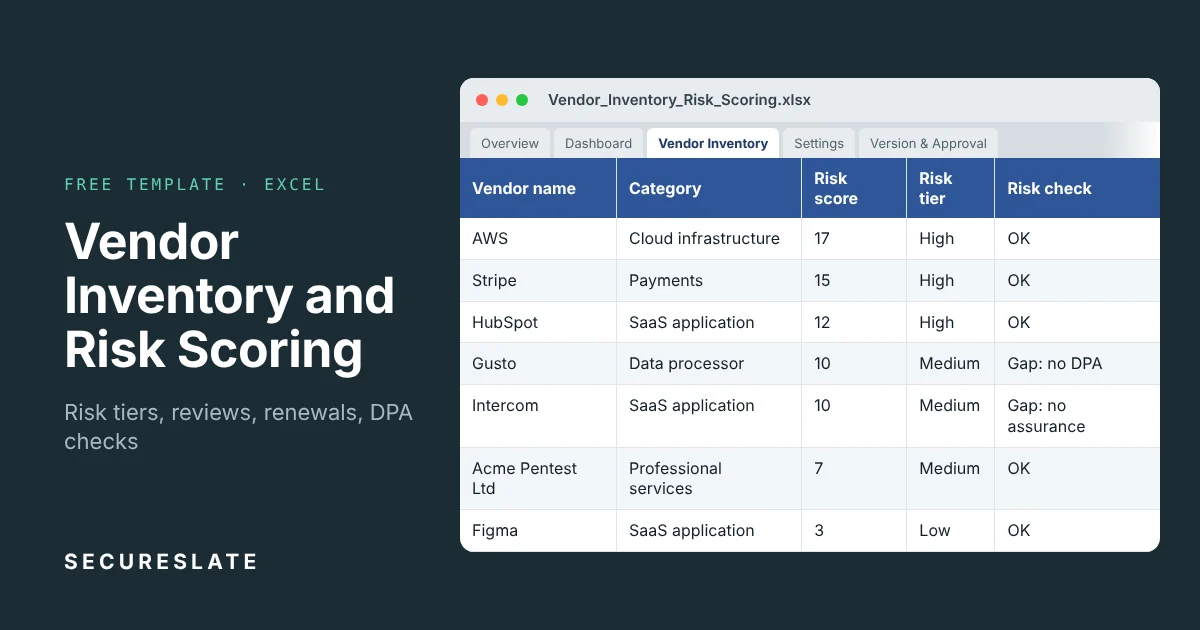
- Vendor Inventory tab: vendor, service, category, owner, data access, personal data, system access, business impact, annual spend, renewal date, security assurance, DPA status and last review date.
- Automatic risk scoring: a weighted score and a High, Medium or Low tier per vendor, with weights you can change.
- Review and renewal tracking: next review date by tier, plus Overdue, Due soon and Renewal due flags.
- Risk checks: flags vendors handling personal data without a signed DPA and medium or high risk vendors with no security assurance on file.
- Dashboard: counts and spend by tier, category, review status and open gaps.
- Settings and sign-off: scoring weights, tier thresholds and review cycles on one tab, version history and approval on another.
Download the template
Works in Excel, Google Sheets and Numbers. Eight example vendors show how each column is filled in. Overwrite them with your own.
Tab-by-tab walkthrough
Overview and Version & Approval
Document control, how to use the workbook, version history and sign-off from the security lead and an executive sponsor.
Dashboard
Updates on its own. Key figures (vendors listed, high risk vendors, vendors with personal data, open gaps, overdue reviews, renewals due, annual spend) plus tables by risk tier, review status, risk check and category.
Vendor Inventory
The working tab. White columns are for you, grey columns are formulas. Pick values from the dropdowns so the scoring can read them. Columns P to U calculate the risk score, tier, next review date, review status, renewal status and risk check.
Settings
Change the weights, the score behind each data and access level, the tier thresholds, the review cycle per tier, and the warning windows for reviews and renewals. Every formula reads from here, so you never edit a formula to change the rules.
How the risk score works
Each vendor gets points for four things, multiplied by a weight you control:
| Factor | Levels and default score | Default weight |
|---|---|---|
| Data access | None 0, Internal 1, Confidential 2, Restricted 3 | x2 |
| System access | None 0, Read-only 1, Write or integration 2, Admin or production 3 | x2 |
| Business impact if unavailable | Low 1, Medium 2, High 3 | x1 |
| Personal data | Adds 2 points when Yes | bonus |
The maximum is 17. A score of 12 or more is High, 6 to 11 is Medium and anything lower is Low. With the defaults, a cloud host with production access and customer data lands at the top, a payroll provider with restricted data but no system access lands in Medium, and a design tool lands in Low.
Data and access carry the most weight on purpose. A vendor that holds your customer data or can log into your environment can cause a breach; a vendor that only causes an outage when it fails is a continuity problem, which is why business impact counts but counts less. If your business depends heavily on uptime, raise the impact weight on the Settings tab.
Review cycles follow the tier: High every 12 months, Medium every 24, Low every 36. Our guide to vendor reassessment frequency explains how to choose these for your team.
Building your vendor list step by step
- Pull the payment list. Export 12 months of payees from accounting and card statements. Every recurring software or services payment is a candidate vendor.
- Add what you connect. List the apps in your identity provider, OAuth grants and the integrations in your product. Free tools and trials belong here too, since they can still hold data.
- Name an owner for each vendor. The person who uses the vendor and can answer questions about it, not the person who pays the invoice.
- Record data and access honestly. Ask the owner what data goes in and what the vendor can reach. Integrations with API keys or OAuth grants count as Write or integration.
- Let the tier decide the depth. Send the vendor security questionnaire or request a SOC 2 report for Medium and High vendors, then record what you received in Security assurance.
- Close the flagged gaps. Sign DPAs where personal data is processed and chase assurance for vendors marked Gap.
- Review on schedule. Bring the dashboard to a quarterly review, work the Overdue and Renewal due rows, and update Last reviewed once each review is done.
Common mistakes
- Listing only vendors with a contract, so free tools, trials and contractors with real access never appear
- Ranking vendors by spend instead of by data and access
- Owner set to "IT" or "Finance" rather than a named person who can answer for the vendor
- Collecting a SOC 2 report once and never checking it again at renewal
- Leaving offboarded vendors off the list, so nobody confirms their access was removed and data deleted
When spreadsheets stop working
A spreadsheet works well for up to around 50 vendors with one person maintaining it. Past that, new tools get signed up faster than anyone adds them to the list, and the inventory drifts from what you actually run. Other signs you have outgrown it: assurance documents scattered across inboxes, reviews that only happen when a customer asks, and no record of who approved a new vendor.
At that point a tool that discovers vendors from your domain and integrations, stores the documents and schedules reviews by tier saves more time than it costs. Our comparison of vendor risk management tools covers the options.
How SecureSlate helps
SecureSlate vendor risk management builds the vendor register for you from connected integrations, domain auto-detection and spreadsheet import, tiers each vendor by the data it handles and your reliance on it, and tracks due diligence, documents and owners in one place. Plans are built for small teams, see pricing.
FAQ
What should a vendor inventory include?
At minimum: vendor name, the service provided, a named business owner, the data the vendor can access, the systems it can reach, how critical it is, the contract renewal date, the security assurance you hold and the date it was last reviewed. This template adds risk scoring, DPA status and spend.
How do you score vendor risk?
Score what the vendor can reach and what happens if it fails. This template multiplies data access, system access and business impact by weights, adds points for personal data, and turns the total into High, Medium or Low. Our guide to vendor risk scoring covers other approaches.
How often should vendors be reviewed?
Commonly once a year for high risk vendors, every two years for medium and at renewal for low. The review cycles are set per tier on the Settings tab, so you can tighten them if a customer contract requires it.
What is the difference between a vendor inventory and a vendor risk assessment?
The inventory is the list of every vendor with enough detail to rank them. A risk assessment is the deeper check you run on the vendors the inventory ranks highest, usually a questionnaire, a SOC 2 report review and a contract check.
Do free tools and contractors count as vendors?
Yes. A free tool that stores customer data, or a contractor with a login to your systems, carries the same risk as a paid vendor. Add them with an annual spend of zero.
Can I use this template in Google Sheets?
Yes. Upload the file to Google Drive and open it with Google Sheets. The formulas, dropdowns and colour flags all work there.
Disclaimer (legal note)
This article and template are for general information only and are not legal, regulatory or professional advice. Requirements vary by industry, contract and jurisdiction. Consult qualified advisors for your specific obligations.
Need compliance without the complexity?
SecureSlate automates ISO 27001, SOC 2, GDPR, HIPAA, and more. Built for growing teams. See it in action.
Find compliance gaps in 30 seconds