
Related guides:
- shadow AI vs shadow IT
- information asset inventory template
- vendor inventory and risk scoring template
- employee offboarding security checklist
- access review template
Want the app list without the spreadsheet? SecureSlate access reviews sync accounts from your connected tools into one inventory, with owners, roles and two-factor status already attached.
Key takeaways
- The average small company runs far more SaaS apps than anyone has written down. A SaaS inventory is the list of all of them, with an owner and an admin for each.
- This workbook tracks sign-in method, automatic deprovisioning, data stored, licences, cost and renewal dates per app.
- It calculates annual cost, licence utilization and money spent on unused seats, and warns before renewals.
- A security check flags unapproved apps, sensitive apps without SSO or MFA, and apps you have to offboard by hand.
- A discovery checklist walks you through the ten places unlisted apps hide.
What a SaaS inventory is
A SaaS inventory, or software inventory, is one list of every application your company uses, who owns it, how people sign in and what data it holds. It sits between your vendor list, which is about contracts and risk, and your access reviews, which are about individual accounts.
It solves three everyday problems at once:
- Security. You cannot enforce SSO, MFA or offboarding on an app you do not know exists. Every leaver's access to an unlisted app stays live.
- Cost. Seats bought for people who left, duplicate tools doing the same job and auto-renewals nobody reviewed add up quickly.
- Answers. Security questionnaires, customer due diligence and audits all ask for a list of systems and who has access.
Shadow IT is the gap between the apps people use and the apps on your list. AI tools have widened that gap, because many are free to start, sign in with a Google account and get pasted customer data on day one. Our guide to shadow AI vs shadow IT covers why.
What is in the template
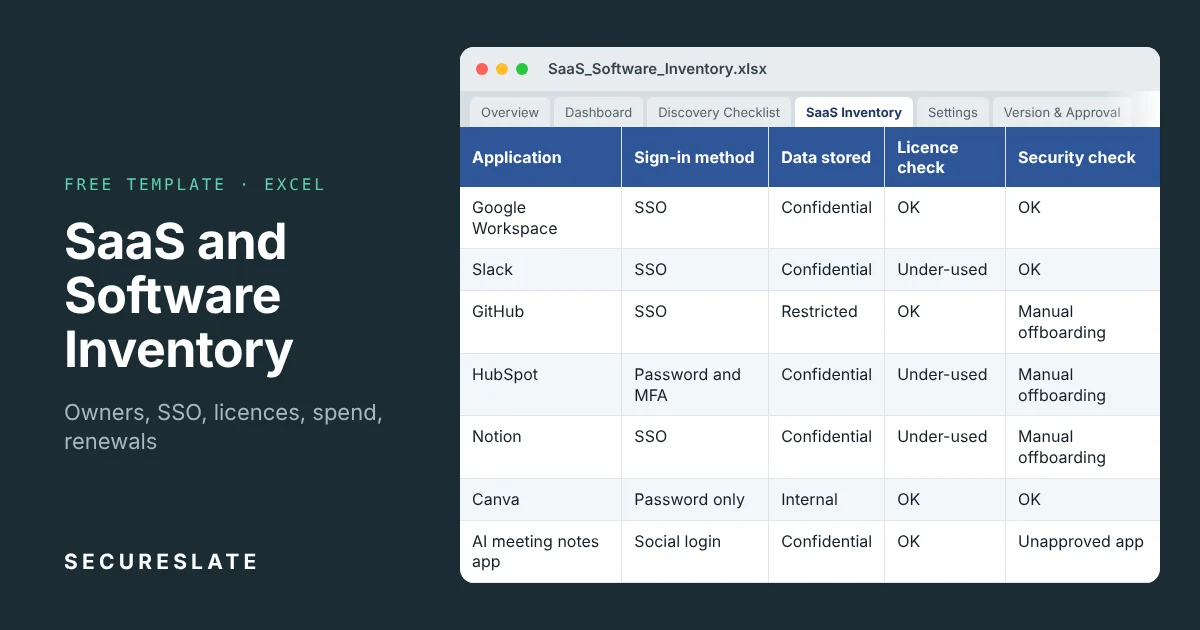
- SaaS Inventory tab: application, purpose, category, business owner, admin, sign-in method, SCIM, data stored, personal data, approval status, licences bought and in use, price per licence, renewal date and status.
- Automatic cost columns: annual cost, licence utilization and unused licence cost per year.
- Automatic checks: licence check (Under-used, Over limit), renewal status and a security check per app.
- Discovery Checklist tab: ten sources to search for unlisted apps, with an owner and a done flag for each.
- Dashboard: total SaaS spend, money on unused seats, apps by security check, sign-in method and category.
- Settings and sign-off: renewal window and utilization threshold, version history and approval.
Download the template
Works in Excel, Google Sheets and Numbers. Eight example apps show how to fill in each column. Overwrite them with your own.
Tab-by-tab walkthrough
Overview and Version & Approval
Document control, instructions, version history and sign-off.
Dashboard
Updates on its own. Shows annual spend, unused licence spend, unapproved apps, sensitive apps without SSO or MFA, apps that need manual offboarding and renewals due, plus breakdowns by category and sign-in method.
Discovery Checklist
Ten places to look for apps: your identity provider, OAuth grants, expense reports, card statements, accounts payable, browser extensions, sign-up emails, team leads, AI tools and engineering tooling. Mark each Done and note how many apps it turned up.
SaaS Inventory
The working tab. One row per app. Columns Q to V calculate cost, utilization, unused spend, licence check, renewal status and security check.
Settings
Set the renewal window (default 60 days) and the minimum licence utilization (default 80%).
How to find every app you use
Start with the apps you know, then work outward. Each source catches apps the others miss:
| Source | What it finds |
|---|---|
| Identity provider (SSO) | Sanctioned apps that people sign into with company credentials |
| OAuth grants in Google Workspace or Microsoft 365 | Apps people connected with "Sign in with Google" or "Sign in with Microsoft", often without anyone approving them |
| Expense reports and card statements | Paid tools bought on a personal or team card |
| Browser extensions | Extensions with access to every page a person visits |
| Team leads | Free tools, trials and AI assistants that never show up in payments |
Run discovery twice a year. Most teams find more apps on the first pass than they expected, and the security check then tells you which of them need action.
What the automatic checks mean
| Check | Meaning | What to do |
|---|---|---|
| Unapproved app | Approval status is Not approved | Approve it with an owner and SSO, replace it with an approved tool, or remove it |
| Gap: no SSO or MFA | Confidential or restricted data behind a password only or social login | Move it behind SSO or enforce MFA |
| Manual offboarding | Sensitive app without automatic deprovisioning (SCIM) | Add it to your offboarding checklist so leavers are removed by hand |
| Under-used | Fewer licences in use than the threshold | Reclaim seats before the renewal date |
| Over limit | More users than licences bought | Expect a true-up charge, or remove inactive users |
| Renewal due | Renewal date inside the renewal window | Review seats, price and whether you still need the app |
The Manual offboarding flag matters more than it looks. Disabling someone in your identity provider only removes access to apps that are actually connected to it. Apps on passwords, or connected through SSO without SCIM, keep the account alive until someone removes it by hand.
Common mistakes
- Listing only paid apps, so free tools holding customer data never appear
- No named admin, so nobody can remove a leaver's account when it matters
- Assuming SSO means automatic offboarding, when the app has no SCIM
- Letting annual plans auto-renew at the old seat count
- Building the list once and never running discovery again
When spreadsheets stop working
A spreadsheet works for a few dozen apps maintained by one person. It falls behind when new apps arrive weekly, when licence counts change faster than anyone updates them, and when you need account-level detail such as who has admin rights and who has MFA turned off. At that point, pulling accounts directly from connected tools beats asking app owners to report numbers.
How SecureSlate helps
SecureSlate syncs accounts from your connected integrations into one inventory with owner, role and two-factor status, flags unassigned and inactive accounts, and runs access reviews on top of it. Vendor risk management detects the third-party services tied to your domain so new tools land on the vendor list too. See pricing.
FAQ
What is a SaaS inventory?
A list of every software-as-a-service application your company uses, with its owner, admin, sign-in method, the data it holds, licence count, cost and renewal date. It is the starting point for SaaS security, offboarding and cost control.
How do I find shadow IT apps?
Check OAuth grants in Google Workspace or Microsoft 365, expense reports, card statements and browser extensions, and ask each team lead which tools they use. The Discovery Checklist tab lists ten sources with instructions.
What is the difference between a SaaS inventory and a vendor inventory?
A SaaS inventory tracks applications and how people use them: sign-in, licences, admins and cost. A vendor inventory tracks the companies behind them and the risk they carry: data access, contracts, assurance and reviews. Most teams keep both, and our vendor inventory template covers the second.
How often should the SaaS inventory be updated?
Add apps as they are approved, update licence counts monthly or before each renewal, and run a full discovery at least twice a year.
What is SCIM and why does it matter?
SCIM is a standard that lets your identity provider create and remove user accounts in an app automatically. Without it, disabling a leaver in your identity provider stops their SSO login but often leaves the account in the app, which then has to be removed by hand.
Can I use this template in Google Sheets?
Yes. Upload the file to Google Drive and open it with Google Sheets. Formulas, dropdowns and colour flags all carry over.
Disclaimer (legal note)
This article and template are for general information only and are not legal, regulatory or professional advice. Requirements vary by industry, contract and jurisdiction. Consult qualified advisors for your specific obligations.
Need compliance without the complexity?
SecureSlate automates ISO 27001, SOC 2, GDPR, HIPAA, and more. Built for growing teams. See it in action.
Find compliance gaps in 30 seconds