
Integrations
Connecting SecureSlate & GitHub Dependabot
Category: Vulnerability Scanner
GitHub Dependabot helps identify and manage security vulnerabilities in your project dependencies. By integrating Dependabot with SecureSlate, you can centralize vulnerability management, track dependency risks, and prioritize remediation efforts across all your repositories. This guide walks you through the complete setup process.
Prerequisites
Before integrating GitHub Dependabot with SecureSlate, ensure you meet the following requirements:
GitHub Integration Already Connected
The GitHub Dependabot integration requires the main GitHub integration to be active first. Dependabot relies on existing access to your GitHub organization's repositories to fetch vulnerability data.
If you haven't connected GitHub yet:
- Follow the SecureSlate GitHub integration guide to establish the primary connection
- Ensure your GitHub integration is showing as "Connected" in SecureSlate before proceeding with Dependabot
Organization Owner Access Required
Just like the main GitHub integration, Organization Owner permissions are necessary for Dependabot integration. Dependabot alerts require access to repository settings and security features that are only available to Owners.
To verify your Owner status:
- Navigate to github.com/settings/organizations
- Confirm you see the "Owner" tag next to your organization name
- If you lack Owner permissions, request them from your current GitHub Organization Owner
Previous Integration Cleanup
If you've previously connected GitHub Dependabot to SecureSlate, you may need to disconnect and reconnect the integration in SecureSlate's settings. This ensures a clean connection and prevents any conflicts from previous configurations.
Integration Procedure
Step 1: Navigate to the Dependabot Integration
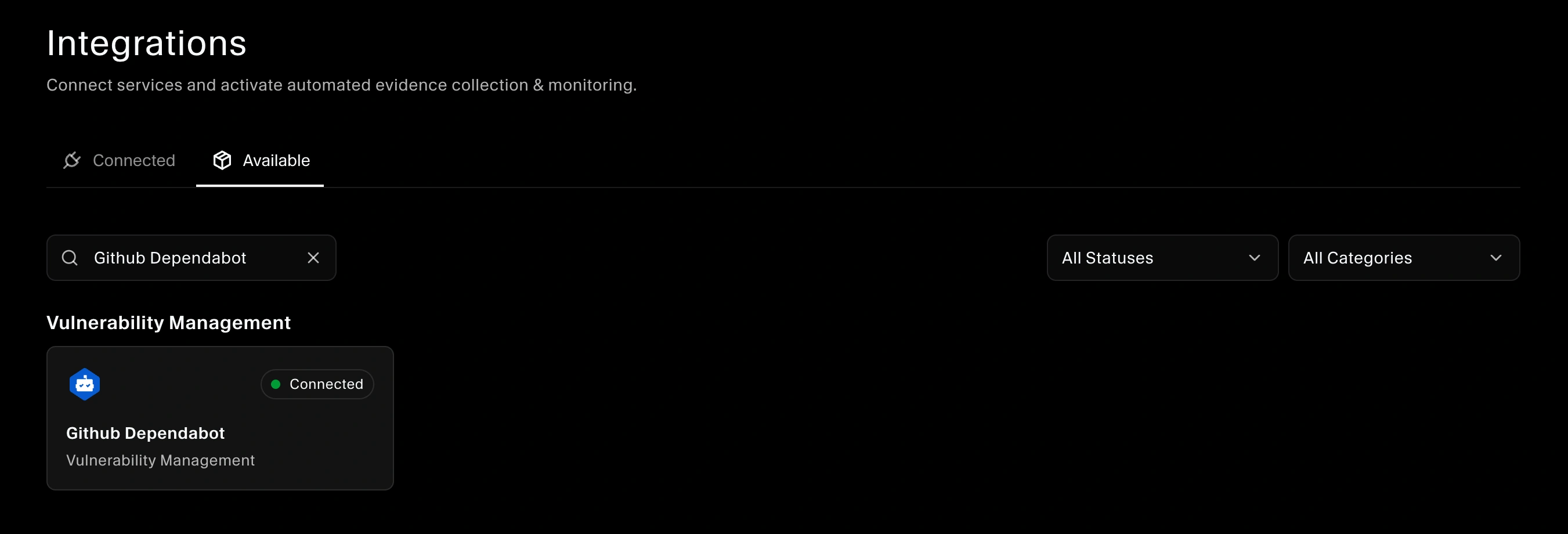
- Select Integrations from the left-hand navigation panel in SecureSlate
- Click on the Available tab to view all available integrations
- Search for "GitHub Dependabot" in the integration list
- Click the Connect button next to the GitHub Dependabot integration
Step 2: Verify Dependabot Access
Before proceeding with the connection, verify that your GitHub account has access to Dependabot alerts in the connected organization:
- Ensure Dependabot is enabled in your GitHub organization settings
- Confirm you have permissions to view security alerts and vulnerability data
- Check that repositories in your organization have Dependabot alerts enabled
Step 3: Connect GitHub Dependabot
Since your GitHub organization is already connected through the main integration, the authentication process is streamlined:
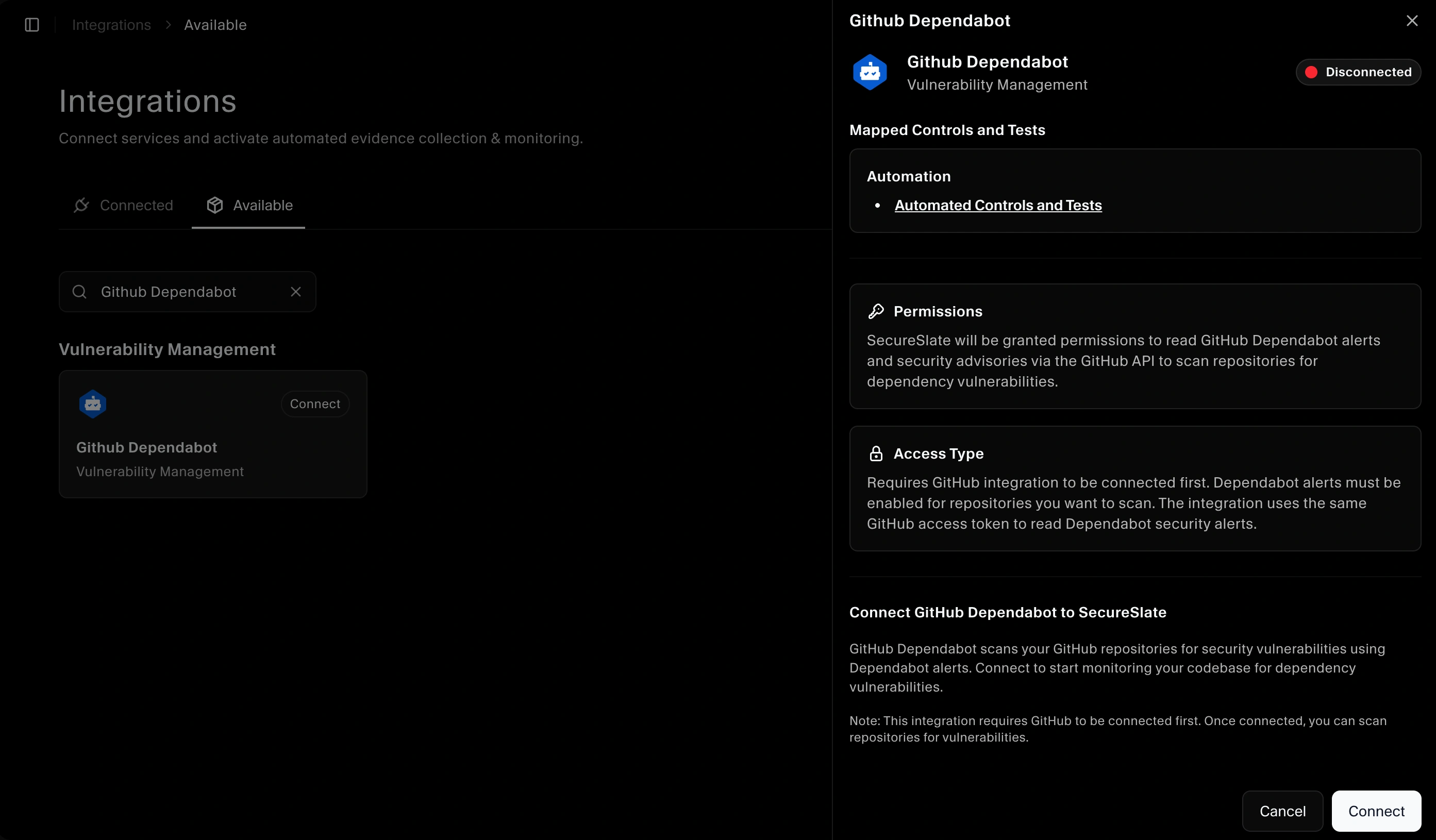
- Click the Connect button to open the GitHub Dependabot drawer
- From the drawer, click Connect again to establish the Dependabot link
- SecureSlate will use your existing GitHub connection to access Dependabot data
- No additional OAuth authentication is required since you've already authorized SecureSlate through the primary GitHub integration
Step 4: Automatic Alert Synchronization
Once connected, SecureSlate will automatically begin fetching Dependabot data:
- Vulnerability Alerts: All Dependabot security alerts from your repositories
- Security Updates: Recommended updates to address known vulnerabilities
- Dependency Risks: Information about outdated or risky dependencies
- Issue Tracking: Complete details of each vulnerability including severity and affected packages
Important Note: Dependabot monitoring will apply to the same repositories selected during your initial GitHub connection. If you connected all repositories, all Dependabot alerts will be fetched. If you selected specific repositories, only those repositories' Dependabot alerts will appear.
Step 5: Access Vulnerability Data
After the connection completes, you'll be redirected back to the Integrations page in SecureSlate:
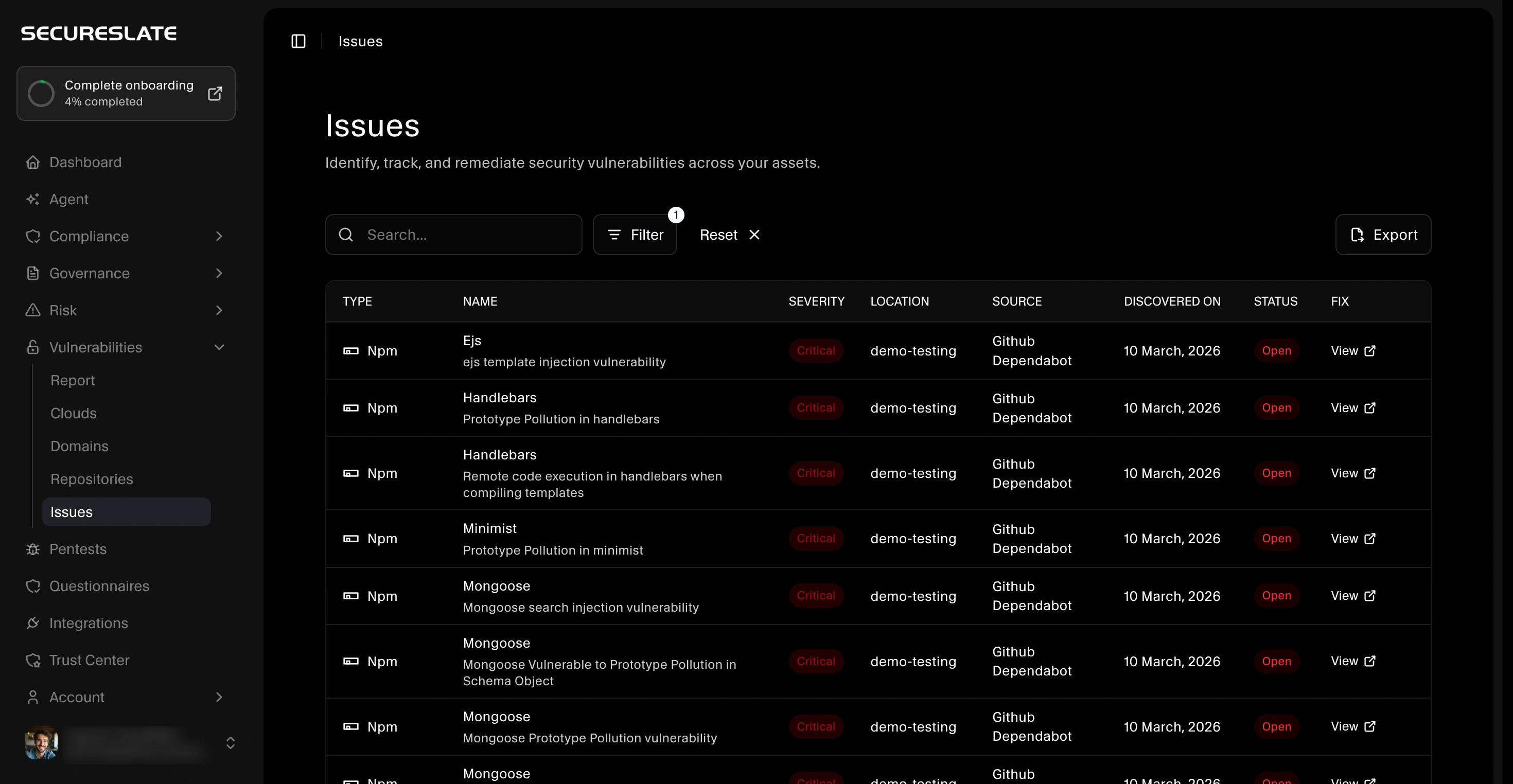
- The fetched Dependabot issues will automatically appear on the Vulnerabilities asset page
- Navigate to the Vulnerabilities section to view all imported alerts
- Use filters to sort by severity, repository, package, or other criteria
- Prioritize and track remediation efforts directly within SecureSlate
Verifying Successful Integration
To confirm that GitHub Dependabot has been successfully connected to SecureSlate:
Check Integration Status
- Visit SecureSlate's Integrations page
- Locate GitHub Dependabot in the list
- Verify it shows a "Connected" status
Verify Vulnerability Data
- Navigate to the Vulnerabilities asset page in SecureSlate
- Look for Dependabot alerts from your GitHub repositories
- Use the search or filter functionality to search for "Dependabot"
- Confirm that alerts are appearing with complete information including severity levels, affected packages, and remediation guidance
What Happens Next
With GitHub Dependabot successfully integrated into SecureSlate, you can now:
- Centralized Vulnerability Management: View all dependency vulnerabilities alongside other security issues in one platform
- Prioritize Remediation: Sort and filter alerts by severity, repository, or affected package
- Track Progress: Monitor remediation efforts and close vulnerabilities as they're addressed
- Generate Reports: Include dependency vulnerability data in compliance and security reports
- Automated Monitoring: Receive continuous updates as new Dependabot alerts are discovered
Understanding Dependabot Alerts in SecureSlate
The vulnerabilities imported from Dependabot will include:
- Severity Level: Critical, high, medium, or low severity ratings
- Affected Package: Which dependency contains the vulnerability
- Repository Information: Which of your repositories are affected
- Remediation Guidance: Recommended versions or patches to fix the issue
- CVE Information: Common Vulnerabilities and Exposures identifiers when available
Troubleshooting
If you encounter issues during the Dependabot integration:
- Verify the main GitHub integration is active: Dependabot cannot connect without the primary GitHub connection
- Confirm Organization Owner permissions: Ensure you have Owner-level access in GitHub
- Check Dependabot is enabled: Verify that Dependabot alerts are enabled in your GitHub organization and repository settings
- Review repository selection: Remember that only repositories selected during the initial GitHub integration will have their Dependabot alerts synchronized
- Disconnect and reconnect: If issues persist, try disconnecting and reconnecting the Dependabot integration in SecureSlate
For additional support, contact your SecureSlate administrator or support team.
