
Policies
Delete a Policy
Deleting a policy permanently removes it from SecureSlate. Because policies are connected to tests and control mappings, deleting a policy can also remove important compliance evidence and may negatively impact your security/compliance posture.
Before you delete
Confirm the following:
- The policy is no longer needed (or you have a replacement ready).
- You understand the policy’s associated test may be used as evidence for one or more controls.
- Stakeholders (e.g., Compliance owner, Security lead) agree with the removal.
Step 1: Open the policy
- Navigate to the Policies page (Policy Library)
- Click the policy you want to remove
This opens the policy drawer.
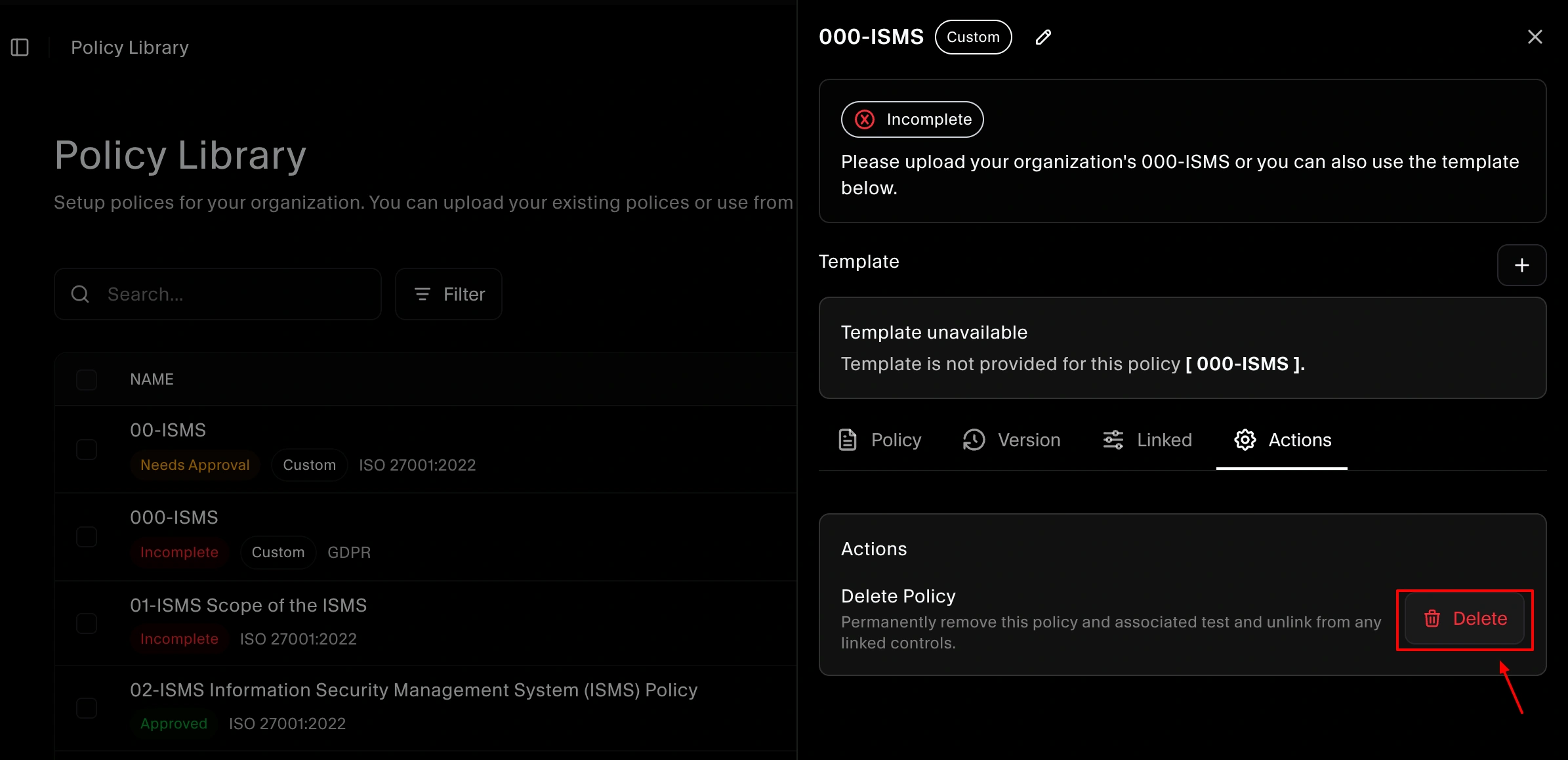
Step 2: Delete the policy from the Actions tab
- In the policy drawer, open the Actions tab
- Click Delete policy
- Confirm the deletion
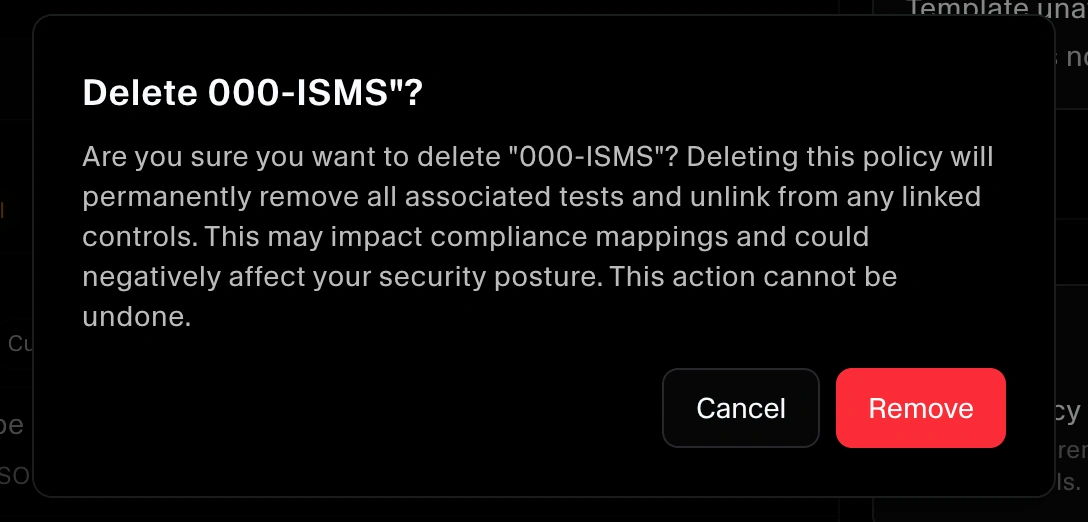
What happens after deletion
When a policy is deleted:
- The policy is removed from the Policy Library.
- The mapping between the policy and its associated test is removed.
- Any control mappings that depended on the associated test are impacted (the test is no longer mapped/available through that policy relationship).
Why this matters
Controls often rely on policy-related tests (approval, acceptance, or policy presence) to stay in an OK state. If you delete a policy without replacing it, you can create an evidence gap that may:
- Lower your compliance readiness for impacted frameworks
- Reduce audit evidence coverage for mapped controls
- Make your security/compliance posture appear less complete in SecureSlate
Recommended next steps
- If you are replacing a policy, create the replacement first (for custom policies, see: Create a Custom Policy).
- If you need the new policy to satisfy a specific control, map it appropriately (see: Link Your Custom Policy to a Control).
