
Integrations
Connecting SecureSlate & GitHub (Cloud Version)
Category: Version Control System
Connecting GitHub to SecureSlate enables comprehensive visibility into your repositories and user access management. This integration allows you to monitor security controls, manage assets, and maintain compliance across your development environment. Follow this guide to set up the integration successfully.
Prerequisites
Before beginning the integration process, ensure you have the necessary permissions:
Organization Owner Access Required
Owner-level permissions in GitHub are essential for this integration. Only Organization Owners can view complete user information, which SecureSlate needs to properly manage access controls and security monitoring.
To verify your Owner status:
- Navigate to github.com/settings/organizations
- Look for organizations where you see the "Owner" tag next to your organization name
- If you don't see any organizations or lack the Owner tag, you'll need to request Owner permissions from your current GitHub Organization Owner
Previous Integration Cleanup
If you've previously connected SecureSlate to GitHub, you may need to remove the existing SecureSlate app from GitHub before proceeding with a fresh integration. This ensures a clean connection without conflicts from previous configurations.
Integration Procedure
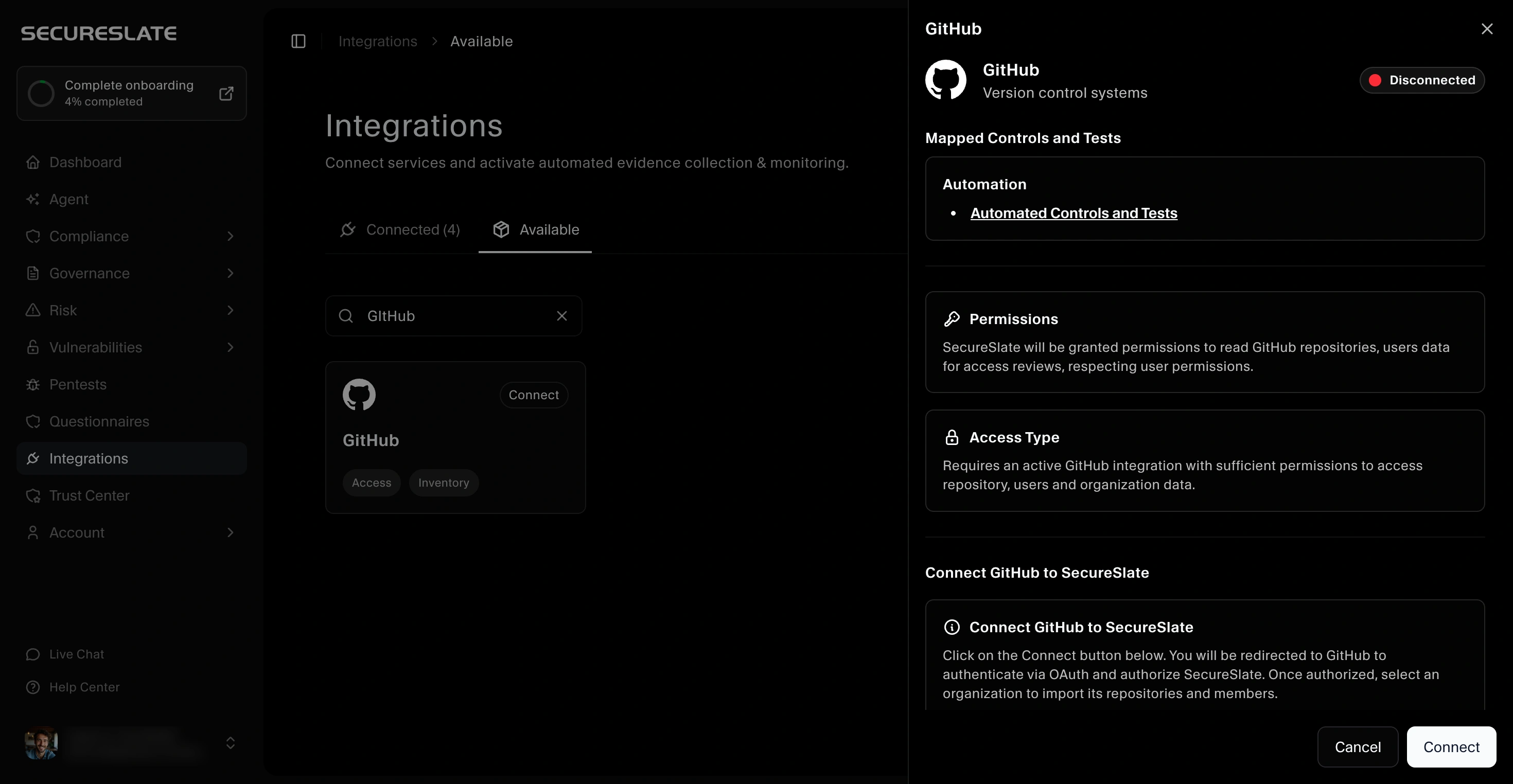
Step 1: Access the SecureSlate Integration Page
Begin by navigating to the integrations section within SecureSlate:
- Go to the SecureSlate integration page
- Select the Available tab to view all available integrations
- Search for "GitHub" in the integration list
- Click the Connect button next to the GitHub integration
Step 2: Initiate the OAuth Connection
After clicking Connect, SecureSlate will open a GitHub integration drawer:
- Click the Connect button within the drawer
- You'll be redirected to GitHub via OAuth for secure authentication
- Review the permissions that SecureSlate is requesting
- On the GitHub authorization screen, scroll down to the Organization access section
- Click Grant next to each organization whose private repositories you want SecureSlate to scan. If you skip this step, SecureSlate will only have access to your personal repositories and scanning of private org repos will fail
- Click Authorize to complete the connection
Important: If the Grant button is not available and shows a lock icon instead, the organization admin has restricted third-party OAuth access. You will need to ask your GitHub Organization Owner to approve SecureSlate under Organization Settings → Third-party Access.
SAML SSO organizations: If your organization enforces SAML single sign-on, you must also authorize the token for SSO after connecting. Go to GitHub → Settings → Applications → Authorized OAuth Apps, find SecureSlate, and click Enable SSO next to your organization.
The OAuth process ensures secure authentication without sharing your GitHub credentials directly with SecureSlate.
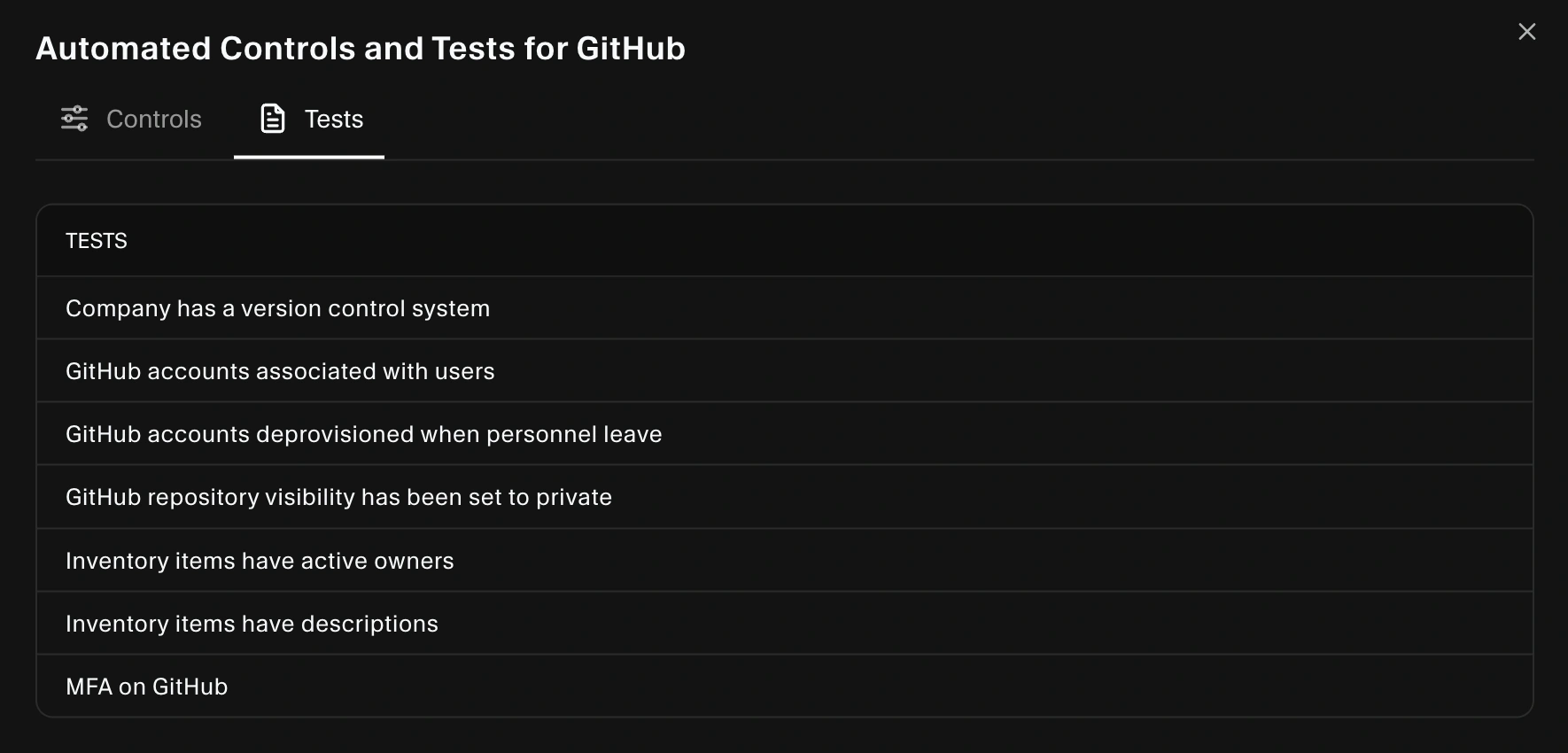
If you click on Automated Controls and Test you can see the automated tests and where it is mapped in the controls.
Step 3: Select Your Organization
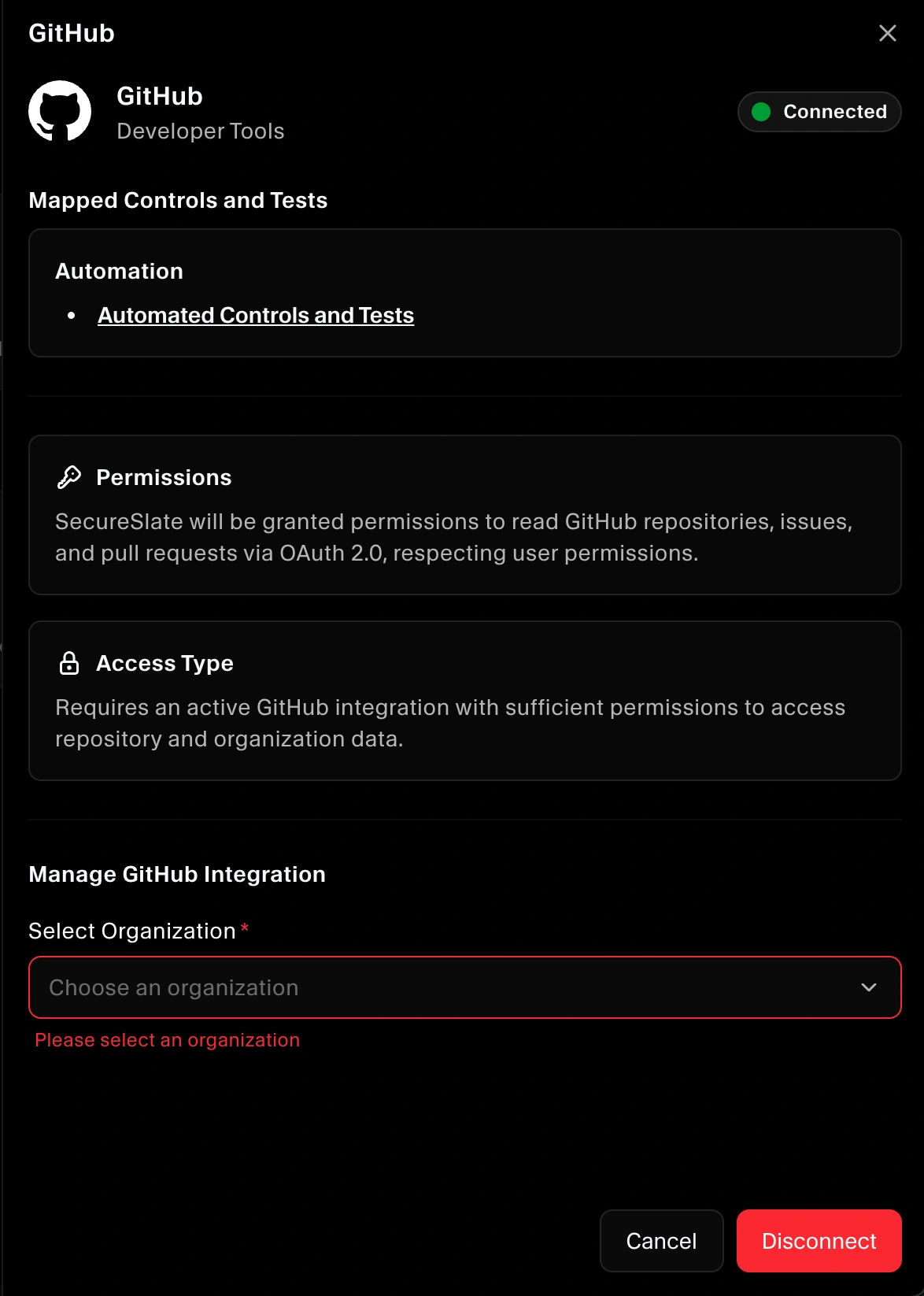
Once you've authorized the connection, GitHub will redirect you back to SecureSlate:
- The integration drawer will reopen automatically
- You'll see a list of GitHub organizations where you have Owner permissions
- Select the organization you want to connect to SecureSlate
- Confirm your selection
Step 4: Automatic Data Sync
After selecting your organization, SecureSlate will automatically begin synchronizing data:
- Repository Assets: All repositories from your selected GitHub organization will be fetched and appear on the Assets page in SecureSlate
- User Data: User information and access permissions will be imported for comprehensive user access management
- Automated Controls: Security controls and tests will be mapped and available for monitoring
Step 5: Review Automated Controls and Tests
To view how GitHub integrates with your security framework:
- Navigate to Automated Controls and Test within SecureSlate
- Review the automated tests that are now active
- See how these tests map to your security controls and compliance requirements
This visibility helps you understand which security measures are being monitored automatically through the GitHub integration.
Verifying Successful Integration
To confirm that GitHub has been successfully connected to SecureSlate:
- Open GitHub and navigate to your Organization settings
- Go to Installed GitHub Apps in your organization settings
- Look for SecureSlate GitHub Integration in the list of installed applications
- If present, your integration is active and functioning
You should also see your GitHub repositories appearing in the SecureSlate Assets page and user access data populating in your user access management dashboard.
What Happens Next
With GitHub successfully integrated into SecureSlate, you can now:
- Monitor all repositories as security assets
- Track user access and permissions across your development environment
- Receive automated security testing and control monitoring
- Maintain compliance with mapped security frameworks
- Generate reports that include your GitHub infrastructure in its respective tests
Troubleshooting
If you encounter issues during integration:
- Verify you have Organization Owner permissions in GitHub
- Check that you've removed any previous SecureSlate installations from GitHub
- Ensure you're selecting the correct organization during the connection process
- Review that all OAuth permissions were granted during the authorization step
Private repository scans failing after connection?
This is almost always caused by missing organization access on the OAuth token. To fix without reconnecting:
- Go to GitHub → Settings → Applications → Authorized OAuth Apps
- Find SecureSlate in the list
- Under Organization access, check if your organization shows a green checkmark
- If it shows a warning icon, click Grant to authorize access
- If Grant is not available, ask your GitHub Organization Owner to approve SecureSlate under Organization Settings → Third-party Access → Pending Requests
- If your org uses SAML SSO, click Enable SSO next to your organization and complete the SSO authorization flow
Once org access is granted, no reconnection is needed. Retry the scan directly from SecureSlate.
For additional support, contact your support team through email or live chat.
