
Asset Management
Import Assets
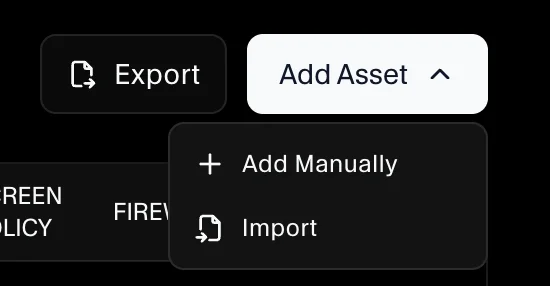
Use Add Asset → Import when you want to add multiple devices at once using the Asset Template.
From the sidebar, go to Governance → Asset Management, open the Assets tab, then click Add Asset → Import.
Step 1: Download the Asset Template
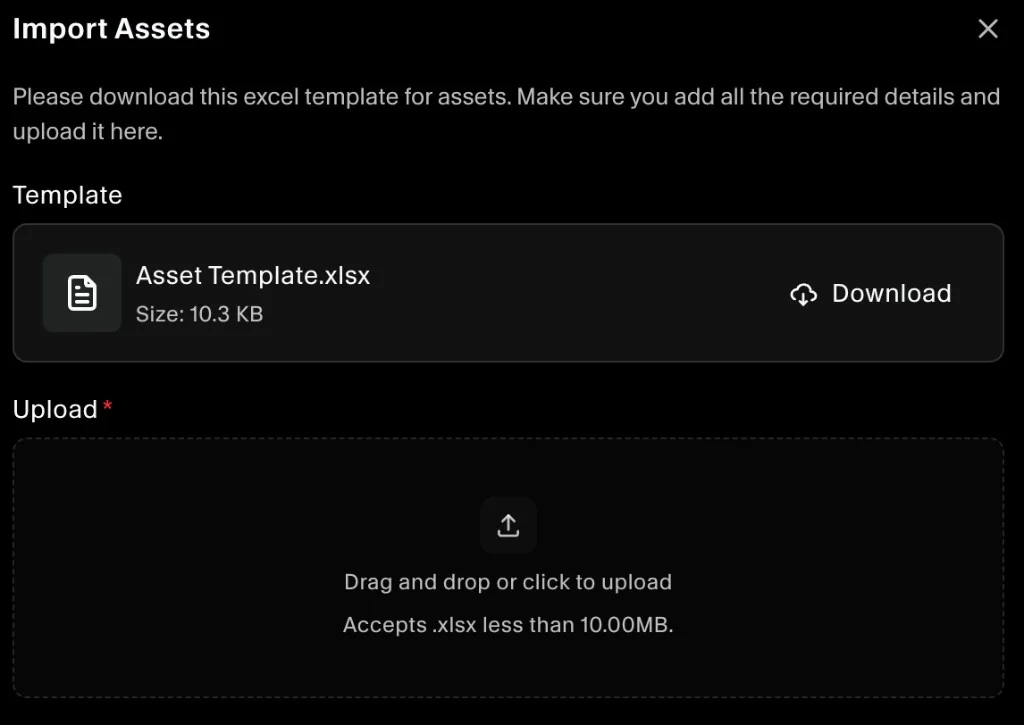
In the Import Assets dialog:
- Under Template, click Download.
- Open
Asset Template.xlsxand fill in the required details for each asset.
Step 2: Upload the completed template and import
- Under Upload, drag and drop your completed
.xlsxfile (or click to upload). - Click Add Asset to start the import.
SecureSlate imports the file, fetches all assets from the template, and displays them in the Assets table.
Step 3: Update the owner for each imported asset
After import, you can update the Owner for each asset:
- In Asset Management → Assets, click an asset row to open its details.
- Update the Owner Name and save.
The selected owner will upload evidence from their onboarding page, and the asset compliance checks update once evidence is provided.
