
Trust Management
How to Import a Questionnaire
This guide walks through the full process of importing a questionnaire, generating AI answers, reviewing them, and exporting the completed file.
Step 1: Import the questionnaire
Go to Questionnaires and click Import Questionnaire.
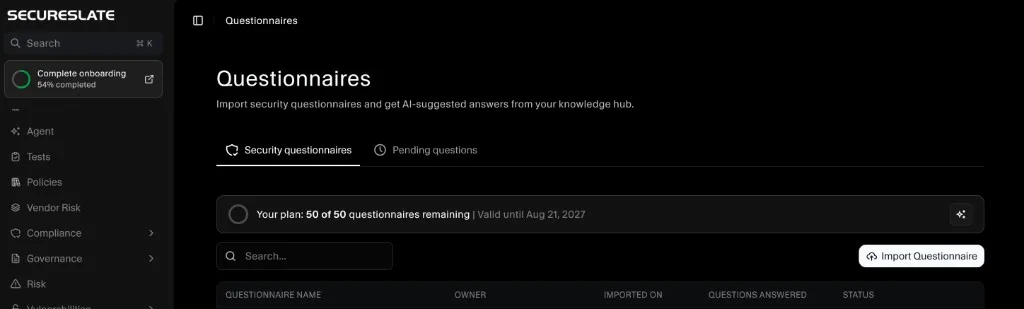
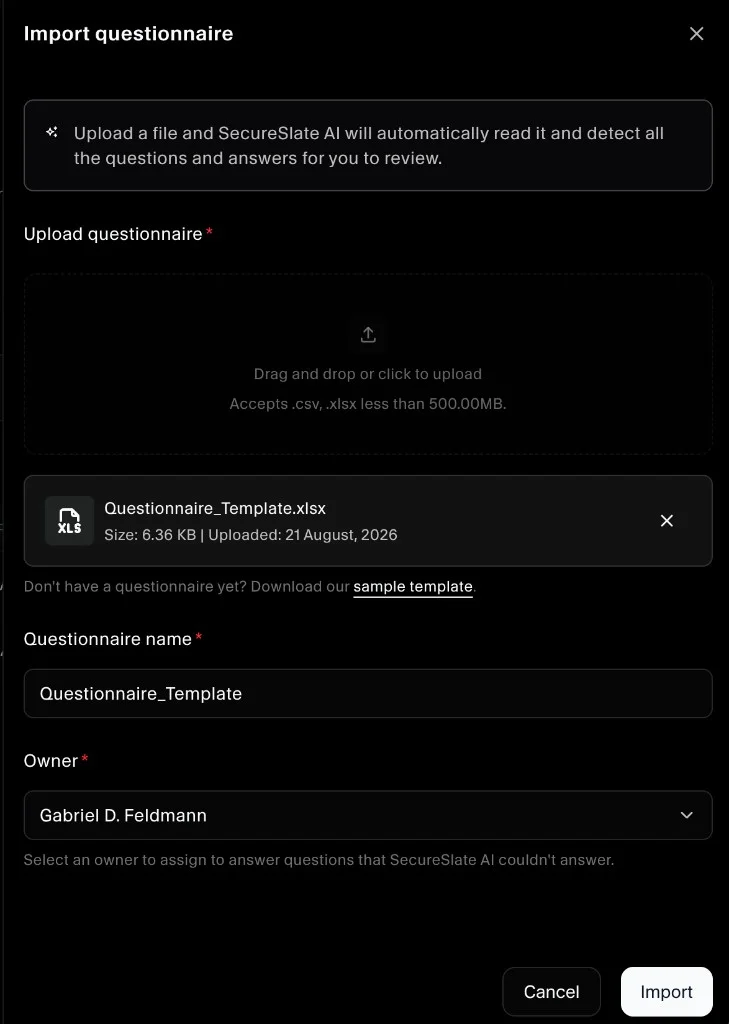
- Upload your Excel (
.xlsx) or CSV file. - Enter a Questionnaire name.
- Select an Owner - the team member responsible for reviewing answers and filling any gaps the AI could not answer.
- Click Import.
Step 2: Wait for AI to generate answers
Once imported, SecureSlate automatically generates answers for each question using your Knowledge Hub.
- Progress is shown in real time on the questionnaire list.
- Each answer includes citations so you know which document it came from.
- Questions the AI could not answer are marked as a gap so the owner knows what needs manual attention.
Step 3: Review answers
Open the questionnaire to see all questions in a table. For each row you can:
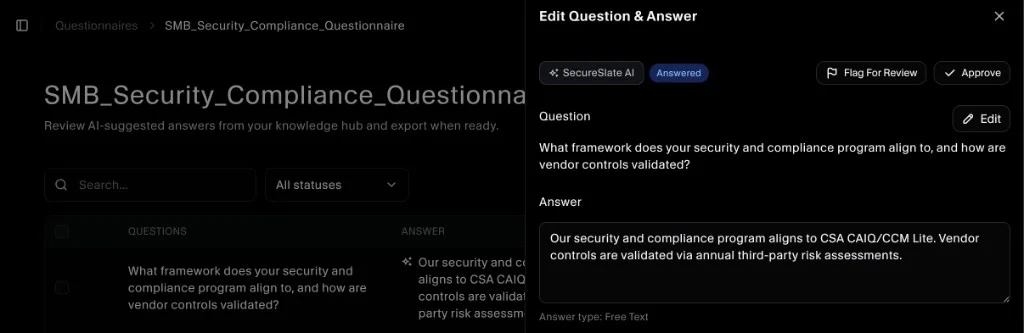
- Edit the answer inline.
- Approve - mark it as reviewed and ready to send.
- Flag for review - send it to a colleague for a second look.
- View sources - see which documents were cited.
Use the Filter controls to work through Unanswered, Flagged, or Approved questions.
Regenerating answers
If you add new documents to the Knowledge Hub or want to rewrite answers, click Generate Answers inside the questionnaire. You can regenerate only unanswered questions or force all answers to be rewritten from scratch.
Step 4: Export
When all answers are reviewed and approved, click Export to download the completed questionnaire as an Excel file with your answers filled in.
Tips
- Approve before exporting. Use the status filters to make sure every row has been checked before sending back.
- Assign the right owner. Gaps need a human answer - pick someone who knows your security posture.
- Regenerate after updating the Knowledge Hub. If you add new documents mid-review, regenerate to pick up any improved answers.
