
Integrations
Connecting AWS Control Tower with SecureSlate
If your company uses AWS Control Tower in a multi-account environment, SecureSlate can read landing zone health, guardrail compliance, and account enrollment (read-only) from your management account during sync.
SecureSlate does not deploy or modify Control Tower. It adds automated platform checks on the Checks tab based on Control Tower API data collected at sync time.
Before you start
Control Tower monitoring requires:
- An AWS Organization integration in SecureSlate (not a single account). Follow Connecting SecureSlate & AWS Organization first.
- An ACTIVE Control Tower landing zone in the management account.
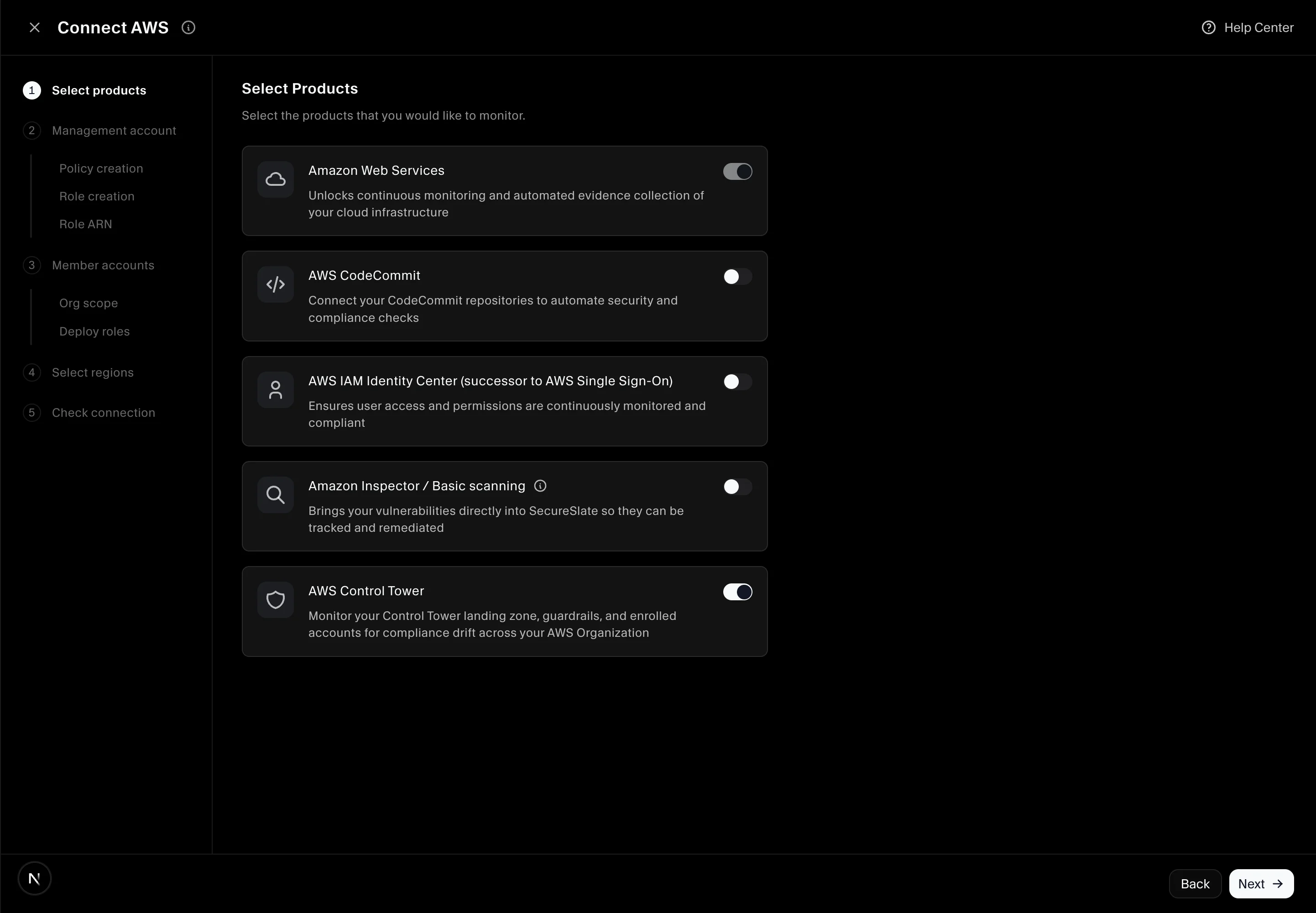
- The AWS Control Tower product enabled in the SecureSlate connect wizard (or added later on the integration).
If you only connect one AWS account, the Control Tower product is not available. Control Tower APIs are management-account only.
How it fits the organization connect flow
Control Tower is an optional product on Select products in the organization wizard:
Organization connect
  ├── Select products          ← enable AWS Control Tower here
  ├── Management account role  ← includes Control Tower read APIs when enabled
  ├── Member accounts          ← does NOT include Control Tower permissions
  └── Sync                       ← Control Tower data collected from management account
| IAM artifact | Account | Control Tower permissions |
|---|---|---|
SecureSlateManagementAccountPermissions |
Management account | Included when the product is enabled |
Member StackSet / SecureSlateAdditionalPermissions |
Member accounts | Excluded |
AWS Control Tower APIs are only available in the organization management account. SecureSlate never calls them from member accounts.
Connect Control Tower (new organization setup)
Step 1: Enable the product in the wizard
- In Integrations → AWS → Connect, choose Organization and Console.
- On Select products, enable AWS Control Tower.
- Continue to Management account.
The policy JSON SecureSlate shows includes Control Tower read APIs (for example controltower:GetLandingZone, controltower:ListEnabledControls, and related Organizations/Config actions).
Step 2: Create the management account role with Control Tower permissions
Complete the management account steps from the organization connect guide:
- Create SecureSlateManagementAccountPermissions in the management account (policy JSON from SecureSlate after Control Tower was selected).
- Create secureslate-auditor with SecurityAudit + that policy.
- Paste the management account Role ARN and Test Connection.
Important: If you enabled Control Tower after copying the policy the first time, go back to the wizard, copy the updated policy JSON, and replace the IAM policy in AWS before syncing.
Step 3: Deploy member account roles
Member accounts still need secureslate-auditor for cloud configuration scans. Control Tower checks do not replace member setup.
- Recommended: CloudFormation StackSet from the management account.
- If StackSet fails (some Control Tower orgs block it): use Manual IAM in each member account.
Step 4: Finish connect and sync
- Complete Select regions and Check connection.
- Run Sync now on the AWS integration page after connect.
Control Tower data is fetched during the management account portion of org sync. Member account syncs do not call Control Tower APIs.
Step 5: Confirm checks on the Checks tab
When Control Tower is enabled and sync succeeds, these platform checks appear (Cloud overview → AWS):
| Check | What it verifies |
|---|---|
| AWS Control Tower landing zone is active | Landing zone status is ACTIVE |
| AWS Control Tower landing zone has no configuration drift | Drift status is IN_SYNC |
| All AWS Control Tower guardrails are passing | No enabled guardrails are FAILED or DRIFTED |
| AWS Organization accounts are enrolled in Control Tower | Accounts in the org are enrolled in Control Tower governance |
Enable Control Tower on an existing organization integration
If you connected the organization without Control Tower:
- Open the AWS integration in SecureSlate and enable the AWS Control Tower product.
- In the management account, update SecureSlateManagementAccountPermissions with the new policy JSON from SecureSlate.
- Run Sync now.
Member StackSet templates do not need Control Tower permission changes.
What SecureSlate collects at sync
Read-only metadata stored on the integration:
- Landing zone: status and drift state
- Guardrails: enabled controls and compliance status across OUs
- Account enrollments: which organization accounts are governed by Control Tower
This powers the four checks above. SecureSlate does not change landing zones, guardrails, or enrollments.
Troubleshooting
“Control Tower data not found” on checks
- Confirm you connected as Organization, not a single account.
- Confirm AWS Control Tower is enabled in integration product settings.
- In the management account, verify
SecureSlateManagementAccountPermissionsincludes Control Tower actions (re-copy from the wizard if you enabled the product after the first connect). - Confirm secureslate-auditor in the management account has that policy attached.
- Run Sync now and wait for completion.
Enrollment check fails
The accounts enrolled check expects governance coverage across the org. Enroll accounts via Account Factory or Enroll account in the AWS Control Tower console, then re-sync.
Guardrails failing
Review failing controls in the AWS Control Tower console under Controls. Remediate underlying resources, then re-sync.
StackSet blocked with Control Tower
Use Manual IAM for member accounts in the wizard’s Member accounts step. Control Tower monitoring still works from the management account role alone.
