
Asset Management
Encrypting your computer's hard drive
Note: Your company may have specific guidance on how you should encrypt your hard drive. Please check with your IT or compliance teams before proceeding.
Encrypting your hard drive is a critical step in securing sensitive data and passing compliance checks. Follow the instructions below based on your operating system.
macOS
- Open System Preferences and click Security & Privacy.
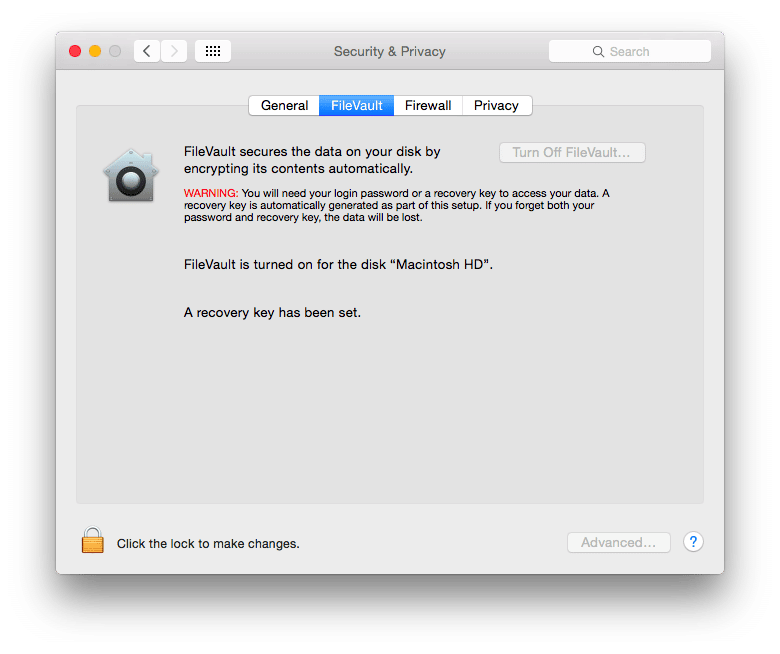
- Click on the FileVault tab.
- If FileVault is off, click Turn On FileVault….
- You may need to click the lock in the lower left corner to make changes.
- Once enabled, FileVault will display a confirmation message.
Windows 10/11 Professional
Note: BitLocker is not available for Windows Home Edition.
You may want to follow the standard steps to turn on BitLocker encryption provided by Microsoft. In summary:
- Locate the hard drive you want to encrypt under This PC in Windows Explorer.
- Right-click the target drive and choose Turn on BitLocker.
- Choose Enter a Password.
- Enter a secure password.
- Choose How to Enable Your Recovery Key, which you’ll use to access your drive if you lose your password.
- Choose Encrypt Entire Drive. This option is more secure and encrypts files you marked for deletion.
- Click Start Encrypting to begin the encryption process.
Learn more about HD Encryption
Ubuntu Linux
To encrypt your hard drive on Ubuntu, refer to the following guides:
- Ubuntu Full Disk Encryption How-To (2019)
- Encrypting Disks on Ubuntu 19.04 (Medium)
- How to Enable Full Disk Encryption in Ubuntu 22.04 (JumpCloud)
Note: If you're using SecureSlate you may need to manually upload evidence of disk encryption. See Manual evidence uploads for personnel asset compliance check for details.
