
Integrations
Connecting SecureSlate & MongoDB Atlas
SecureSlate connects to MongoDB Atlas through the Atlas Administration API, using read-only calls. We retrieve organization users, clusters, and project data for access reviews, asset management, and automated compliance tests. SecureSlate does not modify your clusters, users, or configuration.
To use this integration, you need a MongoDB Atlas API key with Organization Read Only permissions. The key consists of two parts:
- Public Key (used as the username for HTTP Digest authentication)
- Private Key (used as the password, shown only once at creation)
What SecureSlate syncs
| Data | Purpose |
|---|---|
| Organization users | Access reviews, track who has access to your MongoDB Atlas organization and their roles |
| Clusters | Asset management, inventory all clusters with tier, region, backup, and encryption details |
| Projects | Context for cluster grouping and project-level security settings |
Automated controls and tests
Once connected, SecureSlate runs automated tests against your MongoDB Atlas data:
- Inventory items have active owners assigned
- Inventory items have descriptions
- Resources classified for user data
- Accounts associated with users (access review ownership)
- Accounts deprovisioned when personnel leave
- Cluster storage autoscaling (M10+ tiers)
- Cluster tier autoscaling (M10+ tiers)
- Clusters backed up (Cloud Backup enabled)
- Clusters encrypted (at rest and in transit)
- Clusters on dedicated nodes (M10+ vs shared tiers)
- Clusters replicated (replica set with automatic failover)
Prerequisites
Before you connect SecureSlate, confirm you have:
- Organization Owner access in your MongoDB Atlas organization (required to generate an API key with full inherited permissions).
- At least one project and cluster in your organization (so SecureSlate has data to sync).
- Network access configured, if your organization uses an API access list, you may need to add SecureSlate's IP address.
Generate a MongoDB Atlas API key
Open the Access Manager
- Sign in to MongoDB Atlas.
- In the top-left, click your organization name to open the organization view.
- In the left sidebar, click Access Manager.
- Select the API Keys tab.
Create a new API key
- Click Create API Key.
- Description: Enter a name you will recognize, for example
SecureSlate Read-Only. - Organization Permissions: Select Organization Read Only.
- Click Next.
Important: The API key inherits permissions from the user who creates it. The organization owner should generate the key to ensure all read-only data is accessible. If a lower-privilege user creates the key, some data may not sync.
Copy your keys
- Copy the Public Key and save it securely.
- Copy the Private Key immediately. It is displayed only once and cannot be retrieved later.
- (Optional) Add an IP address to the API Access List if your organization enforces one, or leave it open for SecureSlate to connect.
- Click Done.
Store both keys securely (for example, in your password manager). You will paste them into SecureSlate in the next section.
Connect MongoDB Atlas to SecureSlate
Open the integration
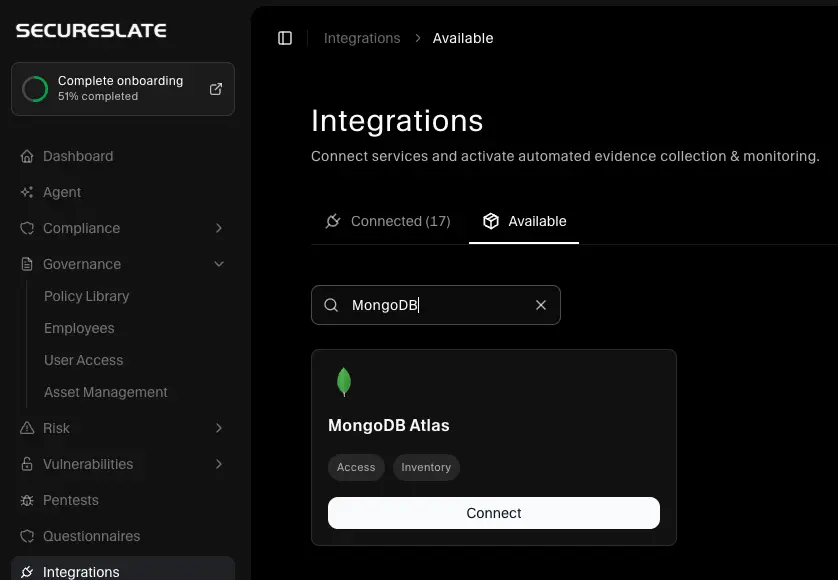
- In SecureSlate, open Integrations from the left sidebar.
- Go to the Available tab.
- Search for MongoDB Atlas.
- Click Connect on the MongoDB Atlas card.
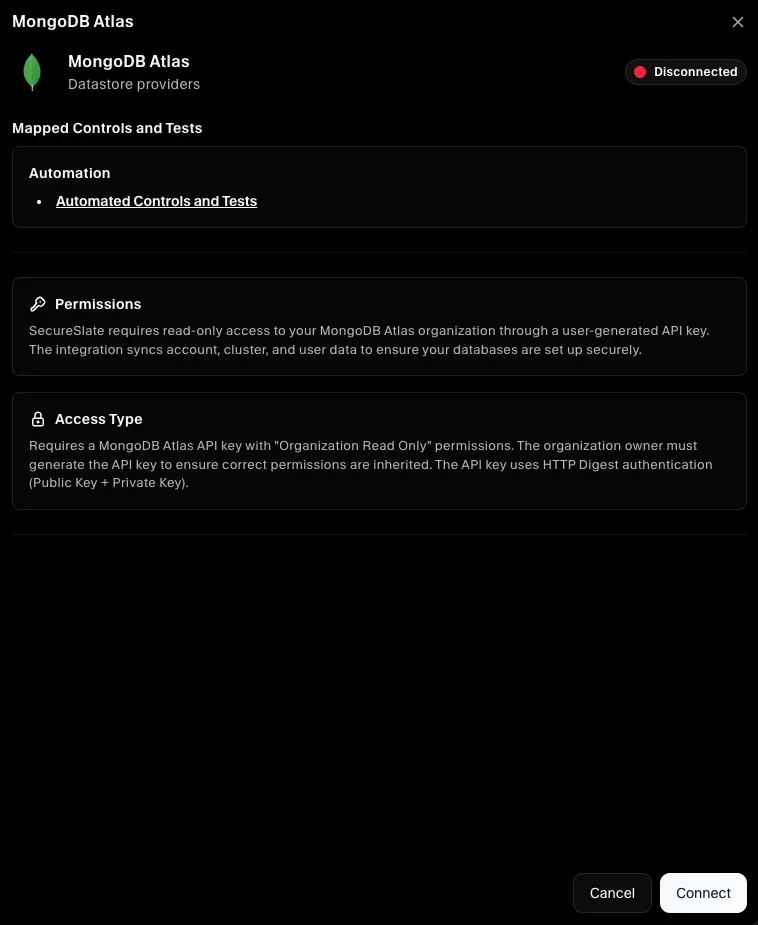
Review the integration details:
- Category: Datastore Providers
- Permissions: Read-only access to organization users, clusters, and projects via the Atlas Administration API
- Access type: API key with HTTP Digest authentication (Public Key + Private Key)
Enter your API credentials
- Continue through the setup flow to Connect MongoDB Atlas to SecureSlate.
- Enter your Public Key.
- Enter your Private Key.
- Click Connect.
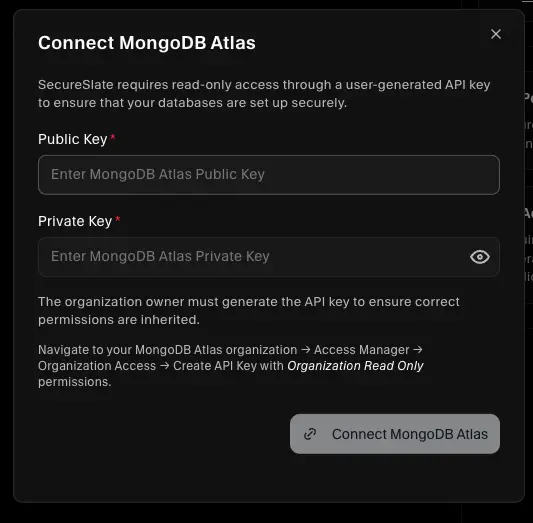
SecureSlate validates the credentials, fetches your organization data, and syncs users, clusters, and projects.
Verify the integration
After a successful connection:
- The MongoDB Atlas integration appears under Connected on the Integrations page.
- Organization users sync to User Access for access reviews.
- Clusters sync to Asset Management as database assets with tier, region, backup, and encryption metadata.
- Automated tests begin running against the synced data.
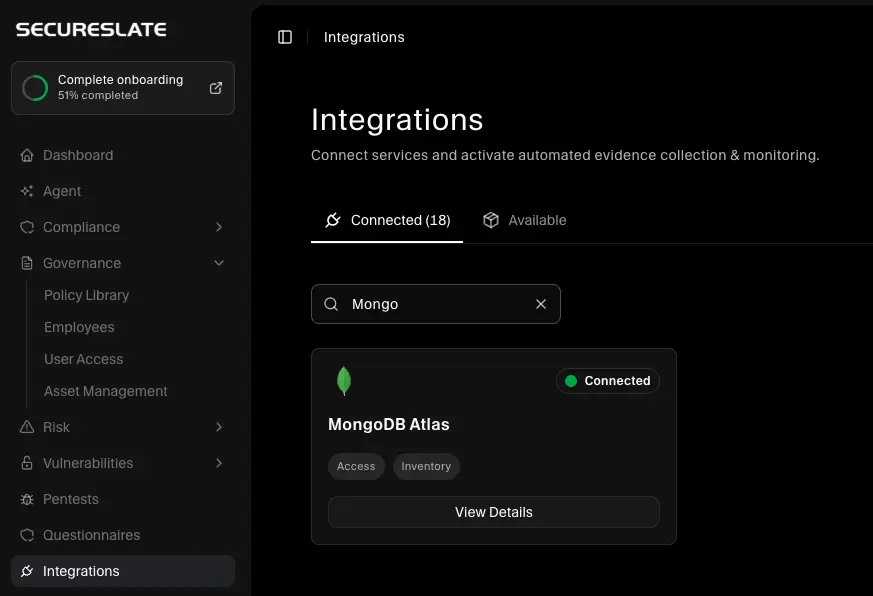
Initial sync time depends on the number of users and clusters in your organization.
Troubleshooting
If the connection fails or data does not appear:
- Confirm the API key was created by the organization owner (otherwise inherited permissions may be insufficient).
- Confirm the Organization Permissions on the key include Organization Read Only.
- Confirm the Private Key matches the Public Key, if you lost the private key, create a new API key in Atlas and reconnect.
- If your organization uses an API Access List, confirm SecureSlate's IP is allowed (or that the access list is not restricting connections).
- Confirm your MongoDB Atlas organization has at least one project and cluster for SecureSlate to sync.
- If the key was rotated or deleted in Atlas, generate a new key and update the integration in SecureSlate by disconnecting and reconnecting.
