Asset Management
Add an Asset Manually
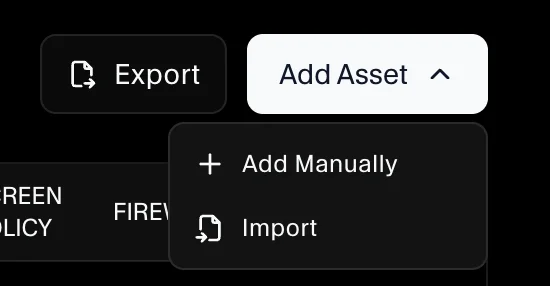
Use Add Asset → Add Manually when you want to add a single device (laptop/workstation) to Asset Management.
From the sidebar, go to Governance → Asset Management, open the Assets tab, then click Add Asset → Add Manually.
Step 1: Enter asset details and set an owner
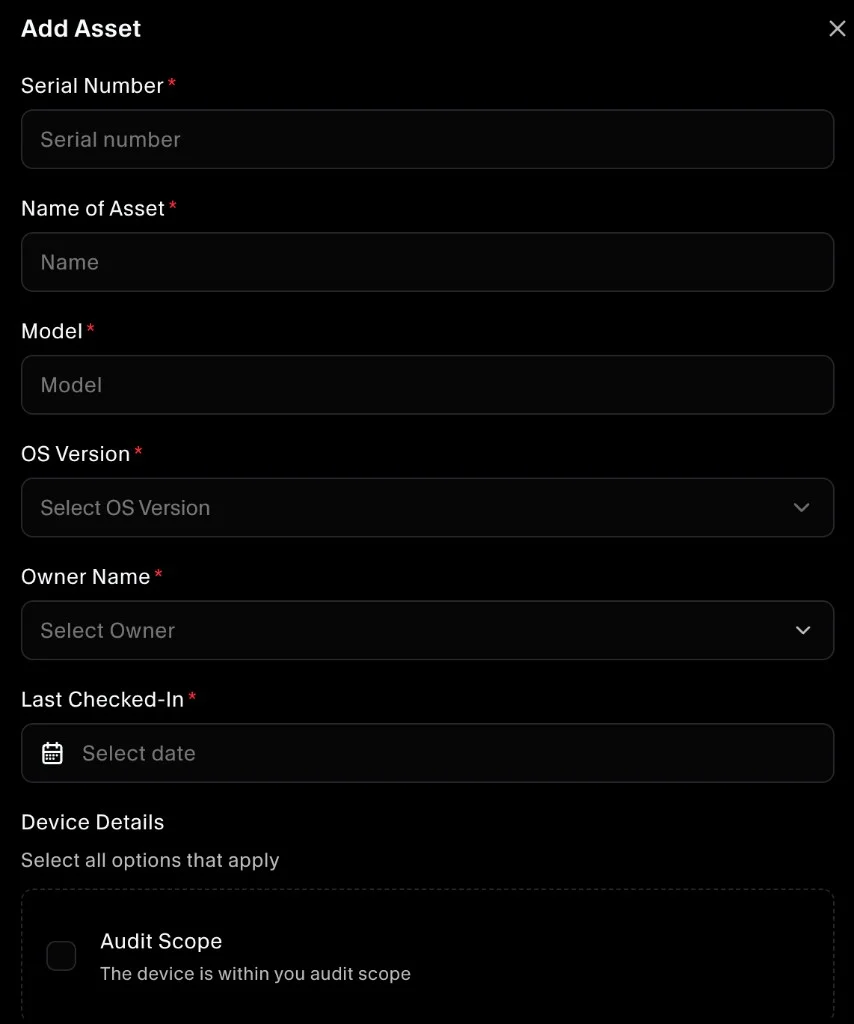
In the Add Asset form, fill in the required fields:
- Serial Number
- Name of Asset
- Model
- OS Version
- Owner Name (required)
- Last Checked-In
Optionally, set Audit Scope if the device is within your audit scope.
Step 2: Owner uploads evidence from employee onboarding page
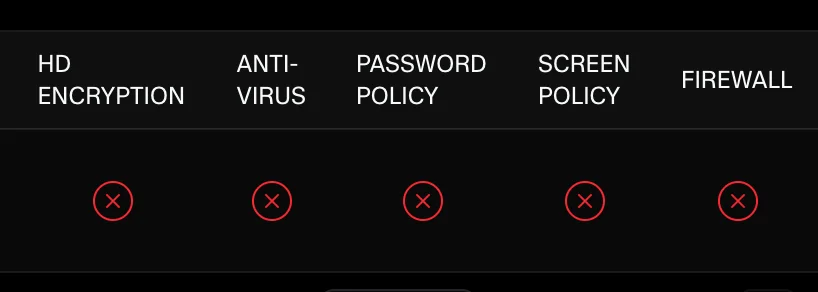
The owner you select is responsible for uploading evidence from their employee onboarding page (for example, encryption, antivirus, password policy, screen policy, and firewall evidence).
Step 3: Compliance checks update after evidence is uploaded
Once the required evidence is uploaded, SecureSlate updates the asset compliance checks automatically in Asset Management.