
Controls
Deactivate a Control
In some situations, a control may no longer be applicable or actively managed (for example, a control tied to a retired system or a framework you are not currently pursuing). Instead of deleting it, you can deactivate the control to pause tracking while preserving its history.
Deactivating a control stops it from being actively tracked as part of your live control set, but keeps the record available for future review and audits.
Requirements
- You need sufficient permissions to manage Controls in SecureSlate.
- Prepare a short justification for why the control is being deactivated, in case auditors or stakeholders ask for context.
How to deactivate a control
- Go to the Controls page: In the left-hand menu, click Compliance → Controls.
- Locate the control: Find the control you want to deactivate in the table and click its name to open the drawer.
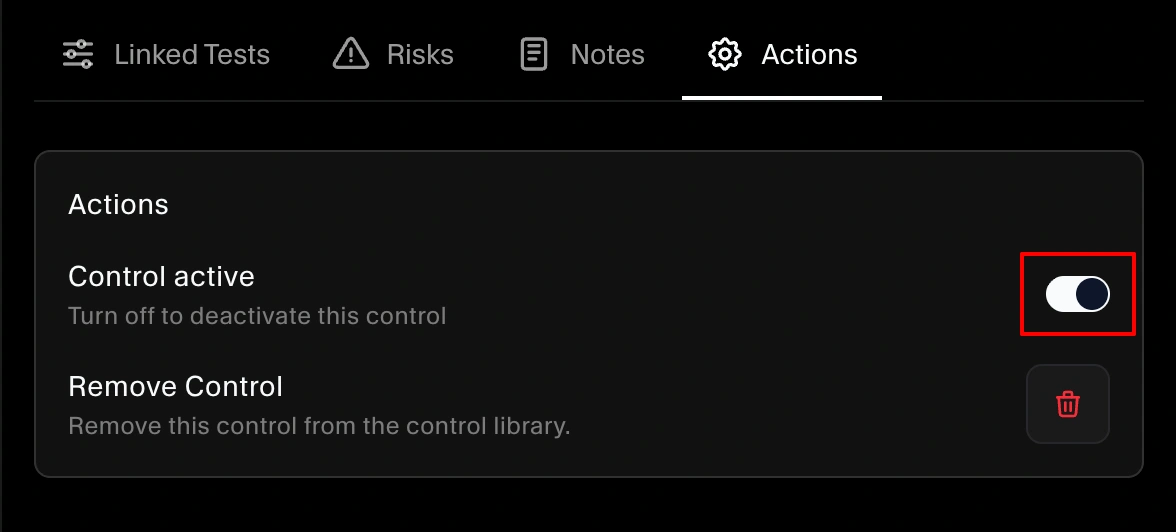
- Open Actions: In the control drawer, go to the Actions tab.
- Choose Deactivate: Select Deactivate control (or toggle the deactivate option).
- Confirm and save: Confirm the action to apply the change.
Once deactivated, the control will no longer be counted as part of your active, in-scope controls, but its details and history remain available.
Key considerations
- Audit transparency: Record the reason for deactivation in the control’s Notes tab so your team and auditors can understand the rationale.
- Compliance impact: Deactivating a control may change how your coverage looks for certain frameworks. Review your framework mappings and coverage after deactivating.
- Reversibility: You can bring a control back into scope by reactivating it later if requirements or scope change.
How to view deactivated controls
To review or manage deactivated controls:
- Navigate to the Controls page.
- Use the filters at the top of the table to show Deactivated controls from the Status.
- Review the list of deactivated controls and open any control’s drawer for details.
How to reactivate a control
To bring a control back into active tracking:
- From the Controls page, filter for Deactivated controls.
- Click the control you want to restore to open the drawer.
- Go to the Actions tab and choose Reactivate.
- Confirm the change so the control returns to your active controls list.
For additional help, reach out to SecureSlate support through in-app chat or email at support@getsecureslate.com.
