
Optimize your workflow
Updating Audit Evidence
Once an audit has started, any new evidence should be uploaded directly from the Audit page, not from the general Tests or Data Room views. This keeps your updates tied to the active audit and notifies your auditor when evidence is ready for review.
Find the flagged test
Go to the Audit page and either:
- Filter by Flagged items to see everything that needs your attention, or
- Navigate to the specific test that has been flagged by your auditor.
Open the flagged test to view its details. You’ll see the current status, category, framework, and other metadata at the top.
Upload the requested evidence
Within the relevant audit test, open the Evidence tab. Click + Update Evidence to upload the requested files and add any supporting notes that explain what you’re providing.
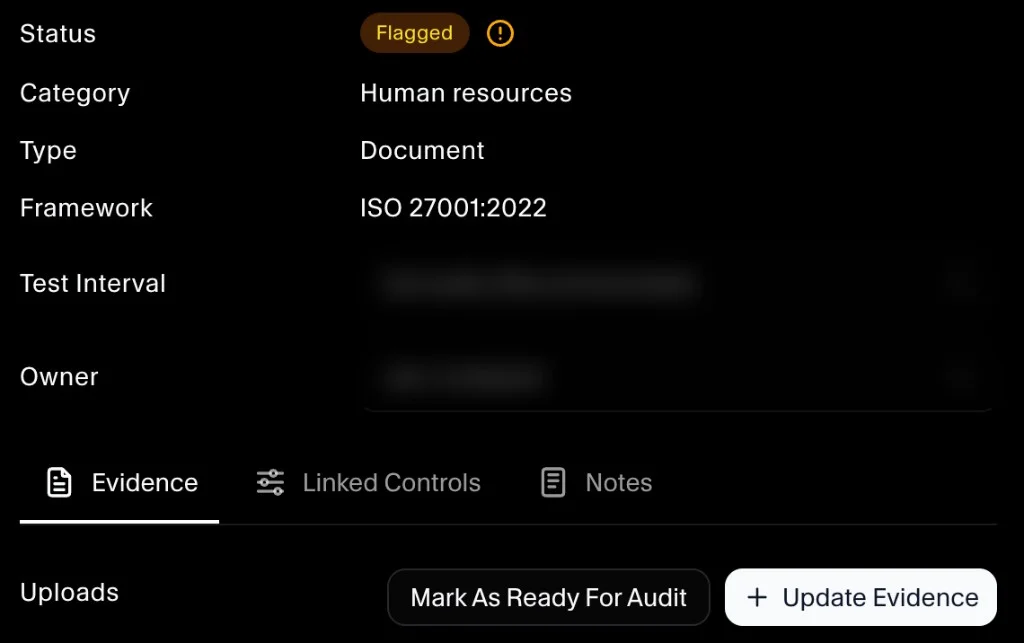
Use the Notes tab if you need to leave additional context for the auditor, such as where the evidence came from, what it demonstrates, or any exceptions that apply.
Mark as ready for audit
After uploading the evidence, click Mark As Ready For Audit. This notifies your auditor that the evidence has been updated and is ready for review.
SecureSlate will then reassess the control and your auditor will provide further feedback if required.
