
Evidence Collection
Deactivate a Test
In certain cases, you may need to disable monitoring for a particular test in SecureSlate. If a test is not critical or relevant to your organization, you can deactivate it to pause its monitoring.
Disabling a test will stop SecureSlate from actively tracking it and remove it from your list of non-compliant tests. However, this means you won't receive alerts about potential security gaps related to that test. We advise deactivating tests only if you have alternative monitoring measures in place or if the test is not applicable to your setup.
Requirements
- You need admin or owner role to the Tests section in SecureSlate.
- Prepare documentation for alternative controls or justifications, as these may be requested during audits.
How to Deactivate a Test
- Go to the Tests Section: In the left-hand menu, click on Tests and choose the relevant Category (e.g., Data Protection, User Access).
- Locate the Test: Find and select the test you want to deactivate from the displayed list and click the test to open the drawer.
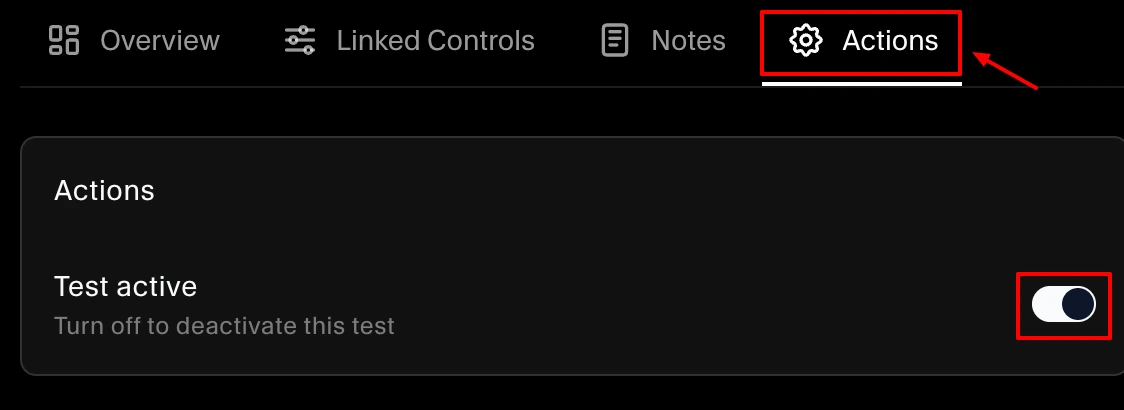
- Open the Options Menu: Click the Action tab and toggle Deactivate from the menu.
- Explain the Decision: Provide a detailed reason for deactivating the test. This clarity aids your team and auditors in understanding the rationale, such as irrelevance or coverage by other measures.
- Finalize Deactivation: Double-check your inputs and click Deactivate to apply. The test will stop being monitored and will be moved to the archived section.
Key Considerations
- Audit Transparency: The deactivation reason is internal to your SecureSlate workspace and not automatically shared with auditors. To share it during an audit, add a note in the test's audit evidence section.
- Compliance Impact: Deactivating a test may influence your compliance score temporarily. Keep an eye on this via the Dashboard and consider reactivating if needed.
- Reversibility: You can view and reactivate deactivated tests at any time (see below), with historical data preserved.
How to View Deactivated Tests
To check or manage deactivated tests:
- Navigate to the Tests section.
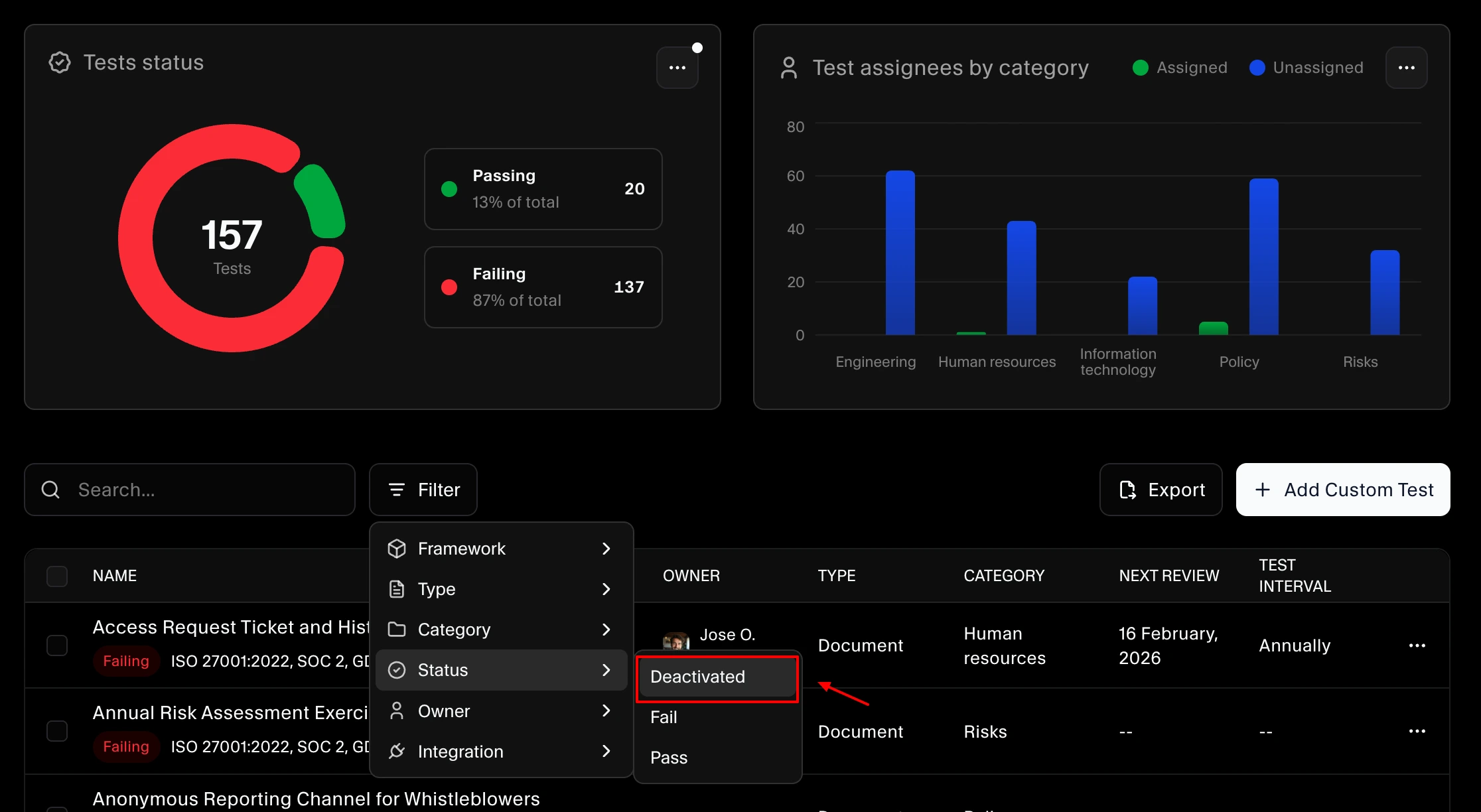
- Use the filter menu in the top-right corner and select Deactivated.
- All deactivated tests will be listed for review.
How to Reactivate a Test
To resume monitoring:
- In the Deactivated filter view, select the test and the drawer opens.
- Click on action tab and choose Reactivate.
- Confirm the action to restore monitoring, and the test will return to the active list.
For additional help, reach out to SecureSlate support through in-app chat or email at support@getsecureslate.com.
