
Trust Management
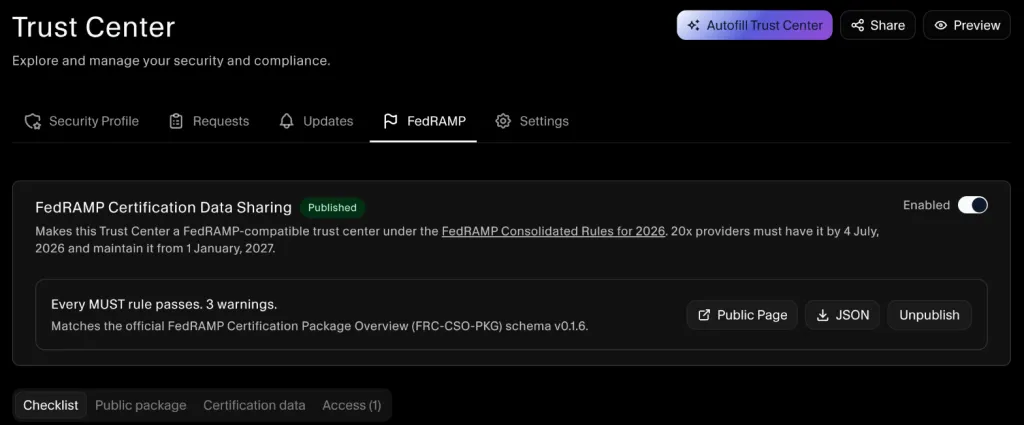
FedRAMP Certification Data Sharing
The FedRAMP module turns your SecureSlate Trust Center into a FedRAMP-compatible trust center under the FedRAMP Consolidated Rules for 2026. It covers Certification Data Sharing for Class B, C and D offerings: you publish a public package, share your Certification Data with agencies and FedRAMP, and keep a record of everyone who accessed it.
FedRAMP sets these deadlines for a FedRAMP-compatible trust center:
| Certification type | Must have it by | Must maintain it from |
|---|---|---|
| FedRAMP 20x | 4 July 2026 | 1 January 2027 |
| FedRAMP Rev5 | 1 January 2027 | 1 August 2027 |
From the app, go to Trust Center → FedRAMP.
Before you start
- Role: You need the Owner or Admin role to see and manage the FedRAMP tab.
- Trust Center hostname: Set a hostname in Trust Center → Settings first. Agencies reach your FedRAMP page through your Trust Center address, including a custom domain if you use one. See SecureSlate Trust Center.
- Policies and documents: Add the policies, procedures and reports you plan to share to your Trust Center first. The FedRAMP module links to them, so you don't upload them twice.
Step 1: Enable the module
At the top of the FedRAMP tab, turn on the Enabled switch. Four tabs appear:
- Checklist: every FedRAMP rule and whether you meet it.
- Public package: what anyone can see without signing in.
- Certification data: what only approved agencies and FedRAMP can see.
- Access: requests, approved parties and the access log.
Enabling the module doesn't publish anything. Nothing is visible on your Trust Center until you publish in Step 5.
To turn the module off, turn off the same Enabled switch. The FedRAMP page disappears from your Trust Center and agencies can no longer sign in to it. Your package, Certification Data and access records are kept, so you can turn it back on later without starting over. To hide the page but keep working on it, use Unpublish instead (see Step 5).
Step 2: Fill in the public package
Open Public package and complete each section. Click Edit on a section to change it, then save. Until you save a section for the first time, it shows Not saved.
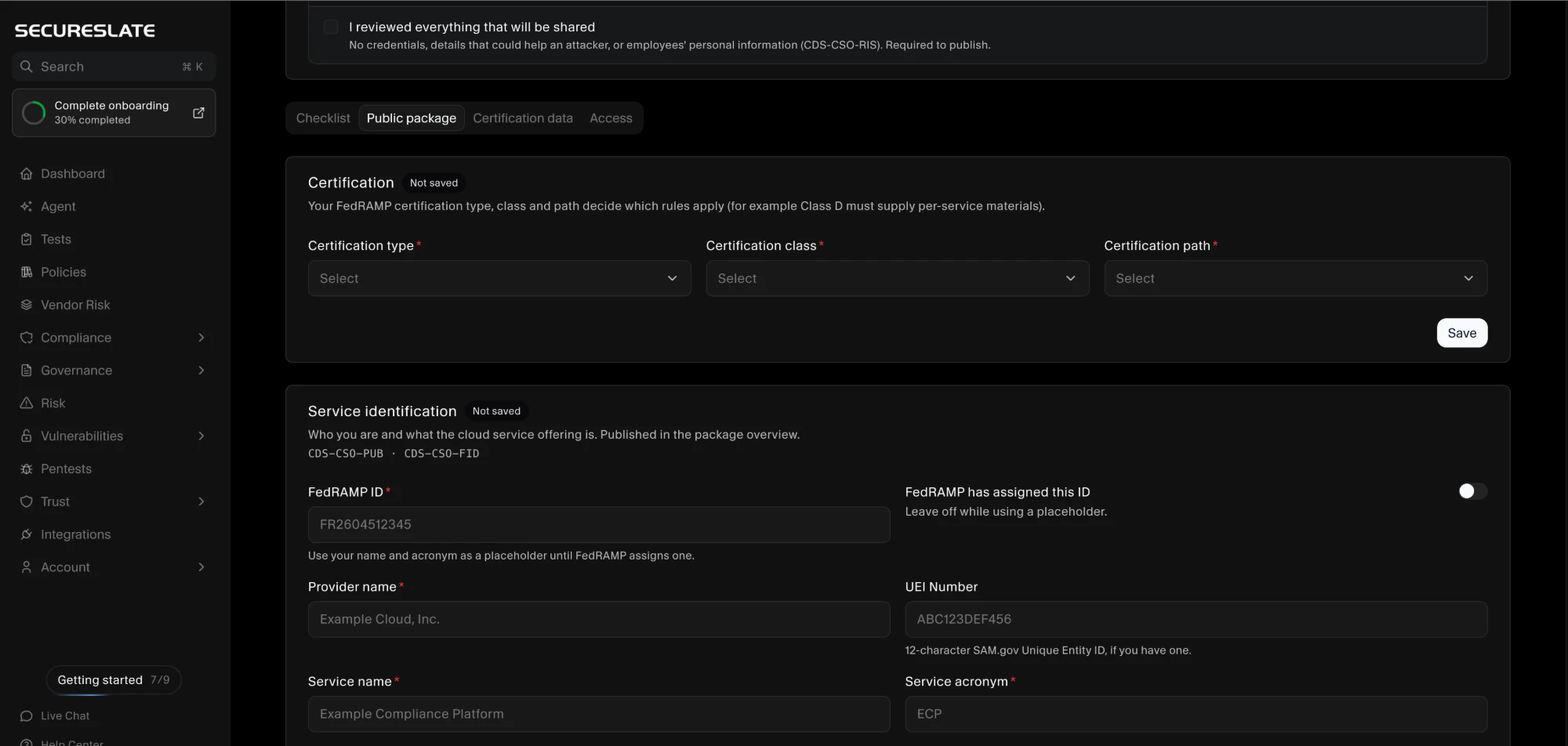
A completed package looks like this:
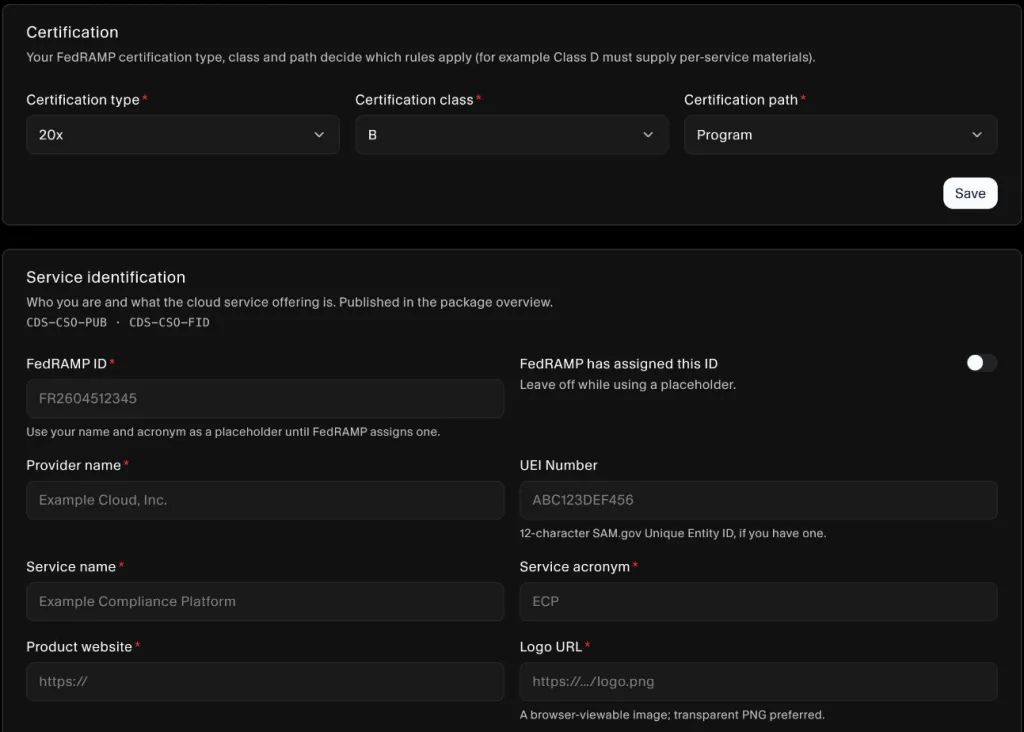
- Certification: your certification type (20x or Rev5), class and path.
- Service identification: provider name, service name and acronym, your FedRAMP ID, UEI number, website and logo. Add your FedRAMP ID as soon as FedRAMP assigns it.
- Service properties: service and deployment model, security category, business category and an overall service description.
- Contacts: at least one Security contact and one Sales contact. A role mailbox such as security@ is fine.
- Independent assessor: your current FedRAMP Recognized independent assessment service, and any advisors.
- Certified services: each service included in the certification, with a short description.
- Third-party information resources: any third-party services that hold information for the offering, as FedRAMP requires.
Step 3: Add your Certification Data
Open Certification data. This is the material agencies see after they sign in.
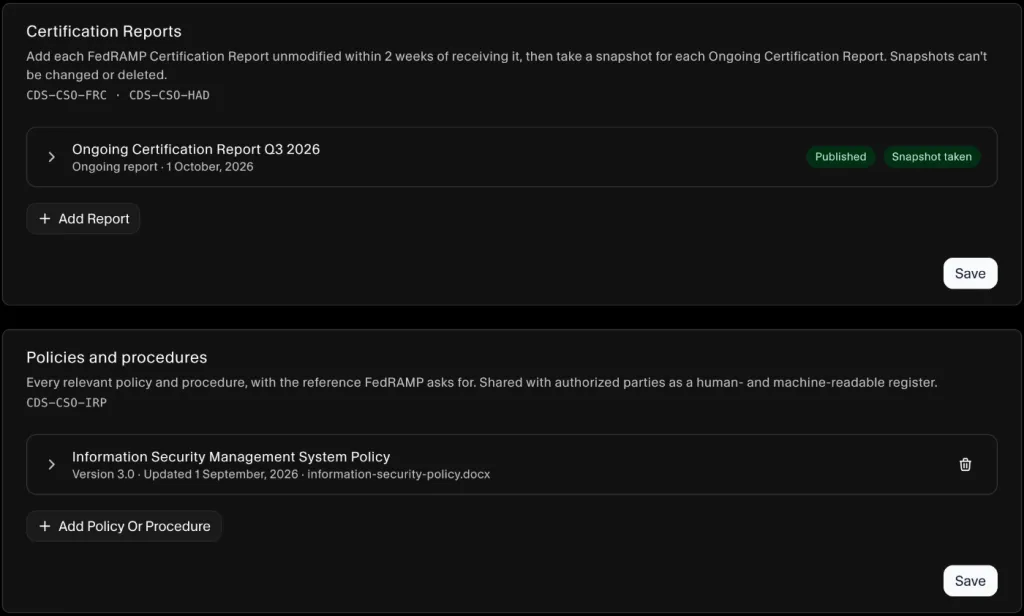
- Certification Reports: add each FedRAMP Certification Report unmodified within 2 weeks of receiving it. SecureSlate shows the date each report must be published by. For each Ongoing Certification Report, click Take snapshot to keep a copy of your Certification Data as it was at that time. Snapshots can't be changed or deleted.
- Policies and procedures: pick the Trust Center policies and documents to share. Add a short summary, the version, and the related FedRAMP practices (for example AC, IA) for each.
- Availability reporting: add your status page and, if you have one, a machine-readable status feed. The status page should stay available when the offering is down and show at least the past 30 days, including incidents.
- Trust center migration (Rev5): if your offering moved from USDA Connect, turn this on and add the dates you posted instructions and notified your agency customers.
Step 4: Set how access works
On the Access tab, open Sharing and agency access.
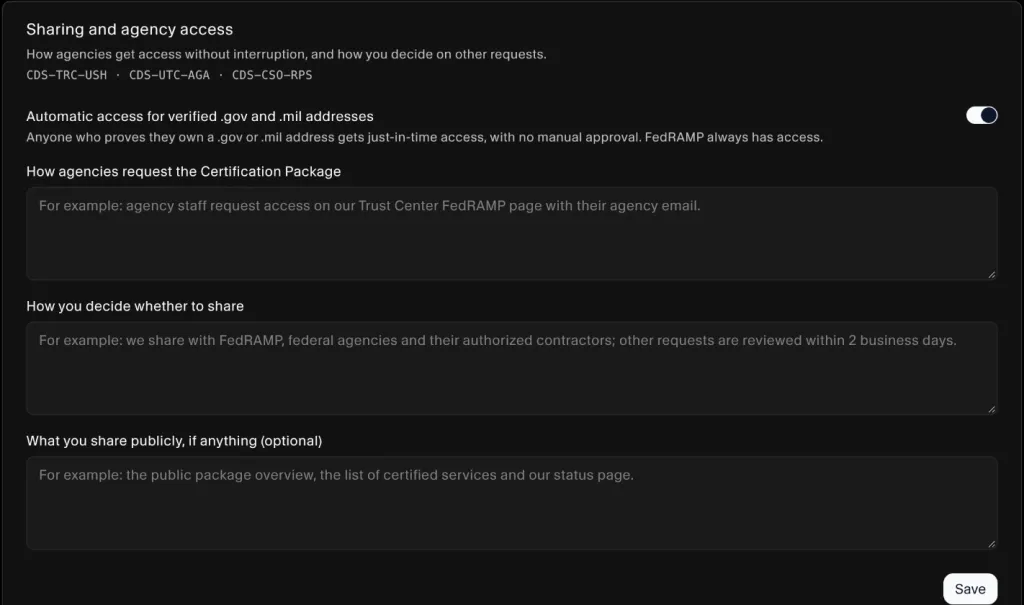
- Automatic access for verified .gov and .mil addresses: leave this on so agency staff get access just in time, with no manual approval. They only need to verify their email address.
- How agencies request the Certification Package: short instructions shown on your public page.
- How you decide whether to share: explain how you handle requests from anyone outside .gov and .mil, such as contractors.
- What you share publicly: optional. List anything you share without sign-in, such as the package overview and your status page.
Step 5: Check the rules and publish
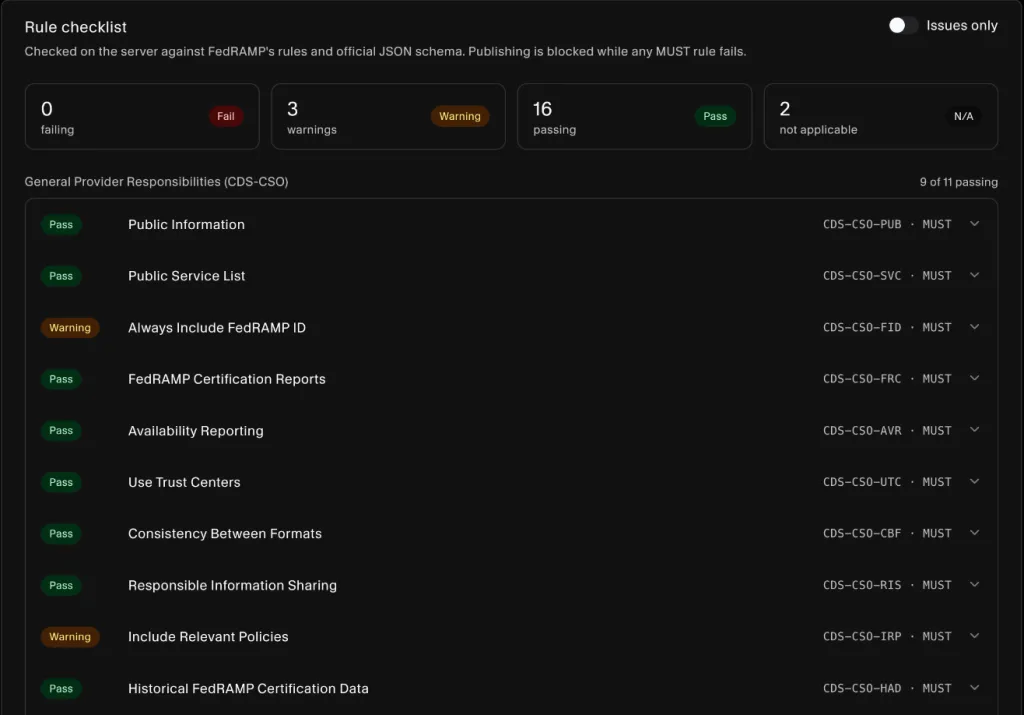
Open Checklist. SecureSlate checks your setup against every FedRAMP rule and the official FedRAMP package schema. Each rule shows one of:
- Pass: you meet the rule.
- Warning: a recommended practice you haven't met yet. It doesn't block publishing.
- Fail: a required (MUST) rule you don't meet. It blocks publishing.
- N/A: the rule doesn't apply to your certification type or class.
Turn on Show issues only to see just the rules that need work. Each failing rule tells you what to fix, such as which public package section to complete.
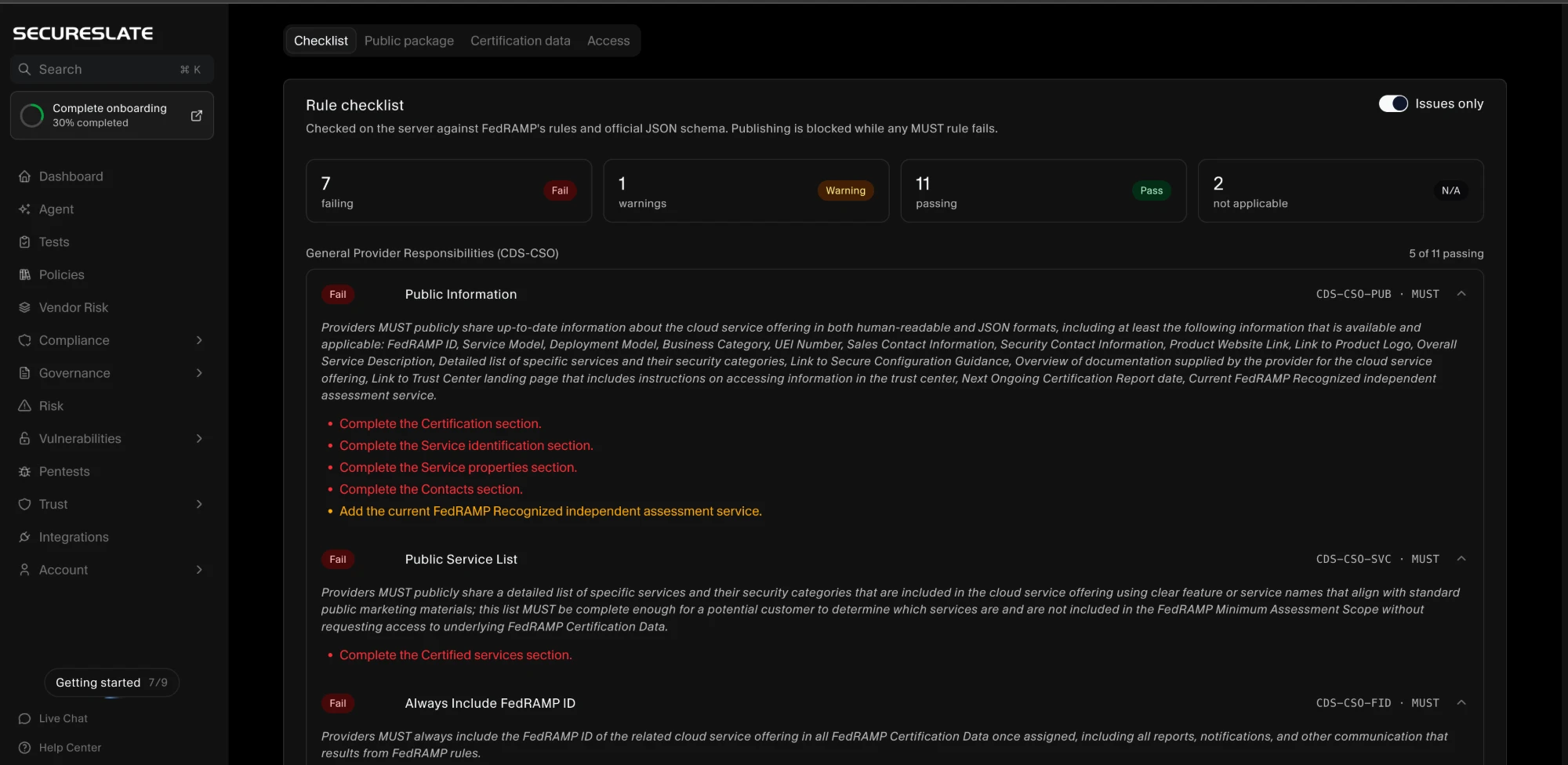
Once you fix them, every rule shows Pass, Warning or N/A:
Until then, the bar at the top of the FedRAMP tab shows how many MUST rules are failing, and Publish stays disabled.
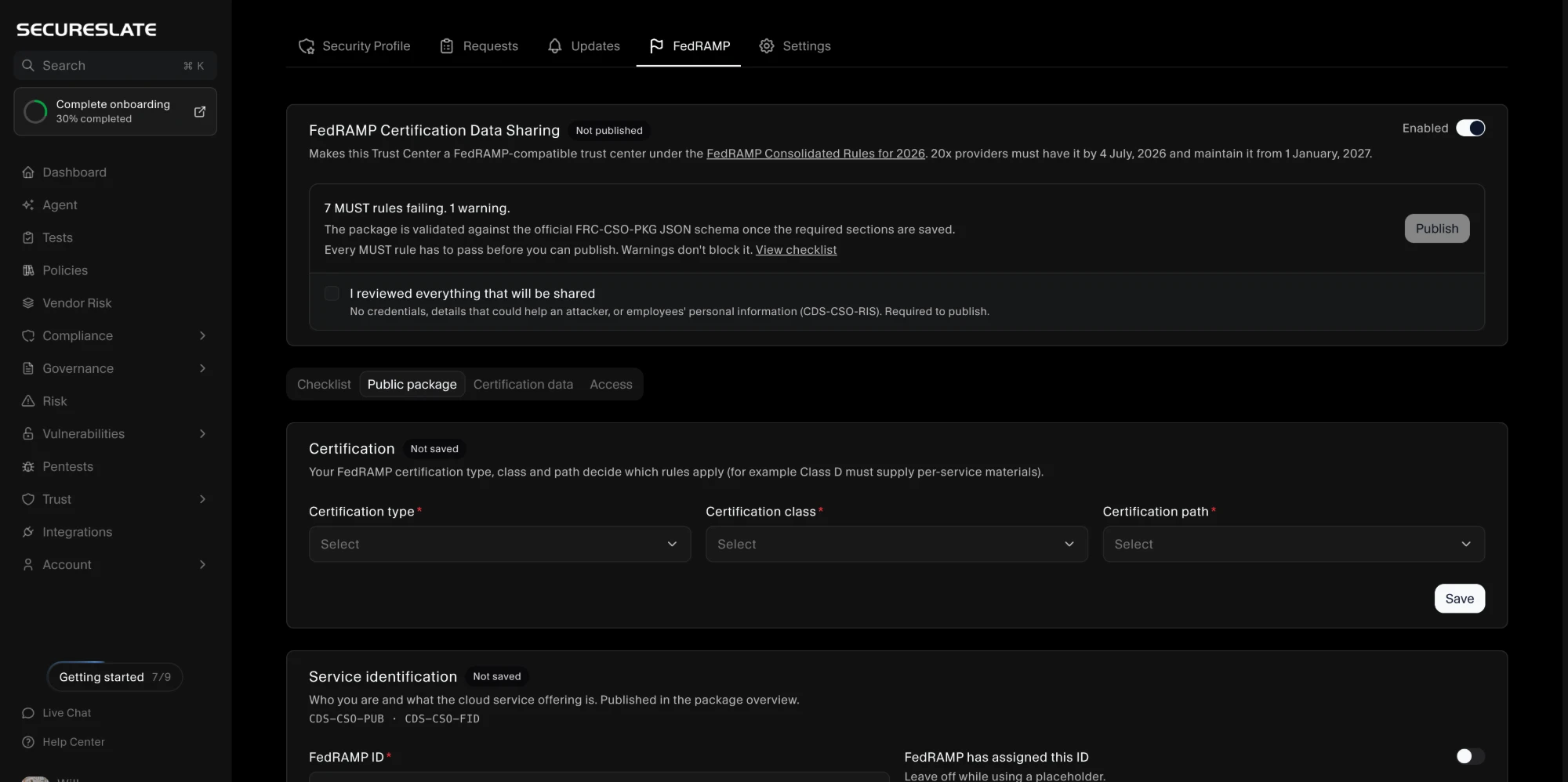
When every MUST rule passes:
- Review everything that will be shared on your public page.
- Tick I reviewed everything that will be shared to confirm it contains no sensitive information.
- Click Publish.
A FedRAMP tab now appears on your public Trust Center. Use Public page to open it. You can Unpublish at any time.
Editing after you publish
You can keep editing after publishing. Each change is checked before it goes live. If a change would break a required FedRAMP rule, it isn't saved and SecureSlate tells you which rule it would break. Fix the change and save again.
If the module shows Out of compliance, a rule has started failing since you published, for example because a Certification Report is overdue. Open Checklist to see what needs attention.
Managing access
Everything about who can see your Certification Data is on the Access tab. When requests are waiting, the tab shows how many, for example Access (2).
Access requests
Requests from addresses that don't get automatic access appear under Access requests. The Trust Center Owner gets an email for each new request. Click Decide to:
- Grant access to that one person, or to everyone at their email domain. Domain access lets the rest of their organization in without asking again.
- Deny the request with a reason. If the requester is from an agency, FedRAMP requires you to notify FedRAMP within 5 business days. SecureSlate shows the date the notice is due and your FedRAMP ID to include in it. Record the date you notified FedRAMP with Record notice.
Authorized parties
Authorized parties lists the organizations whose people and systems get uninterrupted access, with their email domains. FedRAMP is always included. Use Add party to add an agency or organization, and Revoke or Restore to change access.
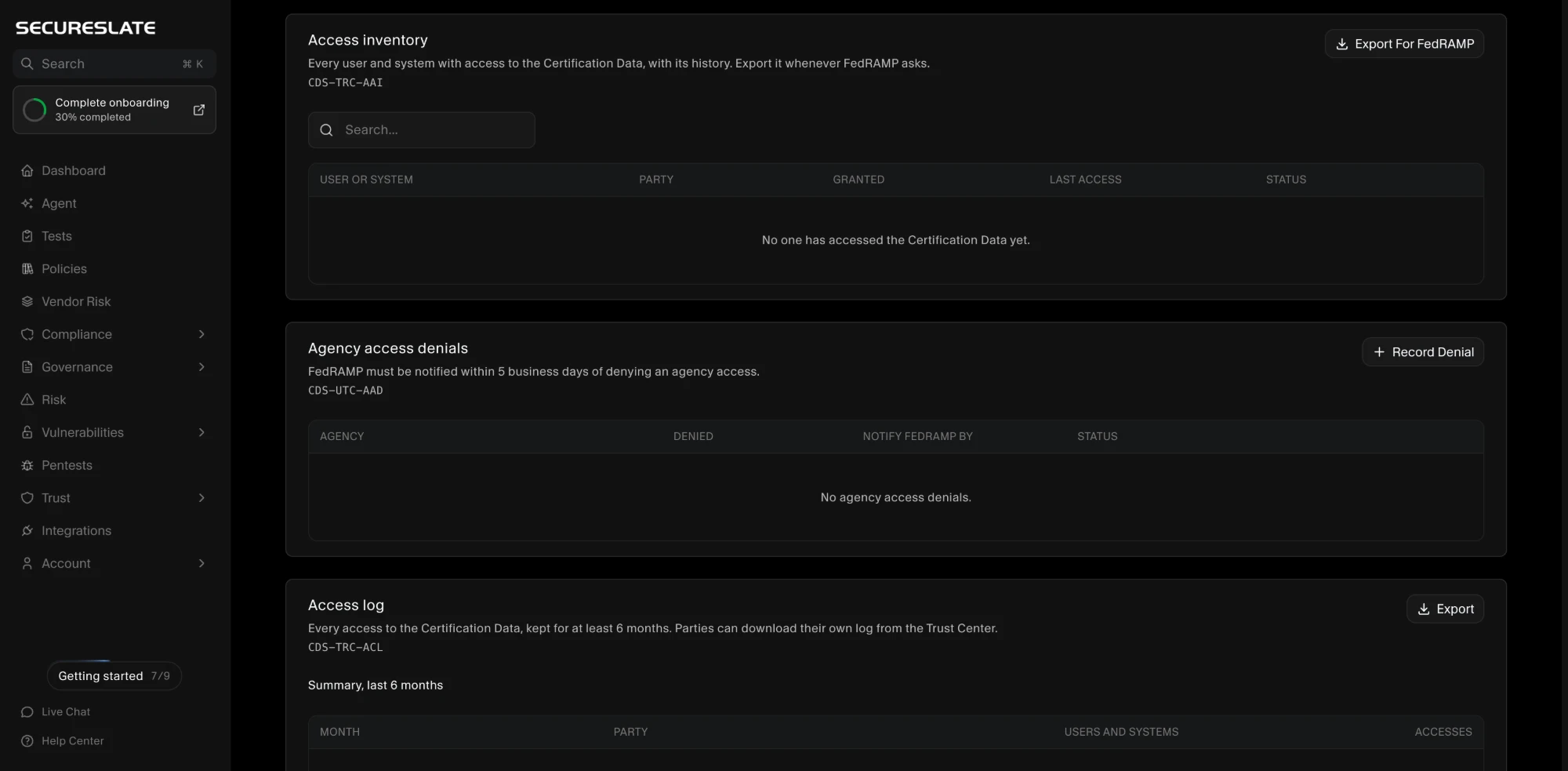
Access inventory
Access inventory lists every user and system with access to your Certification Data, with its history. Click Export for FedRAMP whenever FedRAMP asks for it.
Agency access denials
Use Agency access denials to record denials you made outside the Trust Center, such as by email, so your records stay complete. Each entry shows whether the FedRAMP notice is due, overdue or recorded.
Access log
Access log shows every access to your Certification Data by a person or an API key, with the date and what was opened. It also keeps a monthly summary for the last 6 months, by party. Click Export to download it.
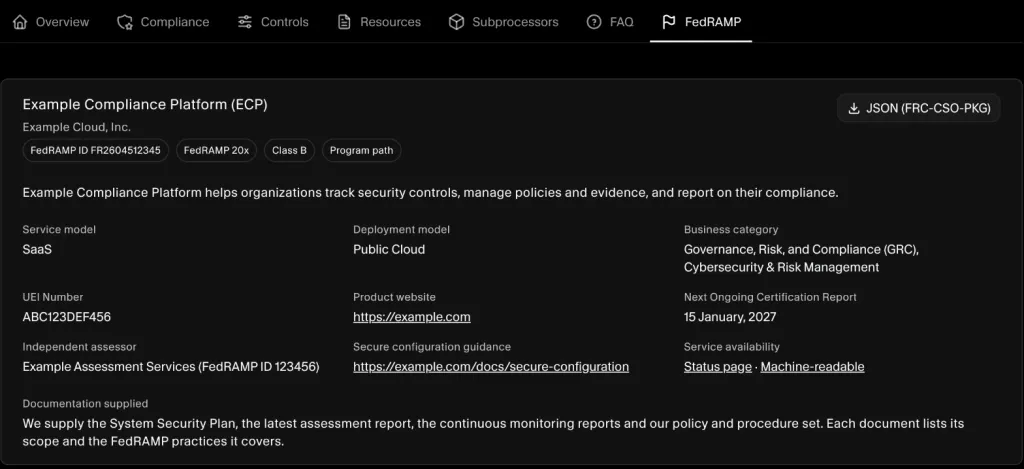
What agencies see
Your public FedRAMP page shows the package overview to anyone, with a Download JSON link to the machine-readable package.
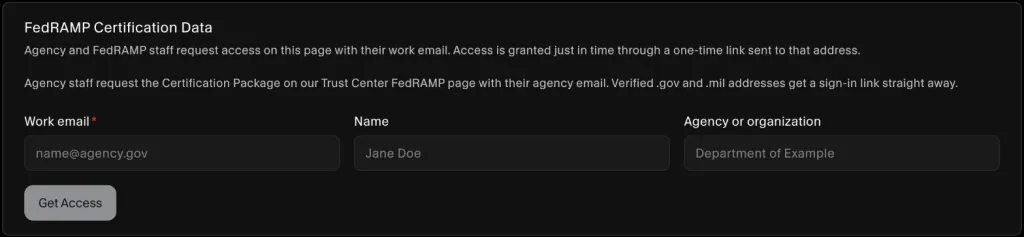
Requesting access
Agency and FedRAMP staff enter their work email under FedRAMP Certification Data. SecureSlate emails them a one-time sign-in link that works once and expires after 30 minutes. Verified .gov and .mil addresses get the link straight away. Other addresses get the link once you grant access.
After signing in
Signed-in visitors see:
- FedRAMP Certification Reports, which they can open.
- Policies and procedures, which they can download or open.
- Historical snapshots of the Certification Data at each Ongoing Certification Report.
- My Access Log, a record of their own organization's access, downloadable as CSV or JSON.
- API keys for FedRAMP, for connecting GRC tools.
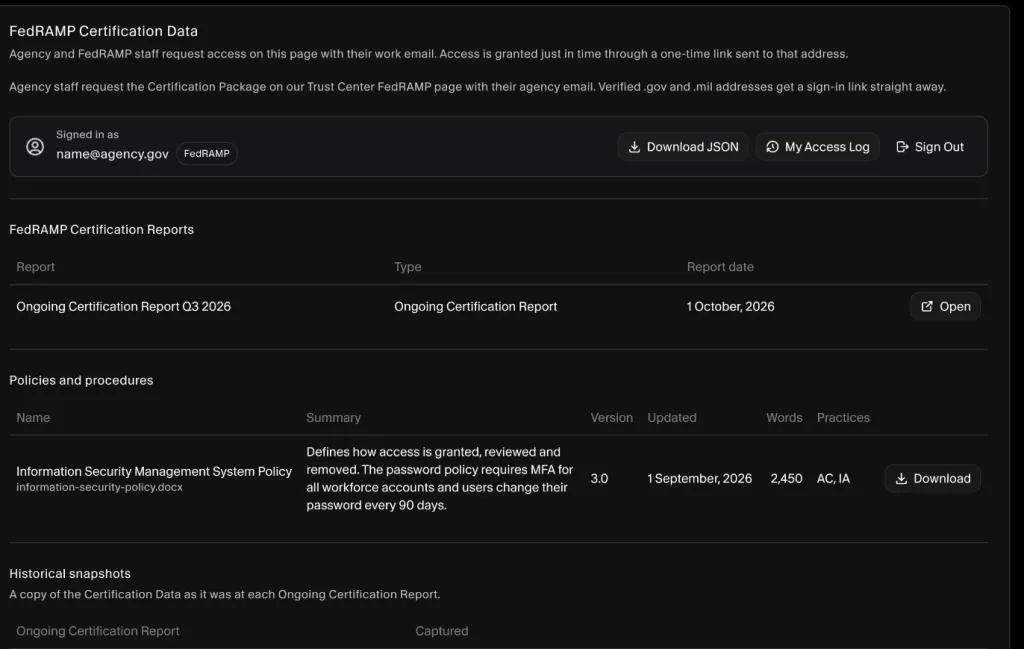
Visitors are signed out after 30 minutes without activity, or 12 hours after signing in, whichever comes first. They can also click Sign Out.
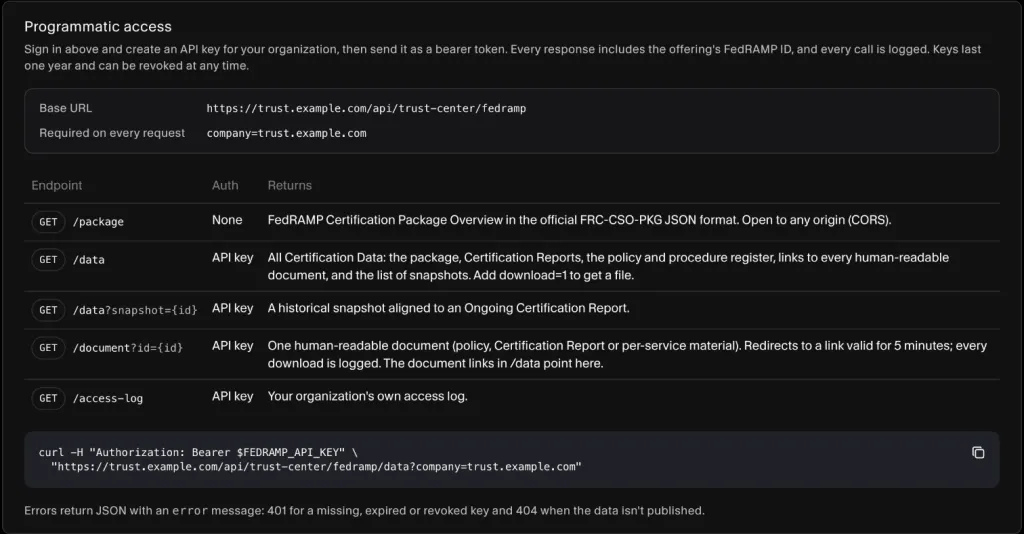
Programmatic access
Agencies can read your Certification Data from their own GRC tools and systems:
- A signed-in visitor creates a key under API keys for FedRAMP. The key is shown once, so they copy it right away.
- Their tool sends the key with each request. The base URL and every endpoint are listed under Programmatic access on your public FedRAMP page.
For example, to fetch all Certification Data from a Trust Center at trust.example.com:
curl -H "Authorization: Bearer $FEDRAMP_API_KEY" \
  "https://trust.example.com/api/trust-center/fedramp/data?company=trust.example.com"
Replace trust.example.com with your Trust Center address. The public package needs no key: /api/trust-center/fedramp/package?company=trust.example.com.
Keys last one year and can be revoked at any time by anyone in their organization with access. Every call is recorded in your access log. If your Trust Center uses a custom domain, the endpoints use it too.
FAQ
Do agencies need a SecureSlate account?
No. They sign in with a one-time link sent to their work email.
Can I share with contractors or other non-government organizations?
Yes. Grant their request for one person or their whole domain, or add them as an Authorized party.
Why can't I publish?
At least one MUST rule is failing. Open Checklist, turn on Show issues only, and fix each failing rule.
Why wasn't my edit saved?
After publishing, edits that would break a required FedRAMP rule aren't saved. The message tells you which rule. Adjust the change and save again.
Does turning off the module delete my data?
No. Disabling the module or unpublishing hides the FedRAMP page from your Trust Center. Your package, Certification Data and access records stay in place.
