
Risk Management
Getting Started with Risk Management
The Risk Management workspace in SecureSlate helps you identify, assess, and mitigate risks so you can stay compliant and make better security decisions. From a single place, you can see risk status, add or import scenarios, implement recommended controls, and tailor scoring to match your organization.

There are four main areas: Overview, Risks, Risk Library, and Settings.
Overview: snapshot of your risk posture
The Overview tab gives you a high-level view of risk across the organization:
- Risk status donut: Shows how many risks are Approved, Incomplete, In Progress, or Needs Approval.
- Inherent risk heatmap: Visualizes risk by likelihood and impact (for example, Very unlikely → Very likely vs Very low impact → Very high impact).
Use this dashboard to quickly spot where most of your risk sits (for example, many medium likelihood / medium impact items) and to track progress as you approve and treat risks.
Risks tab: manage individual risk scenarios
The Risks tab is where you manage each risk scenario and its lifecycle.
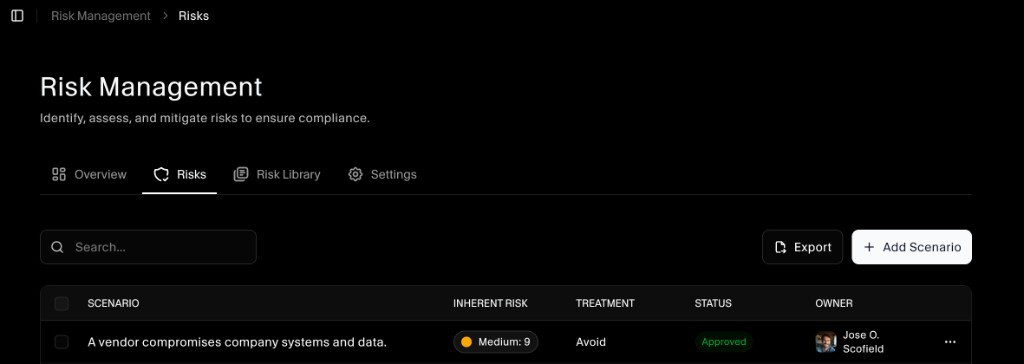
Each row typically includes:
- Scenario: The description of the risk (for example, “A vendor compromises company systems and data.”).
- Inherent risk: The calculated score/level before controls.
- Treatment: The chosen approach (e.g., Avoid, Mitigate, Transfer, Accept).
- Status: Whether the risk is Incomplete, In Progress, Needs Approval, or Approved.
- Owner: The person accountable for managing this risk.
Add a risk manually
To create a custom risk scenario:
- Go to Risk Management → Risks.
- Click Add Scenario.
- Enter the scenario description, select likelihood and impact, choose a treatment option, and assign an owner.
- Save the scenario.
Use manually added risks when you need to capture organization-specific scenarios that are not already covered in the Risk Library.
Risk Library: import risks with recommended controls
The Risk Library tab lets you pull in curated risk scenarios provided by SecureSlate.

Library rows include:
- Scenario: Predefined risk description.
- Categories: Related themes (for example, Privacy, Vendor relationships, Communications security).
- Recommended controls: How many controls are suggested for this risk.
- Actions: Whether the scenario has been Added to your workspace.
Add a risk from the library
- Go to Risk Management → Risk Library.
- Use Category or search to find relevant scenarios.
- Click Add on a scenario to bring it into your Risks list.
- Open the added risk from the Risks tab to review and finalize details (likelihood, impact, treatment, owner).
When you add a library risk, you can also implement the recommended controls:
- From the risk drawer, review the recommended controls section.
- Map or create controls that address the risk, and link them as recommended.
This keeps a clear line between risk scenarios and the controls you rely on to mitigate them.
Settings: customize scoring, statuses, and categories
The Settings tab lets you tune the risk model to match how your organization thinks about risk.
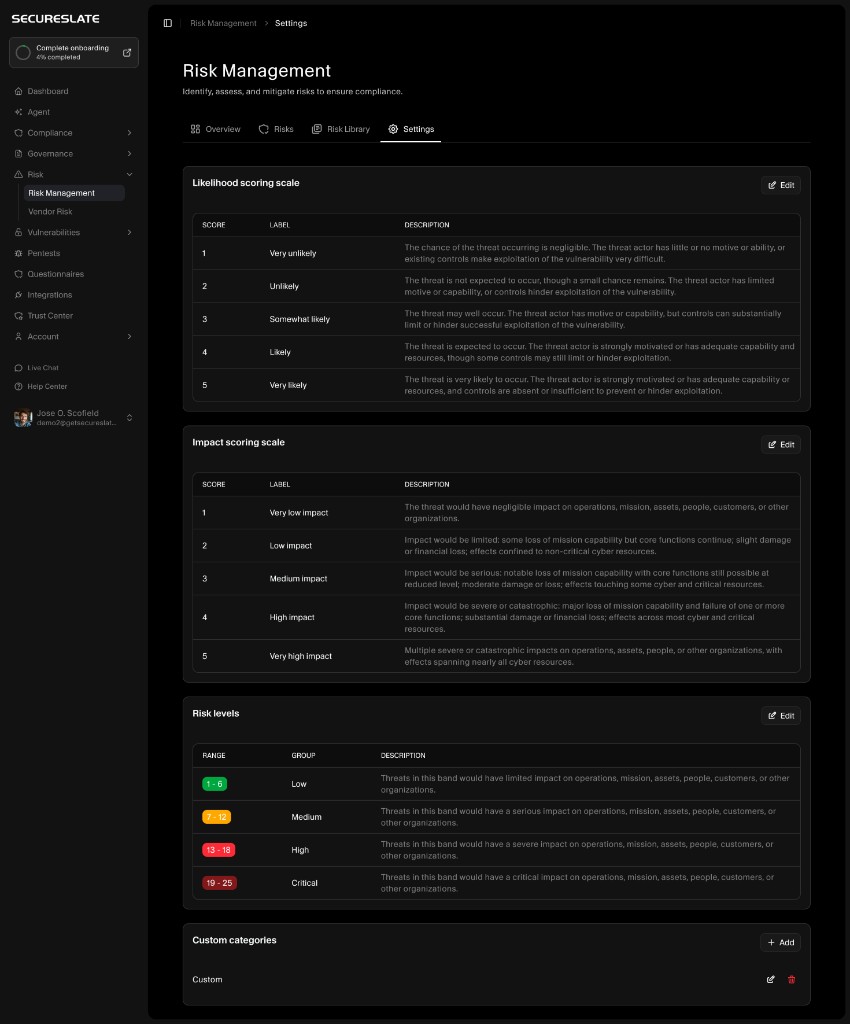
Here you can:
- Customize likelihood scoring: Define labels, numeric scores, and descriptions for likelihood levels (for example, Very unlikely → 1, Very likely → 5).
- Customize impact scoring: Define labels, scores, and descriptions for impact levels (for example, Very low impact → 1, Very high impact → 5).
- Define risk levels: Group score ranges into Low, Medium, High, and Critical bands, with clear descriptions.
- Add custom categories: Create your own risk categories (for example, “AI/ML”, “Third-party SaaS”, “Physical security”) to better organize scenarios.
Adjusting these settings ensures risk scoring aligns with your internal methodology and makes reports easier to understand for leadership and auditors.
Best practices
- Start with library scenarios for common risks, then add manual risks for organization-specific concerns.
- Always assign an owner and treatment to each risk so accountability is clear.
- Implement and track recommended controls to show how risks are being mitigated.
- Periodically review the Settings tab to confirm your scoring scales, statuses, and categories still reflect your real-world risk appetite.
