
Integrations
Connecting SecureSlate & Asana
SecureSlate connects to Asana using OAuth 2.0. After you authorize access, SecureSlate can sync workspace users for access reviews, monitor security-related tasks in a project you choose, and run automated compliance tests (including priority-tier checks when tasks are tagged P0–P3).
SecureSlate requests read and write access to workspaces, projects, tasks, users, and tags, limited by the permissions of the Asana account that completes OAuth.
Prerequisites
Before you connect, confirm you have:
- An active Asana workspace your organization uses for security or compliance work.
- Permission to authorize third-party apps in Asana (typically a workspace member; some organizations restrict OAuth apps).
- A project where security or compliance tasks live (or plan to create one), with tasks tagged for tracking (default label: security).
Connect Asana to SecureSlate
Open the integration
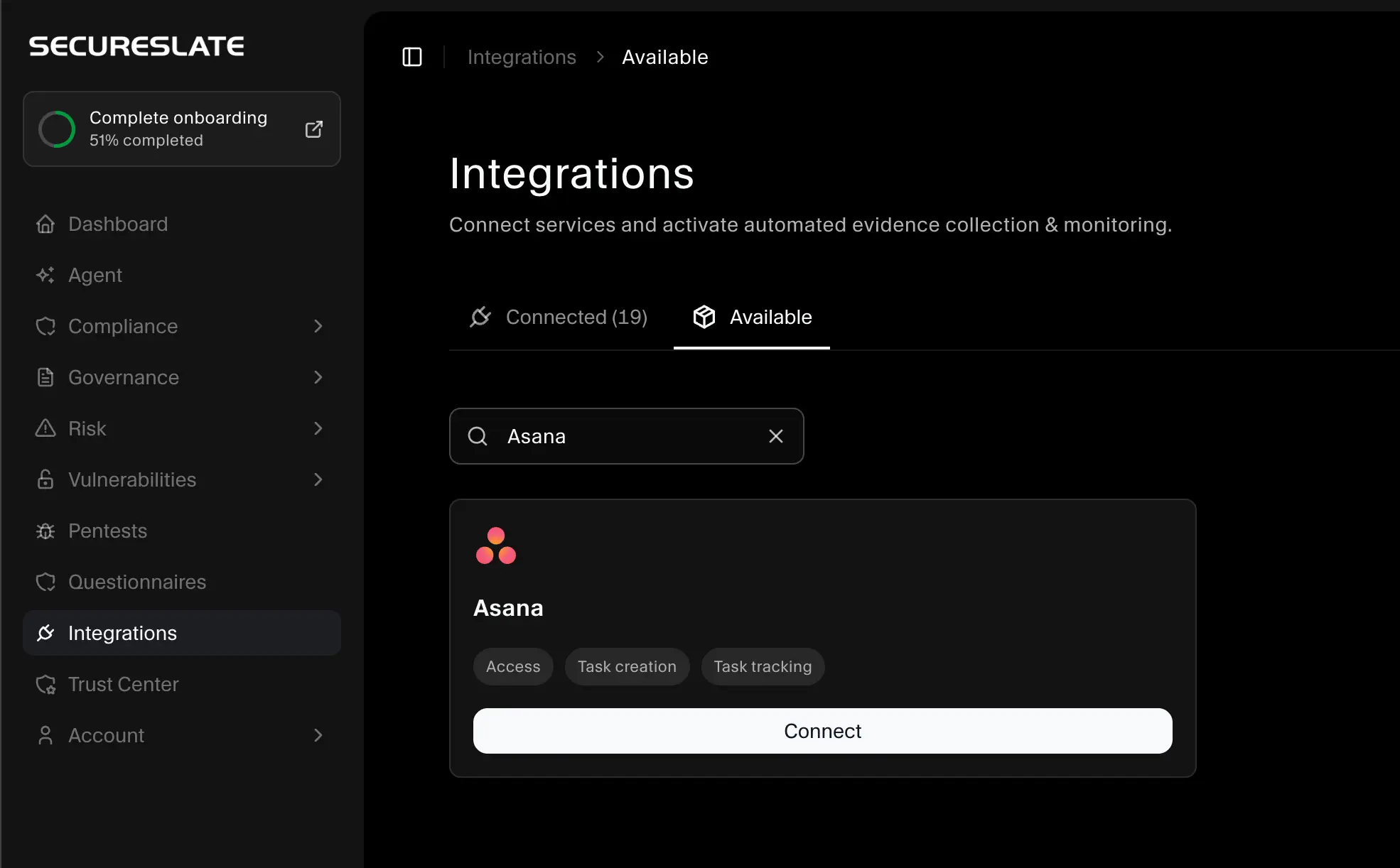
- In SecureSlate, open Integrations from the left sidebar.
- Go to the Available tab (or Explore More, depending on your layout).
- Search for Asana.
- Click Connect on the Asana card.
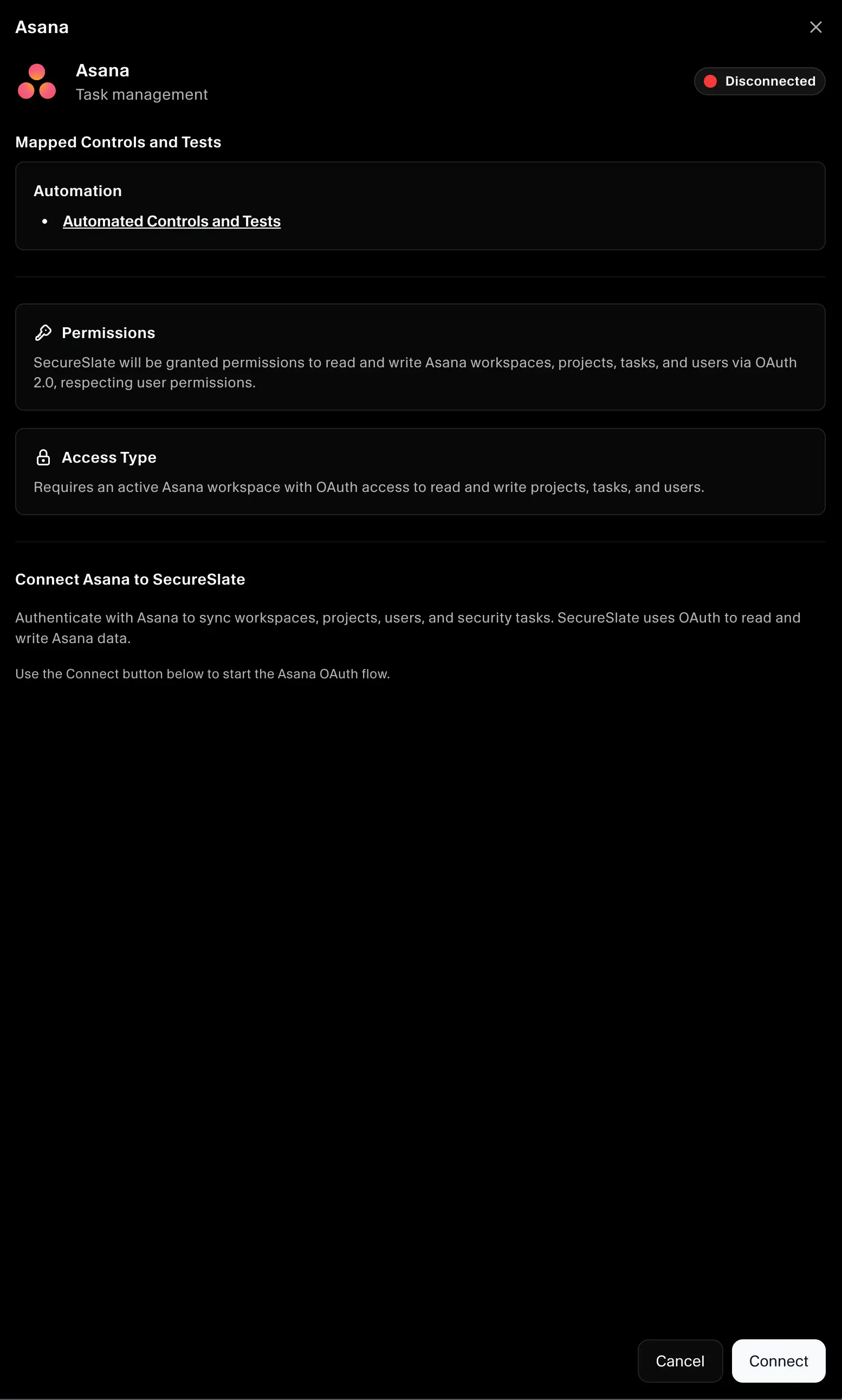
Review the integration summary:
- Category: Project management
- Permissions: OAuth access to read and write workspaces, projects, tasks, users, and tags (within your Asana permissions)
Complete OAuth
- In the connection drawer, click Connect to start the Asana OAuth flow.
- Sign in to Asana if prompted.
- Review the requested permissions and approve access for SecureSlate.
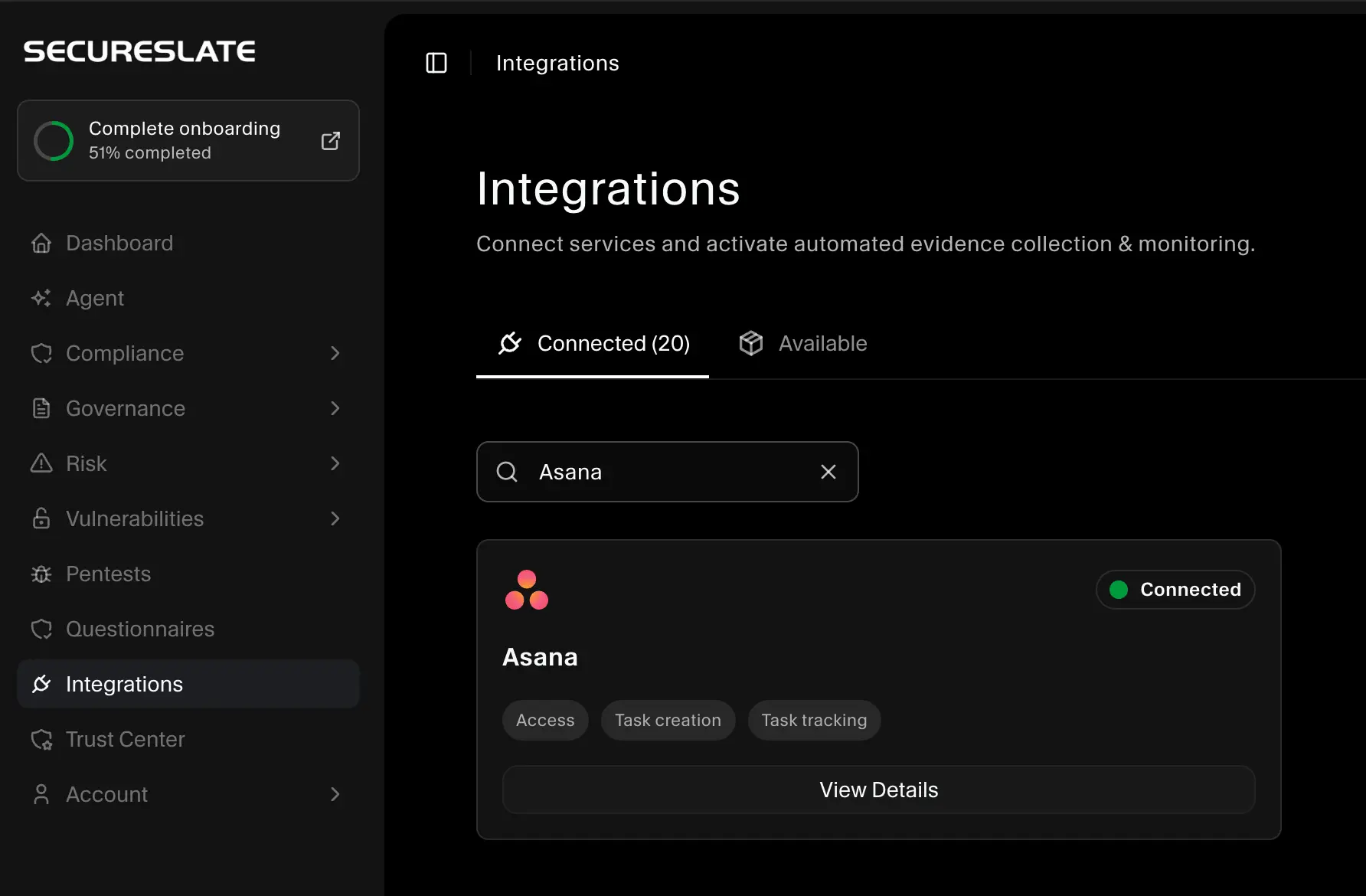
- You are redirected back to SecureSlate. The integration should appear under Connected.
If authorization fails with a permissions error, contact your SecureSlate administrator or try connecting again with an account that can grant the requested scopes.
Configure workspace and project
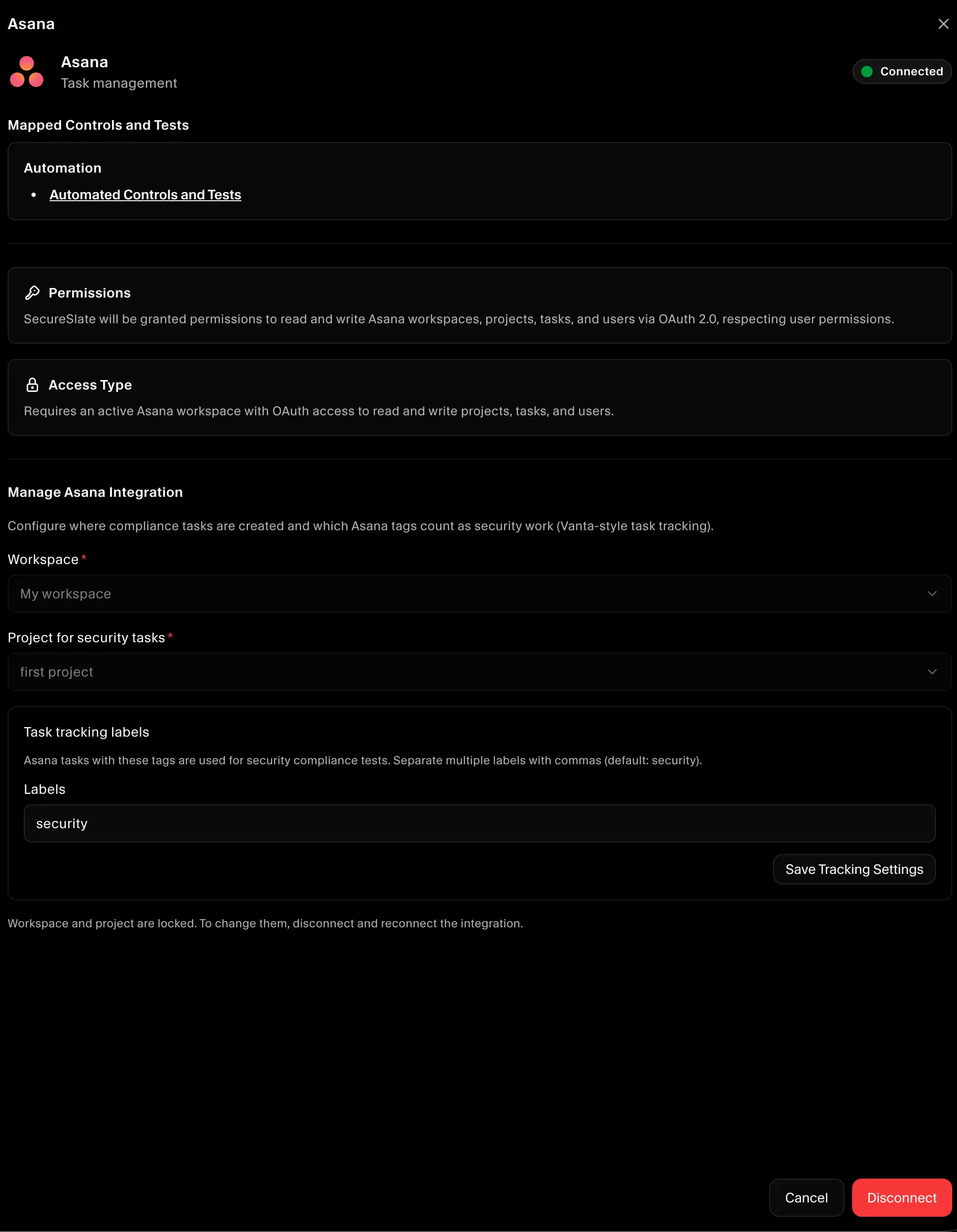
After OAuth, finish setup in the Manage Asana Integration panel:
Select a workspace
- Open the connected Asana integration (Edit connection or the integration drawer).
- Under Workspace, choose the Asana workspace that holds your security tasks.
- Save when prompted. You can then pick a project.
Select a project for security tasks
- Under Project for security tasks, choose the project SecureSlate should use for compliance task tracking.
- Once selected, the workspace and project are locked. To change them later, disconnect and reconnect Asana.
Manual project ID: If no projects appear in the dropdown (often when projects:read is not available for your token), enter the numeric project GID from the Asana URL:
- Example URL:
https://app.asana.com/0/1234567890123456/list - Project GID:
1234567890123456
Click Use this project to verify access before saving.
Task tracking labels
- After workspace and project are set, configure Task tracking labels.
- Enter comma-separated Asana tags that mark tasks as security work (default:
security). - Click Save tracking settings.
Only tasks in the selected project that match at least one of these labels are included in security compliance tests.
Priority tiers: Tag tasks with P0, P1, P2, or P3 (or tags containing those values, e.g. security-p1) so SecureSlate can evaluate open vs. resolved issues by priority.
What SecureSlate uses Asana for
Once configured, Asana data supports:
- User access reviews: Workspace users sync into SecureSlate for account inventory and owner assignment checks.
- Security task monitoring: Tasks in your selected project with your tracking labels feed automated tests (completion status, priority tiers, and related evidence).
- Vendor risk: Asana is registered as a connected vendor when the integration is established.
- Task creation from SecureSlate: Where enabled in your workflow, you can create Asana tasks from compliance checks (requires write access granted during OAuth).
Verify the integration
After setup:
- Asana appears under Connected on the Integrations page.
- User Access shows an Asana access review with synced accounts (allow a short time after first connect).
- Related Tests run after you save the project and tracking labels; open the Tests page to confirm Asana-backed checks evaluate as expected.
Troubleshooting
| Issue | What to try |
|---|---|
OAuth denied or forbidden_scopes |
Reconnect with an Asana admin or an account allowed to approve app permissions. |
| No workspaces listed | Reconnect Asana; confirm the authorizing user belongs to at least one workspace. |
| No projects in dropdown | Use Project ID (manual) with the GID from the project URL, or reconnect and ensure project read access is granted. |
| Tests say Asana task data is unavailable | Select a workspace, project, and at least one tracking label; save tracking settings. |
| Security tasks not evaluated | Add the configured labels (e.g. security) to tasks in the selected project. |
| Need to change workspace or project | Disconnect Asana, then connect again. Workspace and project lock after first selection. |
| Invalid or expired token | Disconnect and Connect again to refresh OAuth tokens. |
Disconnect Asana
- Open Integrations → Connected.
- Find Asana and open Edit connection or the manage drawer.
- Choose Disconnect and confirm.
Disconnecting removes the integration connection and related local tokens; review any in-progress access reviews or tests that depend on Asana before disconnecting.
