
Trust Management
How to Add Documents to the Knowledge Hub
There are two ways to get documents into the Knowledge Hub: upload them directly, or sync them from your existing policies and evidence in SecureSlate.
Option 1: Upload documents directly
Go to Knowledge Hub, open the Documents tab, and click Add Document.
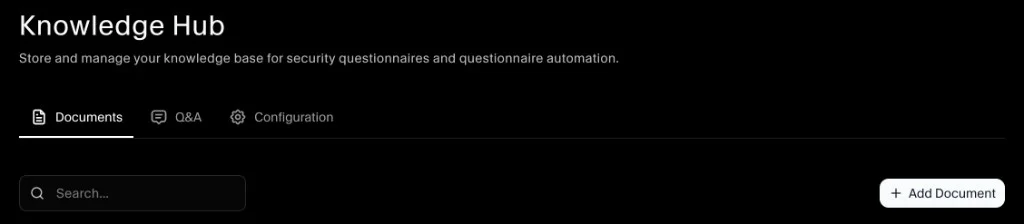
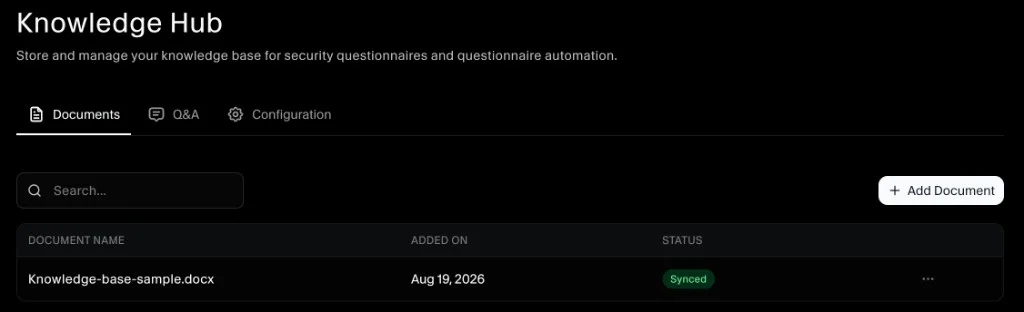
Select one or more files to upload. PDF, Word, and common document formats are supported. Once uploaded, the file appears in the document list and is available for AI answers.
Option 2: Sync from policies and evidence
If you already have files attached to policies or document-type tests in SecureSlate, you can sync them into the Knowledge Hub without re-uploading.
Open the Configuration tab and make sure the Policies and Documents source is toggled Enabled.
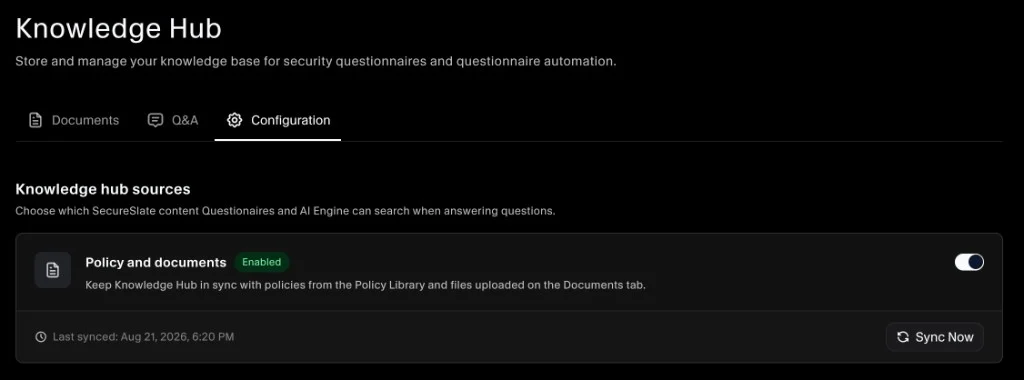
Click Sync Now to pull in the latest files. The card shows when the source was last synced. Only owners and admins can run a sync.
Managing documents
The Documents tab lists all files with their name, date added, and status.
- Delete a document to remove it. It will no longer be used for new answers.
- Re-upload a document to replace it with a newer version.
Removing a document only affects answers generated after the deletion, not ones already written.
Tips
- Add documents before generating answers. The AI draws from what is in the Knowledge Hub at the time of generation.
- Keep policies current. Re-upload or sync after a policy update so answers stay accurate.
- Sync after adding evidence. If you attach new files to a test or policy, run Sync Now so the Knowledge Hub picks them up.
