
Integrations
Connecting SecureSlate & Salesforce
SecureSlate connects to Salesforce through the Salesforce REST API using OAuth 2.0. We retrieve user accounts, profiles, and login activity to keep access reviews and identity-related compliance checks in sync. SecureSlate does not create, update, or delete users or records in your Salesforce org.
Prerequisites
Before you start, make sure you have:
- SecureSlate permissions: access to create/manage integrations (typically Admin).
- Salesforce permissions: a user account with the Approve Uninstalled Connected Apps OAuth Usage permission enabled (typically a System Administrator profile or equivalent).
- Your Salesforce instance URL (for example,
https://your-instance.salesforce.comorhttps://your-instance.my.salesforce.com).
How it works
SecureSlate uses a Connected App registered on the Salesforce platform. When you click Connect, SecureSlate redirects you to Salesforce to authorize read-only API access via OAuth. After authorization, SecureSlate receives an access token and refresh token to maintain the connection.
SecureSlate syncs the following data from your Salesforce org:
- User accounts: name, email, username, and user type
- Profiles: profile name assigned to each user
- Account status: whether each user is active or inactive
- Last login date: to support access review evidence
Salesforce permission requirements
Salesforce does not use resource-scoped API token permissions. Instead, access is controlled through profiles and permission sets in your org. The user who authorizes the OAuth connection must have:
- API Enabled: allows API access to the org
- Approve Uninstalled Connected Apps OAuth Usage: allows the user to authorize SecureSlate's Connected App
- View All Users (or equivalent): allows SecureSlate to read user directory data
These permissions are typically included in the System Administrator profile. If you use a non-admin user, confirm these permissions are granted through a profile or permission set.
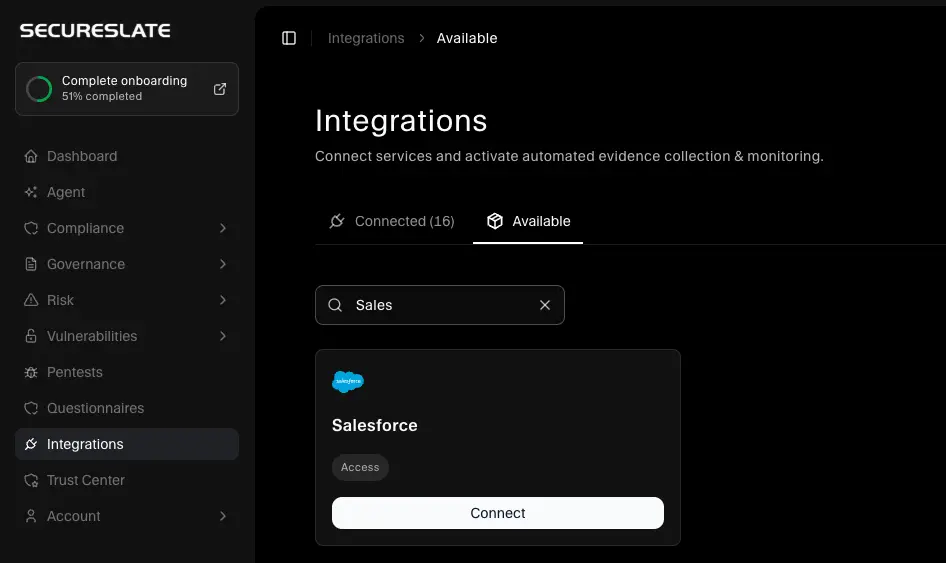
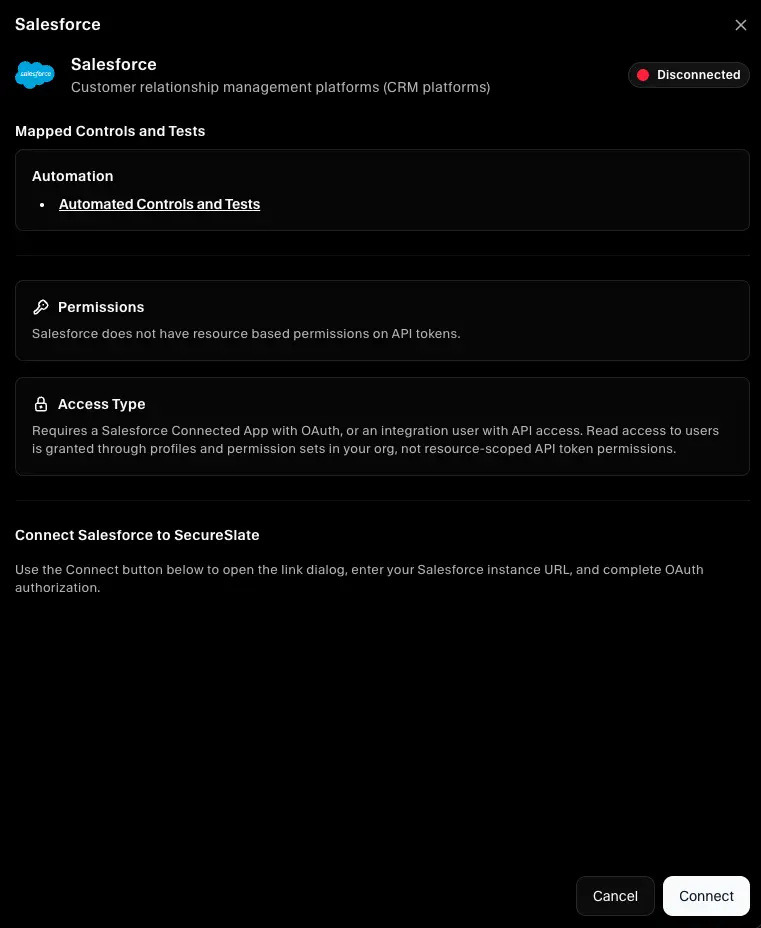
Connect Salesforce to SecureSlate
Open the integration
- In SecureSlate, open Integrations from the left sidebar.
- Go to the Available tab.
- Search for Salesforce.
- Click Connect on the Salesforce card.
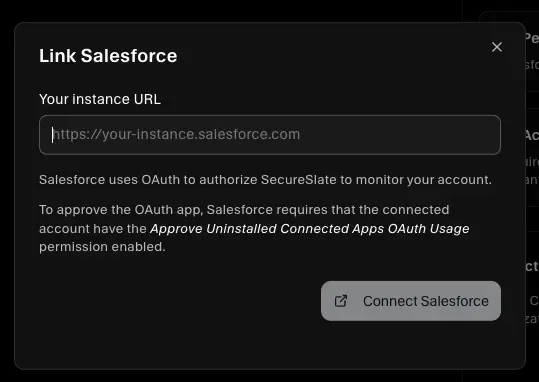
Enter your Salesforce instance URL
- In the Link Salesforce dialog, enter your Salesforce instance URL.
- Example:
https://your-instance.salesforce.comorhttps://your-instance.my.salesforce.com - You can paste just the domain (for example,
your-instance.salesforce.com), and SecureSlate will addhttps://automatically.
- Example:
- Click Connect Salesforce.
Authorize in Salesforce
- SecureSlate redirects you to the Salesforce login page.
- Sign in with the Salesforce account that has the required permissions (see Salesforce permission requirements above).
- Review the permissions SecureSlate is requesting and click Allow.
- You will be redirected back to SecureSlate automatically.
SecureSlate will begin syncing your Salesforce user directory. Initial sync time depends on the number of users in your org, but most connections start populating within a few minutes.
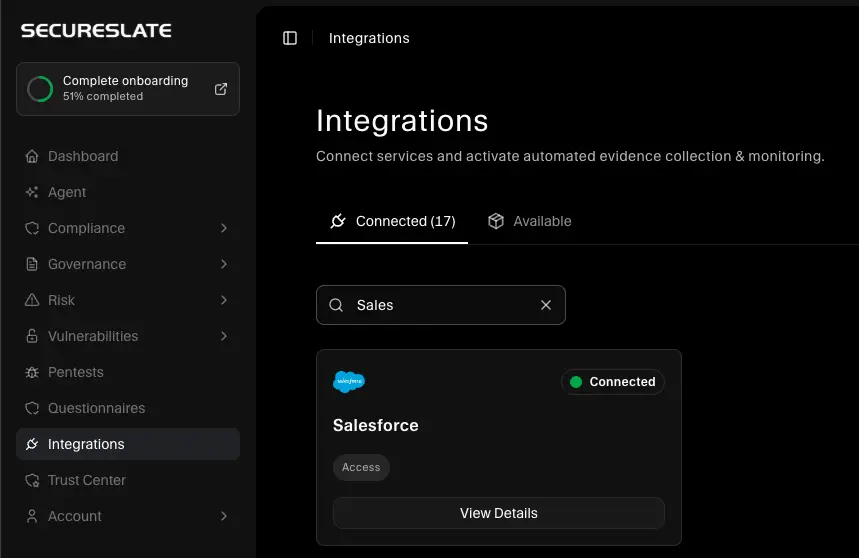
Verify the integration
After a successful connection:
- The Salesforce integration appears under Connected on the Integrations page.
- User accounts from Salesforce begin syncing for access-review workflows and automated compliance tests.
- Mapped Automated Controls and Tests run against the synced user data.
To confirm everything is working:
- Open the Integrations page and verify Salesforce shows a Connected status.
- Wait a few minutes, then check User Access to confirm Salesforce users appear in access-review areas.
- Review the Tests page to confirm Salesforce-related automated tests are running.
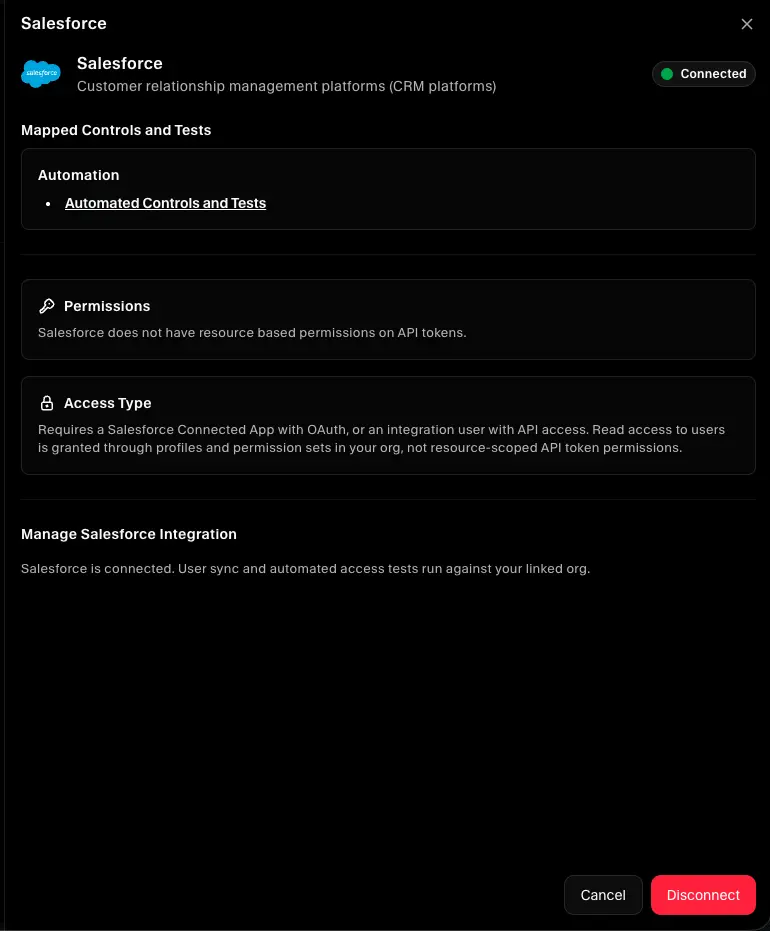
Automated controls and tests
Once connected, SecureSlate automatically creates and evaluates compliance tests mapped to your active frameworks. These include:
- Salesforce accounts associated with users: verifies all Salesforce accounts are linked to identifiable users
- Salesforce accounts deprovisioned when personnel leave: verifies accounts are disabled when personnel leave
- MFA on Salesforce: verifies multi-factor authentication enforcement
- Access reviews conducted: verifies periodic user access reviews
When this test is failing, use Auto Fix on the test Evidence tab to attach evidence from completed access reviews in User Access. See Access review auto-remediation.
These tests map to controls across ISO 27001:2022 and SOC 2 frameworks including access control (A.5.15), identity management (A.5.16), access rights (A.5.18), and secure authentication (A.8.5).
Troubleshooting
If the connection fails or data does not appear:
- Invalid instance URL: Confirm your Salesforce instance URL is correct and uses
https://. It should look likehttps://your-instance.salesforce.comorhttps://your-instance.my.salesforce.com. - OAuth permission denied: Confirm the Salesforce user has the Approve Uninstalled Connected Apps OAuth Usage permission. Without it, Salesforce will block the OAuth authorization.
- Access forbidden (403): Confirm the integration user has the View All Users permission and API Enabled is active on their profile or permission set.
- Invalid access token (401): The access token may have expired or been revoked. Disconnect and reconnect the integration in SecureSlate.
- No users synced: Confirm your Salesforce org has active users. SecureSlate reads user records via the Salesforce REST API, which requires the connected user to have read access to User objects.
- Sandbox vs production: If you are connecting a Salesforce sandbox, use the sandbox URL (for example,
https://your-instance--sandbox.sandbox.my.salesforce.com). Sandbox and production orgs use separate OAuth tokens.
