
Controls
Getting Started with Controls
The Controls page is where you track how well your organization is meeting framework requirements (such as SOC 2 or ISO 27001) in SecureSlate. Each control represents a specific requirement, and is backed by mapped frameworks, owners, and tests that provide ongoing evidence.
This page gives you both a high-level view of control health and a detailed table for filtering and acting on individual controls.
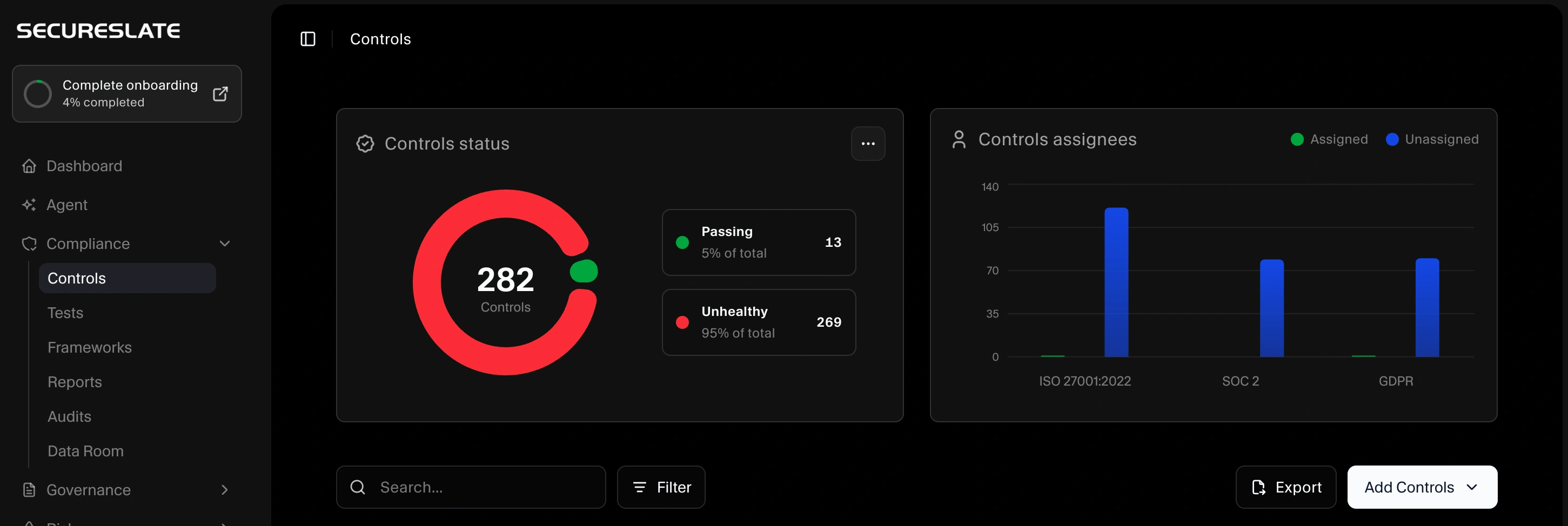
Controls status overview
At the top of the page, you’ll see:
- Controls status donut: Shows the total number of controls, plus how many are Passing vs Unhealthy.
- Controls assignees chart: Breaks down how many controls are Assigned vs Unassigned per framework (for example, ISO 27001:2022, SOC 2, GDPR).
Use these visual summaries to quickly spot gaps, such as many unhealthy controls or a large number of unassigned controls for a given framework.
Controls table
Below the charts is the main Controls table. Typical columns include:
- Control: The control name (for example, “Access control” or “A Custom Test”). Custom items may display a Custom badge.
- Owner: The person responsible for this control.
- Status: Whether the control is currently healthy or unhealthy.
- Mapped frameworks: Which framework requirements this control supports (e.g.,
ISO 27001:2022 · C.4.2). - Tests: How many tests are mapped to this control and how many are passing (for example,
1/2).
You can use:
- Search to quickly find a specific control.
- Filter to narrow by status, framework, owner, or other attributes (depending on your configuration).
Clicking a control opens its drawer, where you can review more detail, see mapped tests, and make changes.
Adding controls from the UI
On the right side above the table, use the Add Controls menu to create or bring in new controls:
- Add Manually: Create a new control directly in SecureSlate. You’ll typically provide a name, description, owner, and select the related frameworks.
- Import: Bulk-import controls from an external source (for example, a spreadsheet export or predefined framework mapping) to speed up initial setup.
After adding controls, you can map them to tests so each control has clear, auditable evidence.
How controls connect to tests and evidence
Controls, tests, and evidence are tightly linked:
- Controls represent the requirement.
- Tests represent how you check that requirement (for example, automated checks or policy-based tests).
- Evidence is what you upload or collect via integrations to prove the test, and therefore the control, is met.
From the Controls page you can:
- See how many tests are mapped to each control (and how many are passing).
- Jump into a control to review linked tests and confirm they have current evidence.
Keeping tests properly mapped and healthy is key to maintaining an accurate view of control health across frameworks.
Next steps
- Use Add Controls → Add Manually to define any missing controls that are specific to your environment.
- Make sure every important control has a clear owner and mapped frameworks.
- Review the Tests page to ensure each control has at least one relevant test with up-to-date evidence.
