
Cloud Scanning
Scan Your GCP Account
Connect Your GCP Account
SecureSlate helps you secure your Google Cloud Platform (GCP) environment by continuously scanning for misconfigurations and risky settings. After you connect GCP, all related findings will appear on the Checks tab of the Cloud overview page, filtered by GCP.
How to connect your GCP account
Follow these steps to connect GCP to SecureSlate for read-only cloud scanning:
-
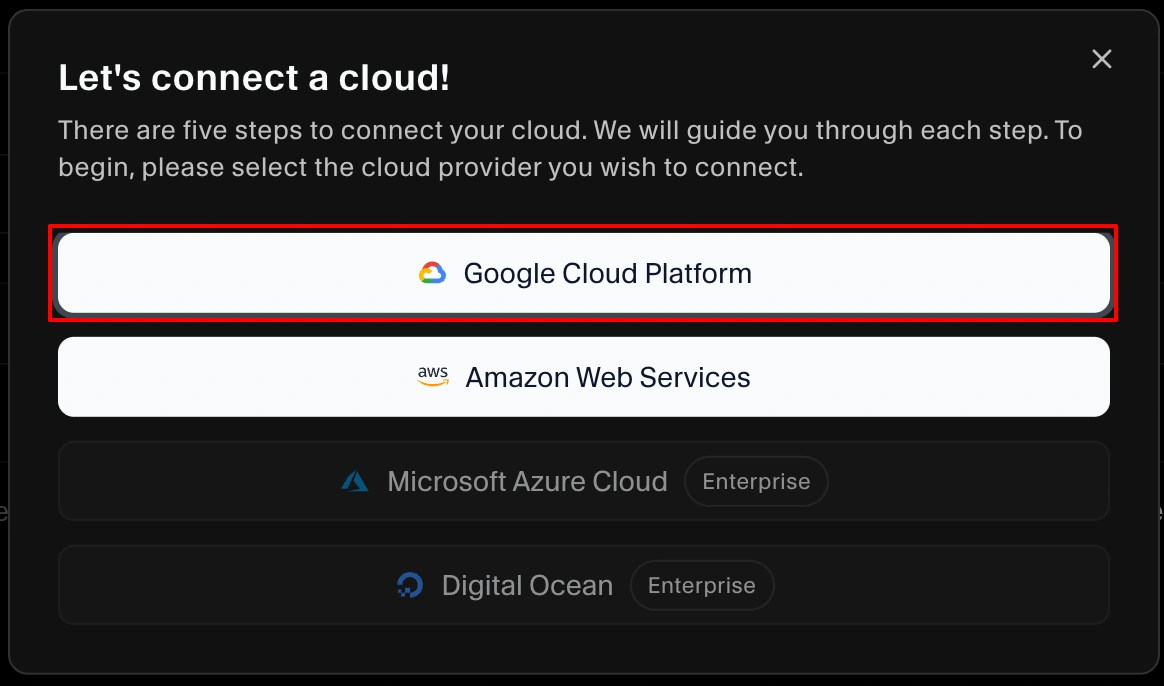
Navigate to the Cloud overview page and click Connect cloud.
-
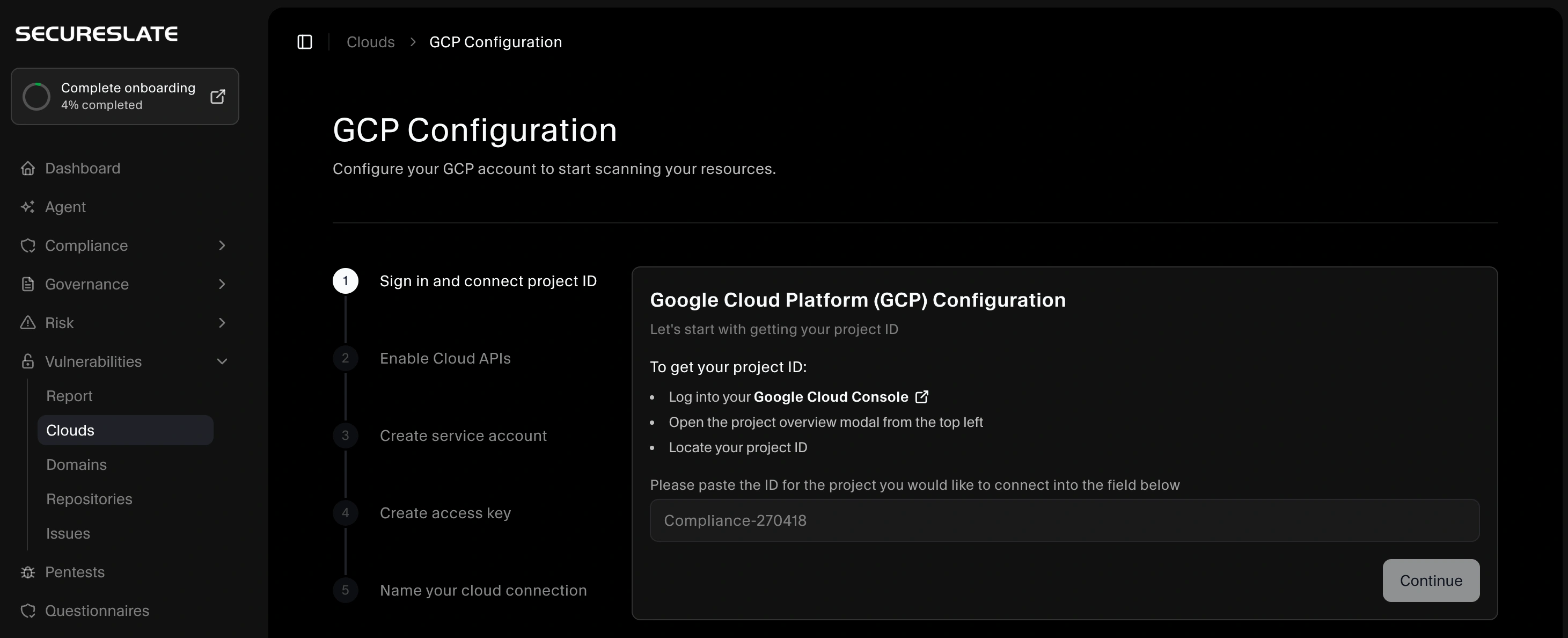
In the setup wizard, start by entering your GCP project ID to identify the project you want SecureSlate to monitor.
-
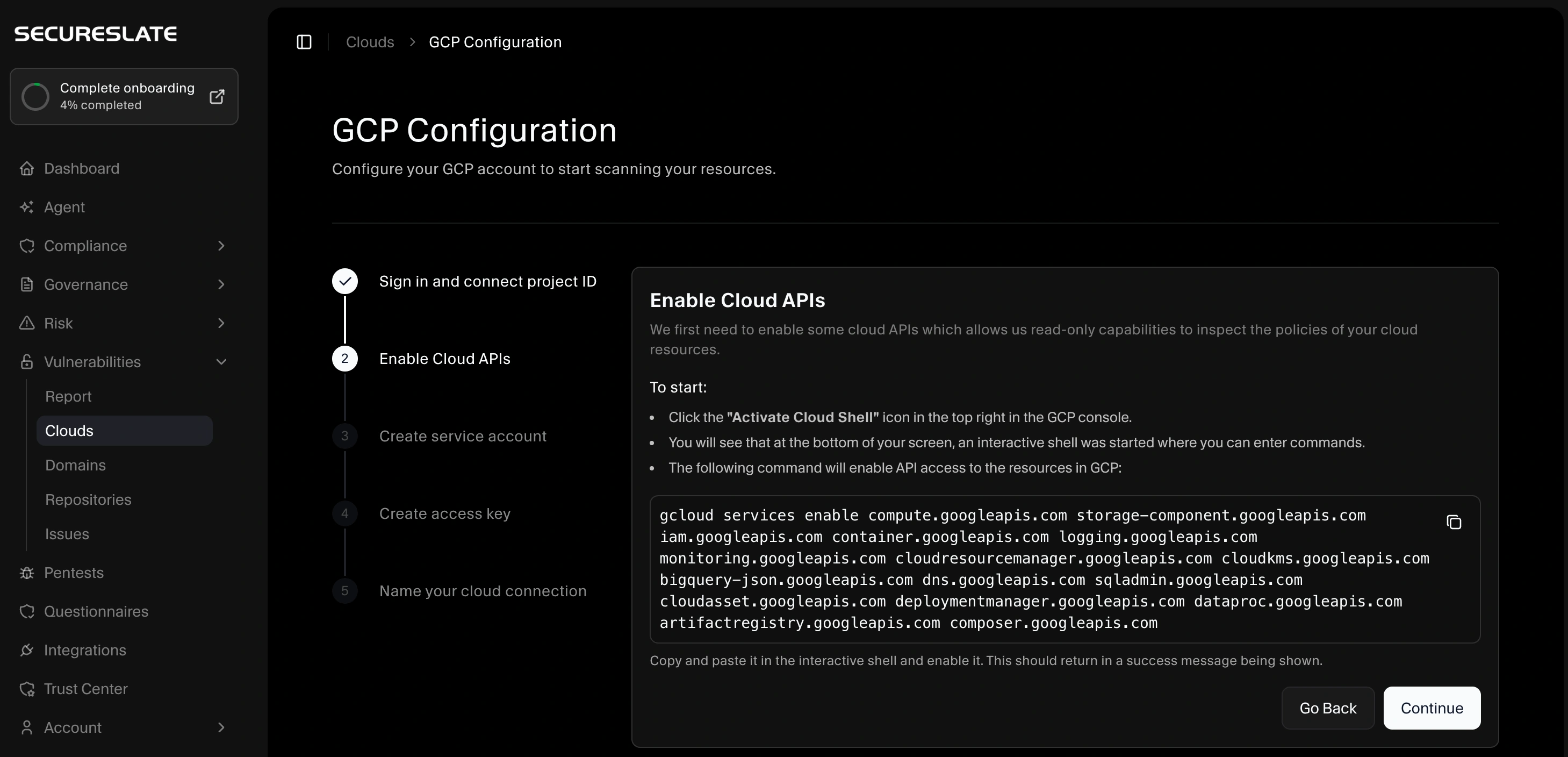
Enable API access to the specific GCP services SecureSlate needs so it can securely inspect your resources via read-only API requests.
-
Create a service account in GCP with limited, read-only access to the required services. Assign the suggested roles from the wizard, or manually ensure the service account includes all permissions shown during setup.
Note: The service account must have read-only permissions. SecureSlate only needs to read configuration data to run security checks and will never modify your resources. -
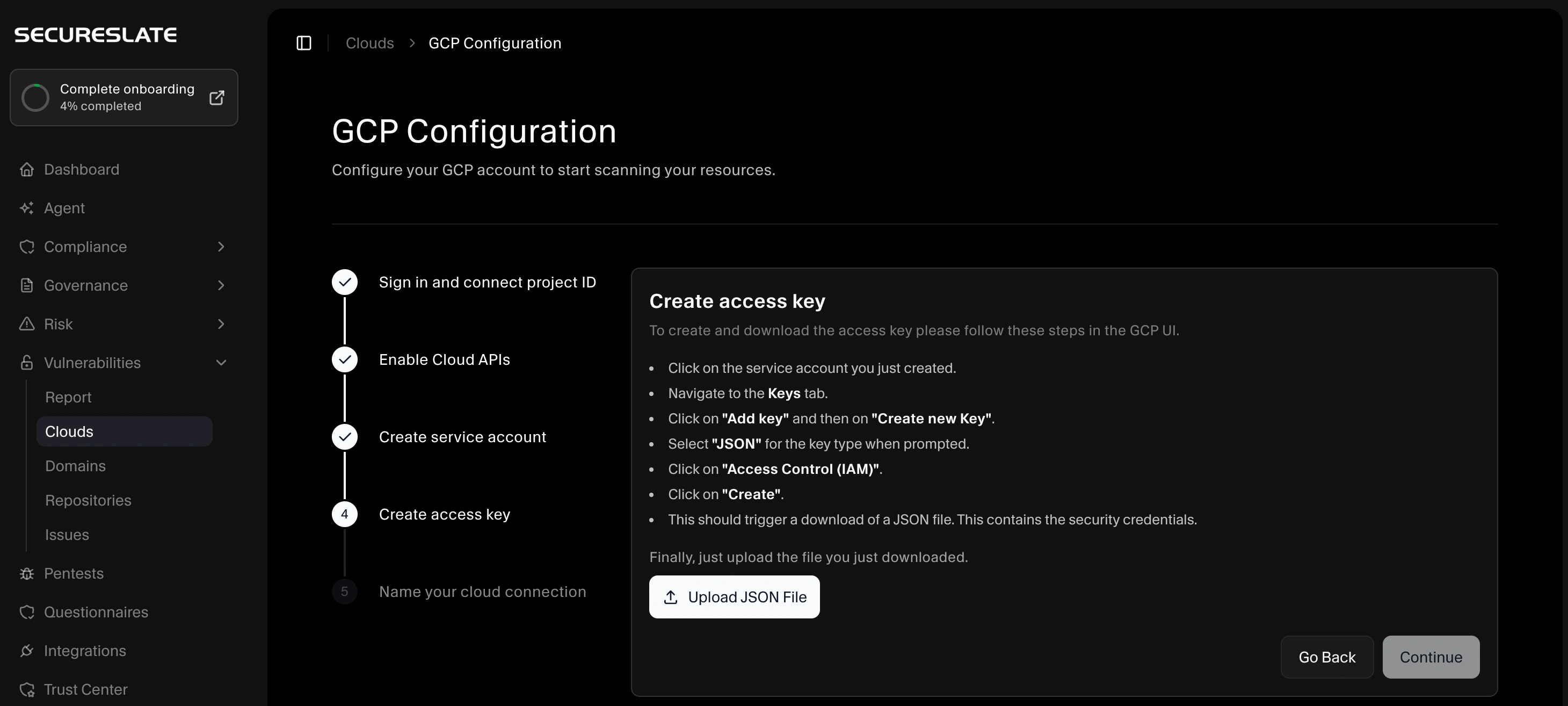
Generate a key for the service account and upload it to SecureSlate. This key allows SecureSlate to make authenticated API requests and scan your resources.
-
Give the connected project a clear name in SecureSlate and choose the environment (for example, production, staging, development). This helps you prioritize findings based on severity and impact.

-
After completing the connection, SecureSlate will begin scanning and typically report any misconfigurations that could pose a threat within 1–2 minutes.
Prerequisites
- Access to your GCP project ID.
- Permissions to enable APIs for the required GCP services.
- Ability to create and manage a read-only service account (including generating and downloading a key).
