
Getting Started
Getting Started with Employee Onboarding
Employee Onboarding
The Employee Onboarding page is where employees complete their compliance journey: device setup, policy acknowledgments, and security training. Members are limited to this page only in SecureSlate; admins and owners can also open it from the sidebar or via their profile to review or complete their own onboarding.
Who can access Employee Onboarding
| Role | How you get there |
|---|---|
| Admin or owner | From the sidebar (Employee Onboarding link), or from the bottom-left profile menu → Employee Onboarding. |
| Member | You are redirected directly to the Employee Onboarding page when you sign in. Members have access to this page only in the platform, with no other SecureSlate areas. |
Members use this same page to complete both onboarding (when they join) and offboarding (when they leave), so all required tasks stay in one place.
Opening from the profile menu (bottom left)
- Click your profile picture or name at the bottom left of the app.
- In the dropdown, select Employee Onboarding.
- You’ll land on the Employee Onboarding overview.

Employee Onboarding overview
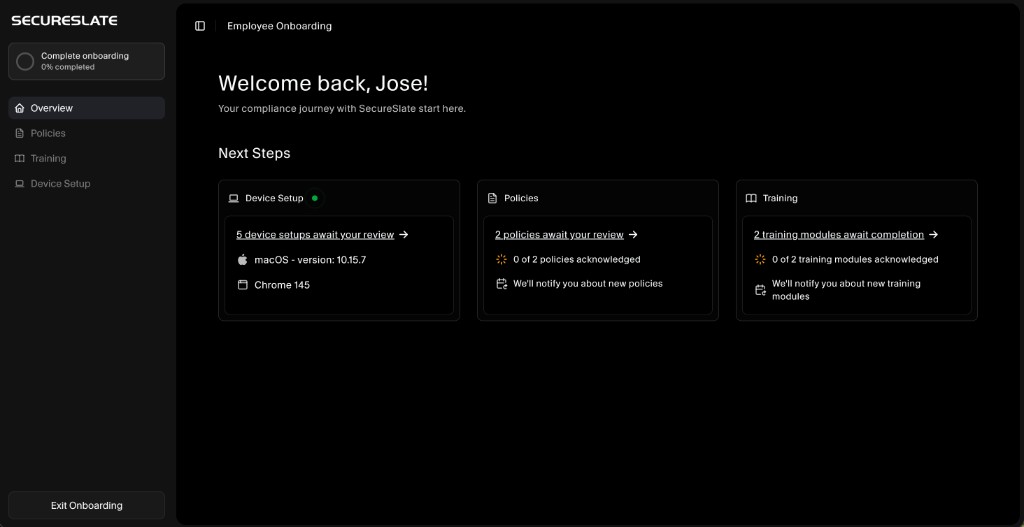
When you open Employee Onboarding, you see a welcome message and Next Steps with three areas: Device Setup, Policies, and Training. A Complete onboarding progress ring in the sidebar shows how much you’ve finished (e.g. 0% completed).
Sidebar navigation:
- Overview: Summary and next steps (default).
- Policies: Review and acknowledge policies.
- Training: Complete security training modules.
- Device Setup: Configure device security and upload evidence.
Use Exit Onboarding at the bottom of the sidebar to leave the flow (for admins/owners who have access to the rest of the app).
Policies
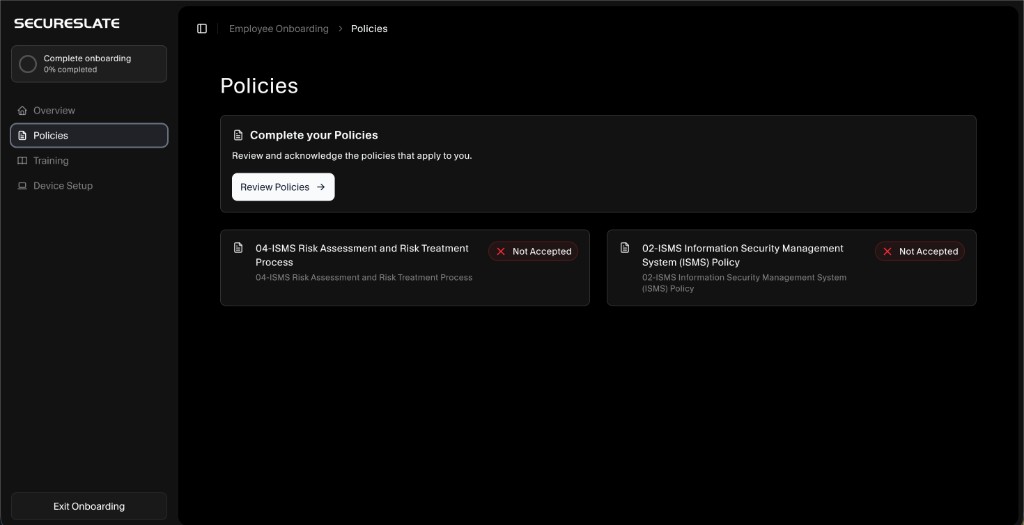
On the Policies step you review and acknowledge the policies that apply to you.
- From the sidebar, click Policies.
- Click Review Policies in the “Complete your Policies” card.
- For each policy (e.g. ISMS Policy, Risk Assessment and Risk Treatment Process), open it and accept or acknowledge as required.
- Status will change from Not Accepted to accepted once you complete each one.
You’ll be notified about new policies that need your acknowledgment. Your progress (e.g. “0 of 2 policies acknowledged”) is tracked so admins and auditors can see completion.
Training
The Training step is where you complete required security training (e.g. Security Awareness, GDPR).
- From the sidebar, click Training.
- Click Start Training in the “Complete your Security Training” card.
- Complete each module (e.g. “Security Awareness Training”, “GDPR Training”).
- Each module shows Incomplete until finished; then it’s marked complete.
Training helps you protect yourself and the company from common cyber threats. You’ll be notified about new training modules. Your completion status is visible to admins for compliance and audits.

Device Setup
On Device Setup you configure your device with required security settings and upload evidence that each step is done.
- From the sidebar, click Device Setup.
- Click Start Setup or Update Configuration in the “Complete your Device Setup” card.
- Use Add Multidevice if you need to set up more than one device.
- For each requirement, complete the task and click Upload to submit evidence (e.g. screenshot or export).
Typical tasks include:
- Install the company-approved password manager: Install and configure the approved tool for passwords and MFA codes.
- Hard-disk encryption: Enable full disk encryption.
- Firewall enabled: Turn on and configure the device firewall.
- Install anti-virus/malware software: Install company-approved antivirus.
- Screen saver lock: Set automatic lock (e.g. within 60 seconds of inactivity or when the screen saver starts).
Your progress (e.g. “5 device setups await your review”) and any uploaded evidence are tracked for compliance.

Completing onboarding and offboarding
- Onboarding: Work through Overview → Policies → Training → Device Setup. As you accept policies, finish training, and upload device evidence, the Complete onboarding percentage increases. When everything is done, onboarding is complete.
- Offboarding: When you leave the organization, members complete offboarding from this same Employee Onboarding page (e.g. confirm access handoff, return of devices, or other offboarding steps your org has configured). Admins can also start offboarding from the Employees section (e.g. Offboard Employee from the actions menu).
Member access summary
- Members sign in and are redirected to the Employee Onboarding page.
- Members have access to this page only, with no sidebar links to Dashboard, Compliance, Integrations, etc.
- From here, members complete onboarding (policies, training, device setup) and offboarding when they leave.
- Admins and owners can open Employee Onboarding from the sidebar or profile menu (bottom left) to complete their own onboarding or to see the same view an employee sees.
For inviting employees, assigning roles, and managing the employee list, see Getting Started with Employee Page.
