
Settings
Settings Overview
Settings
SecureSlate Settings is where you manage organization-wide configuration, such as company and product details, enabled frameworks, security defaults, domains, cookie consent, AI, and team users.
From the sidebar, open Settings. Then use the tabs across the top.
Company
Use Company to manage your organization profile and product details (often used to keep audit scope and public-facing links accurate).
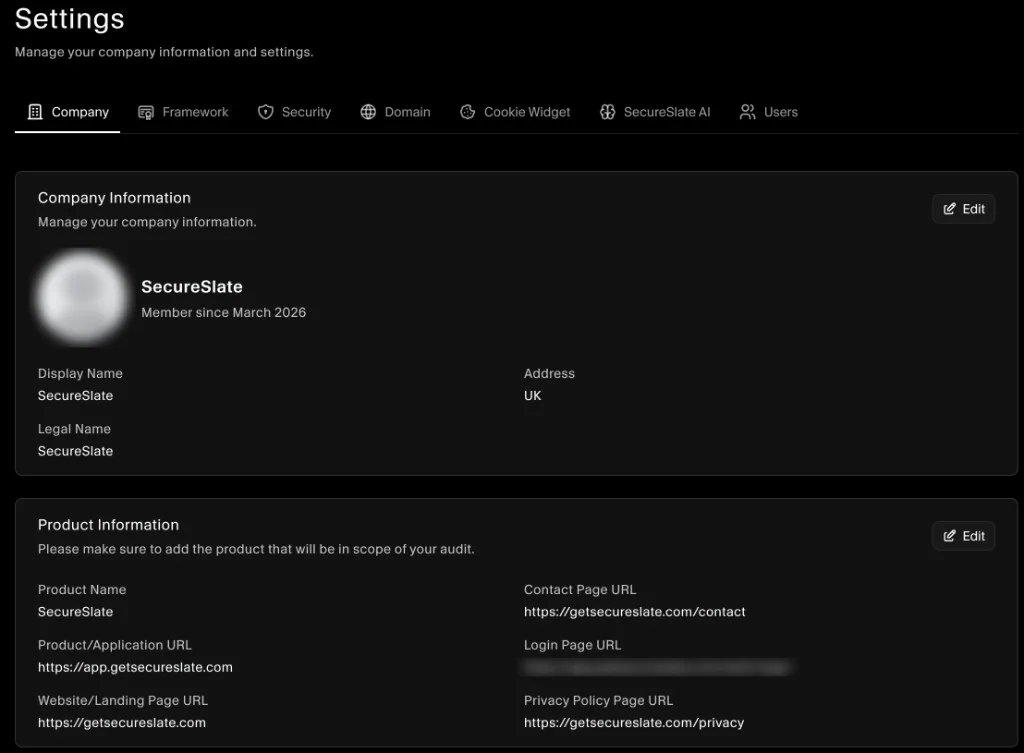
You can edit:
- Company Information: Display name, legal name, address, and profile details.
- Product Information: Product name and key URLs (for example, website/landing page, application URL, contact page, privacy policy page).
Framework
Use Framework to manage which compliance frameworks are active for your workspace.
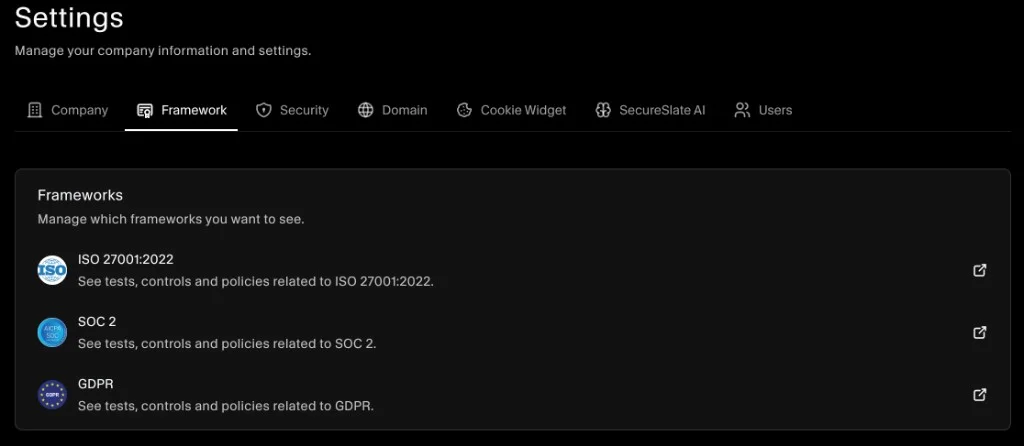
Selecting a framework typically influences what you see across controls, tests, and policies for that framework.
Security
Use Security to configure workspace-wide security defaults.
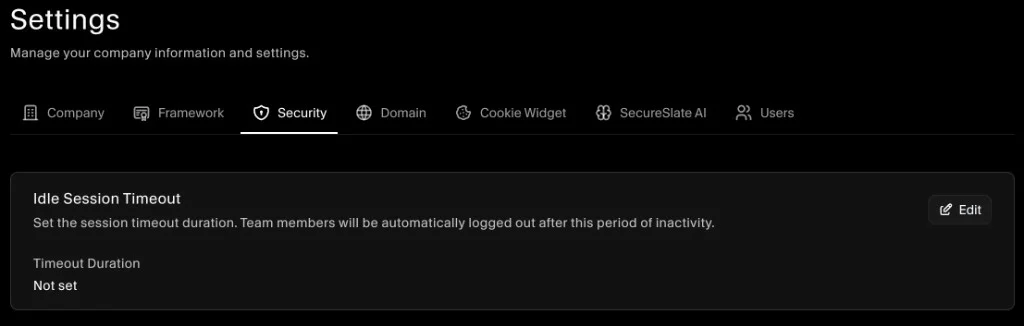
- Idle Session Timeout: Set how long team members can be inactive before being logged out automatically.
Domain
Use Domain to manage the domains used by SecureSlate.
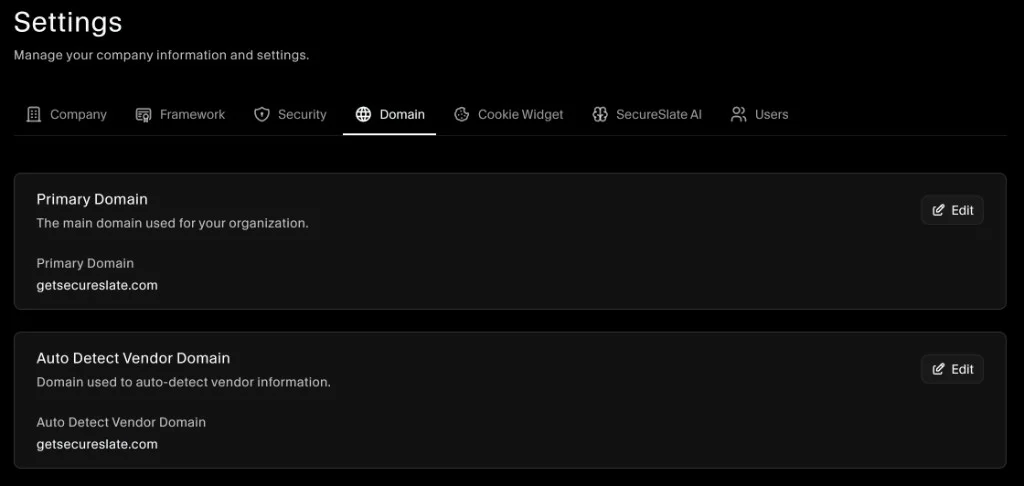
- Primary Domain: The main domain used for your organization.
- Auto Detect Vendor Domain: Domain used to auto-detect vendor information.
For step-by-step guidance, see: Domain Settings.
Cookie Widget
Use Cookie Widget to configure and install the cookie consent widget on your website.
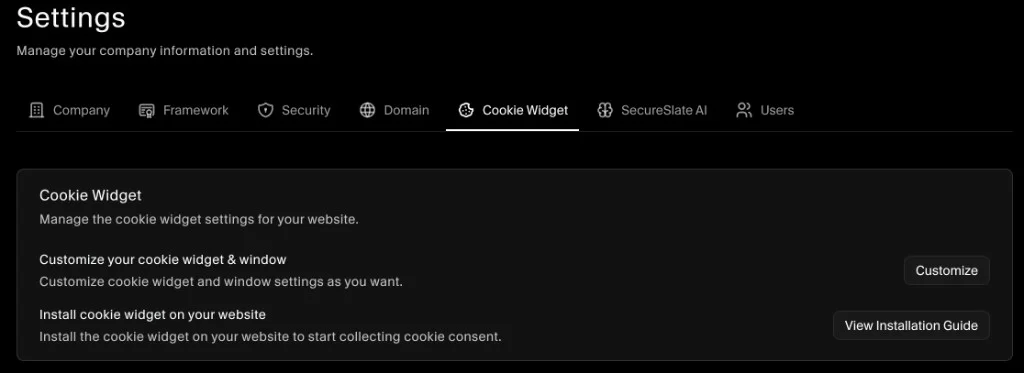
For setup steps, see: Cookie Widget.
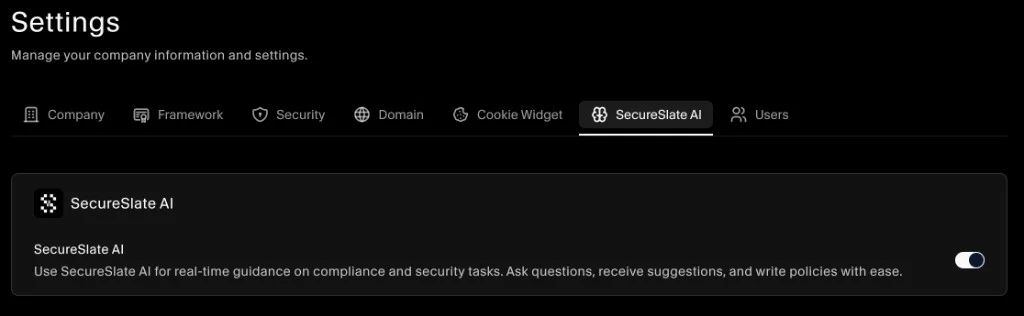
SecureSlate AI
Use SecureSlate AI to enable or disable AI assistance in your workspace.
Users
Use Users to manage organization members and auditors.
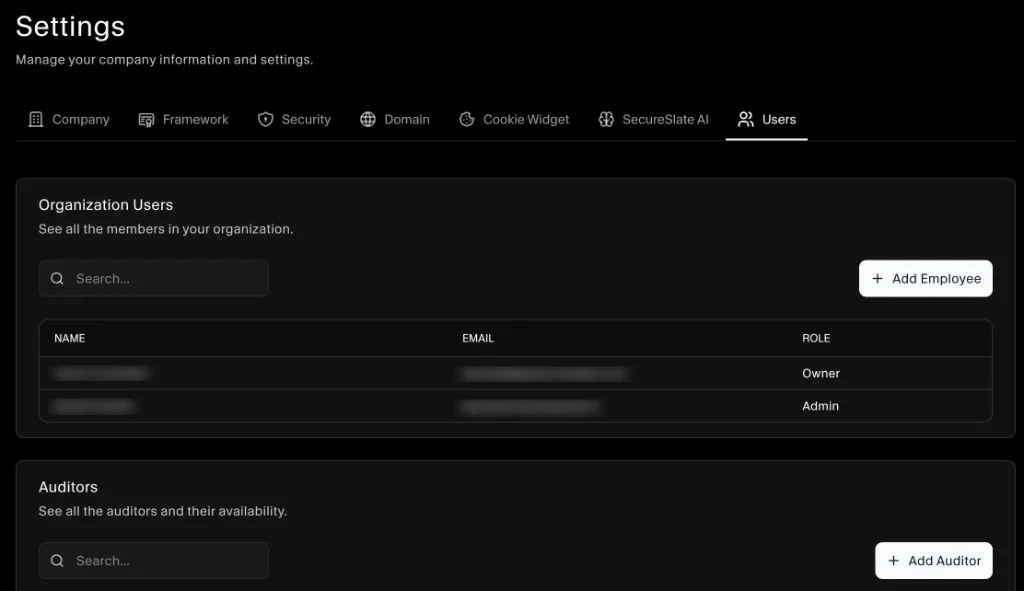
For details, see: User Management.
