
Settings
Change Someone's Role
Owners and Admins can change roles. The new role applies right away, so the person doesn't need to sign out and back in.
Change one person's role
- Go to Settings → Users and open the People tab.
- In the Role column, open the person's role list and choose the new role.
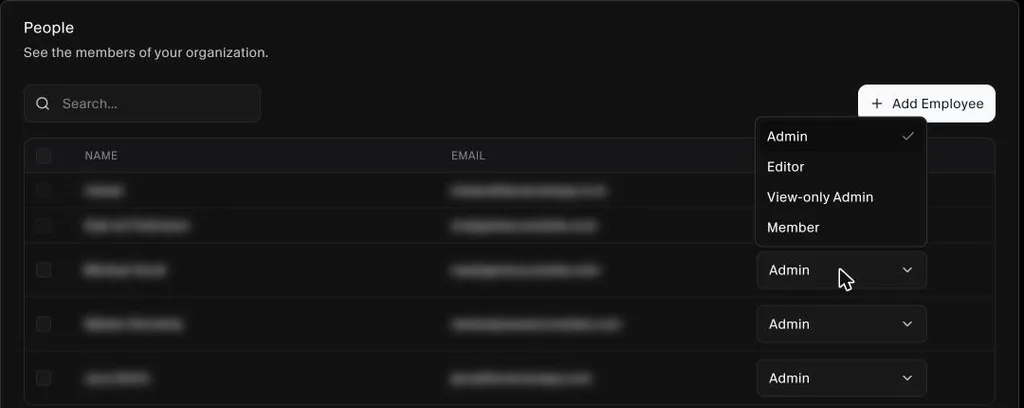
You can also change it from Employees: open the person and choose a new Role at the top of their profile.
Change several people at once
- In Settings → Users → People, tick the people you want to change. You can select people across pages.
- Open Change role above the table and choose the new role.
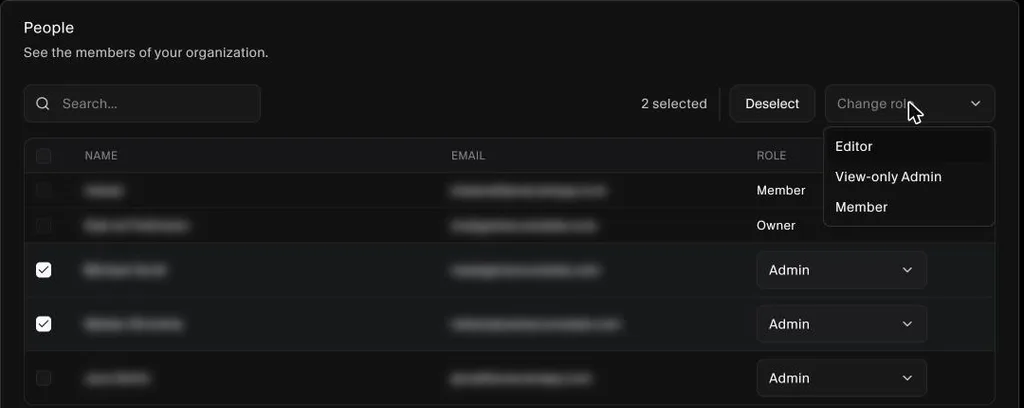
- Confirm the change.
When you can't change a role
- Someone hasn't accepted their invite yet. Their role shows as text, not a list. You can change it once they sign in.
- The person is the Owner. Use Transfer ownership instead.
- The person is an Admin and you're an Admin. Only the Owner can change or remove an Admin.
Making someone an Admin, or changing an Admin's role, asks you to confirm first.
See Roles and Permissions for what each role can do.
