
Integrations
Connecting SecureSlate & Shortcut
SecureSlate connects to Shortcut with an API token. We read your workspace members so you can review who has access and whether they use two-factor authentication, and we read stories to check that security bugs are assigned and resolved. SecureSlate writes to Shortcut in one case only: when you choose to create a Shortcut story from a SecureSlate task.
Prerequisites
- SecureSlate permissions: access to manage integrations (typically Admin).
- Shortcut permissions: a member of the Shortcut workspace you want to connect. API tokens belong to both a user and a workspace, so create the token in the right workspace.
What SecureSlate syncs
| Data | Where it appears | Purpose |
|---|---|---|
| Workspace members (name, email, role, two-factor status, date added) | User Access → Shortcut | Review each account, link it to an employee, and track removed accounts |
| Projects, teams, and workflows | The Shortcut integration drawer | Choose a team and keep counts in sync |
| Stories (name, type, custom field values, state, owners) | Shortcut test results and evidence | Check that security bugs are assigned and resolved |
SecureSlate also adds Shortcut as a vendor under Vendor Risk when you connect.
Members deactivated in Shortcut show as inactive. Members later removed from the workspace stay in User Access as removed, so your access history is kept for audits.
Create an API token
- Sign in to Shortcut and open Settings → Your Account → API Tokens. The direct link is app.shortcut.com/settings/account/api-tokens.
- Enter a name for the token, such as SecureSlate, and click Generate Token.
- Copy the token. Store it somewhere safe until you paste it into SecureSlate.
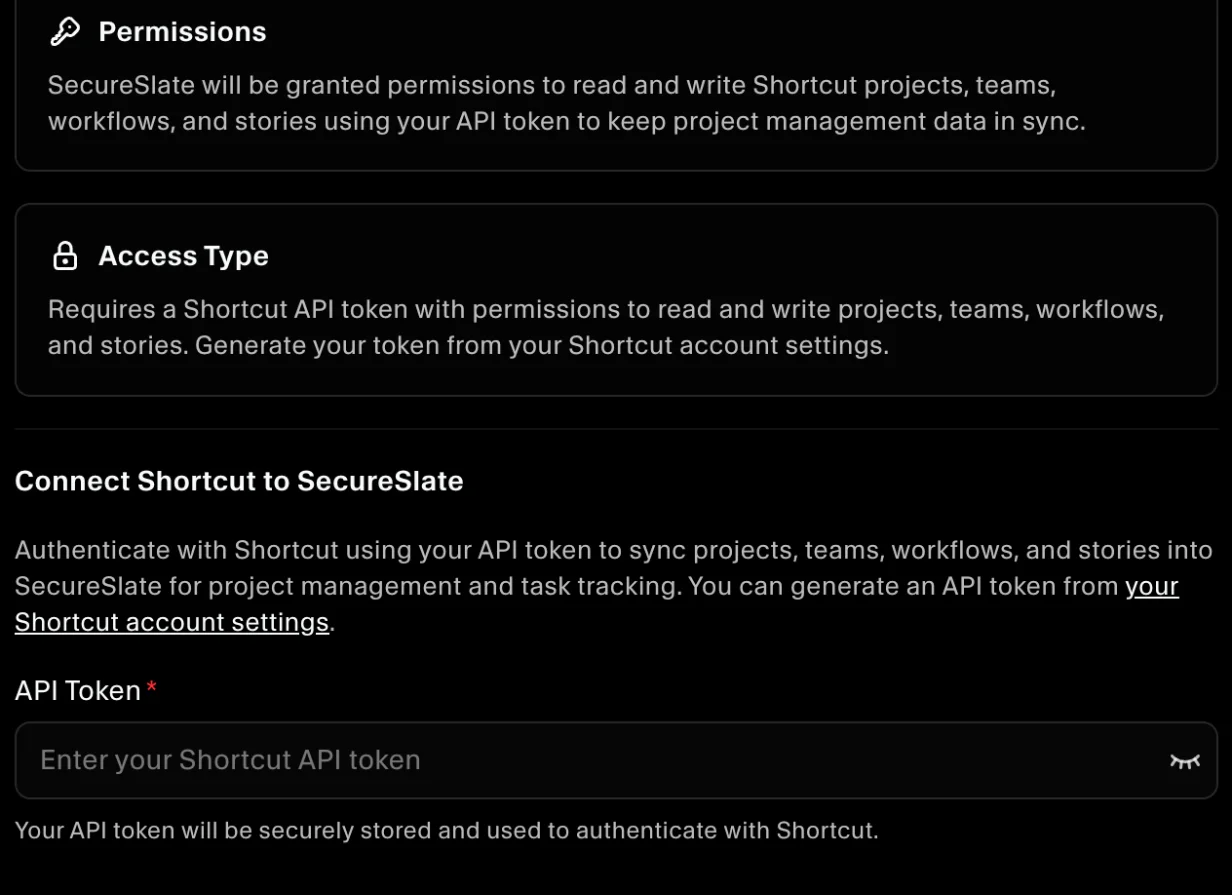
Connect Shortcut to SecureSlate
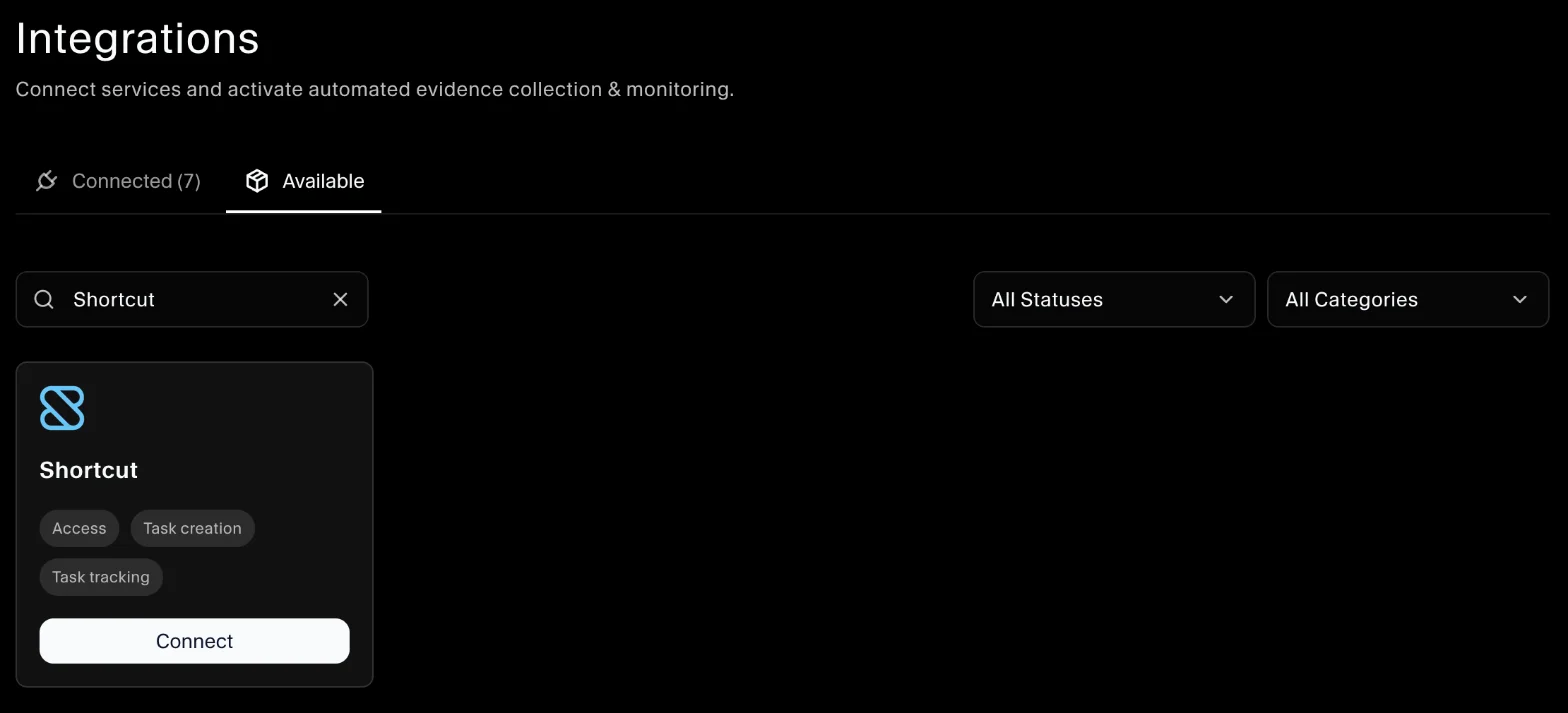
- In SecureSlate, open Integrations.
- Find Shortcut and click Connect.
- Paste the token into API Token and click Connect.
- Open the Shortcut integration. In Manage Shortcut Integration, choose your team under Select Team.
SecureSlate checks the token, syncs members, and runs the Shortcut tests right away. The team is locked once selected. To change it, disconnect Shortcut and connect it again.
Create Shortcut stories from SecureSlate
Once Shortcut is connected, you can add tasks to Shortcut directly from SecureSlate, from the Dashboard:
- Click Add Task and fill in the task details.
- Under Deliverable, tick Create task in Shortcut.
- Click Add Task.
SecureSlate creates a story with the task's name, description, priority and due date.
Automated tests
Once connected, SecureSlate runs automated tests on your Shortcut data. They cover account access and how security issues are tracked and resolved, and collect the evidence your auditors need.
To see which tests run and their results, open the Shortcut integration and click Automated Controls and Tests, or go to Tests.
Troubleshooting
- "Invalid API token. Please reconnect to Shortcut.": the token was deleted or copied incorrectly. Generate a new token and connect again.
- "Access forbidden. Please check your API token permissions.": the token's user can't read this data. Create the token as a member of the right workspace.
- "Shortcut stories could not be loaded": the connection worked but stories couldn't be read. The issue tests stay unavailable until stories load. Re-run the tests later.
- "Shortcut story evaluation is not available": SecureSlate found no stories to evaluate. Check that the workspace has stories and the token can read them.
- "Shortcut API rate limit exceeded (200 requests/minute). Please try again later.": wait a minute and try again.
Get started today at getsecureslate.com to connect Shortcut and keep your security work audit-ready.