
Integrations
Connecting SecureSlate & Slack
SecureSlate connects to Slack using OAuth 2.0. We read your workspace members so you can review who has access and whether they use two-factor authentication. SecureSlate also joins one channel you choose and can send messages there: a task notification each time you choose to send a SecureSlate task to Slack.
Prerequisites
- SecureSlate permissions: access to manage integrations (typically Admin).
- Slack permissions: permission to install apps in your workspace. If your workspace requires app approval, an admin must approve SecureSlate.
- A Slack Workspace Owner or Admin should complete the connection. Slack only shares each member's two-factor status with an admin, so the MFA test can't be checked otherwise.
What SecureSlate syncs
| Data | Where it appears | Purpose |
|---|---|---|
| Workspace members (name, email, role, two-factor status) | User Access → Slack | Review each account, link it to an employee, and track deactivated accounts |
| Channels (public and private channel names) | The Slack integration drawer | Choose the channel SecureSlate posts to |
SecureSlate also adds Slack as a vendor under Vendor Risk when you connect.
Bots are left out. Members deactivated in Slack, or no longer returned by Slack, stay in User Access as inactive.
Write access: SecureSlate asks to read users and channels, join channels, and send messages. It only posts to the channel you select.
Authorize SecureSlate in Slack
There's nothing to set up in Slack before you connect. SecureSlate sends you to Slack's authorization screen:
- Sign in to Slack if prompted, and make sure you're installing into the right workspace.
- Review the requested permissions and approve them.
- Slack sends you back to SecureSlate.
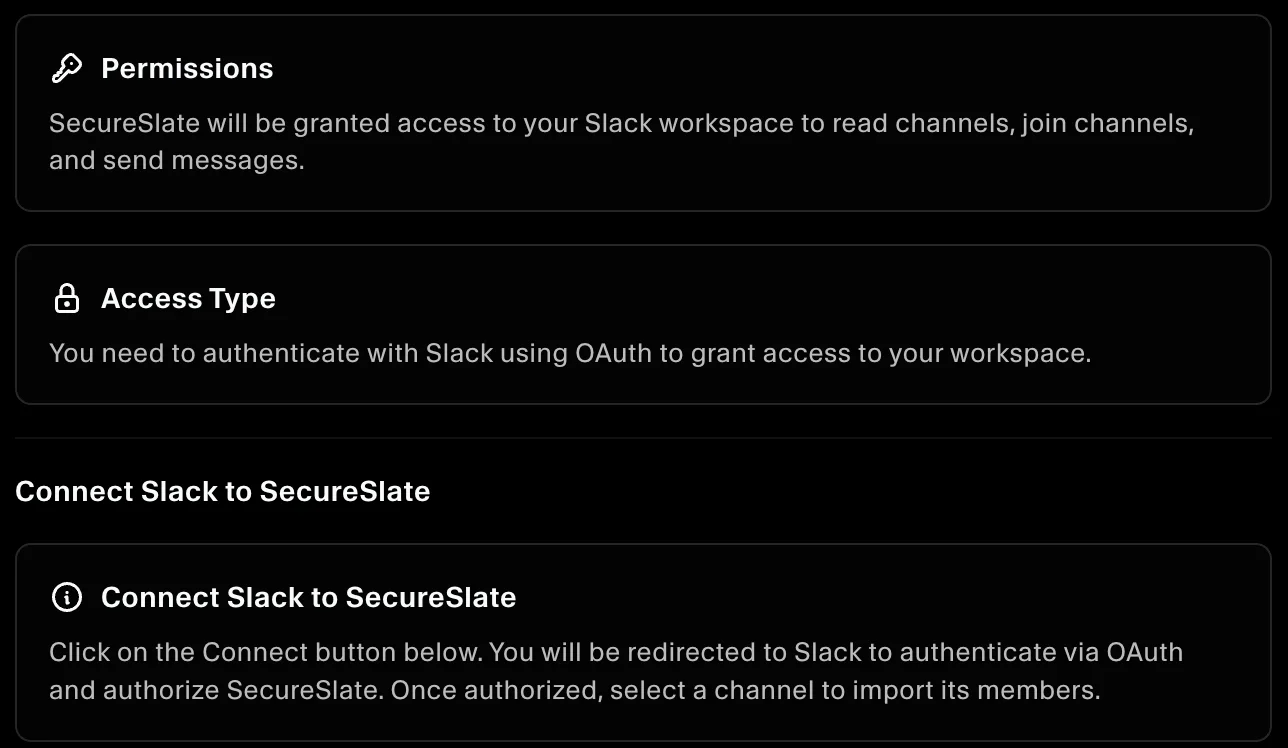
Connect Slack to SecureSlate
- In SecureSlate, open Integrations.
- Find Slack and click Connect, then click Connect in the drawer.
- Approve access in Slack. SecureSlate saves your workspace members.
- Open the Slack integration. In Manage Slack Integration, choose a channel under Select Channel.
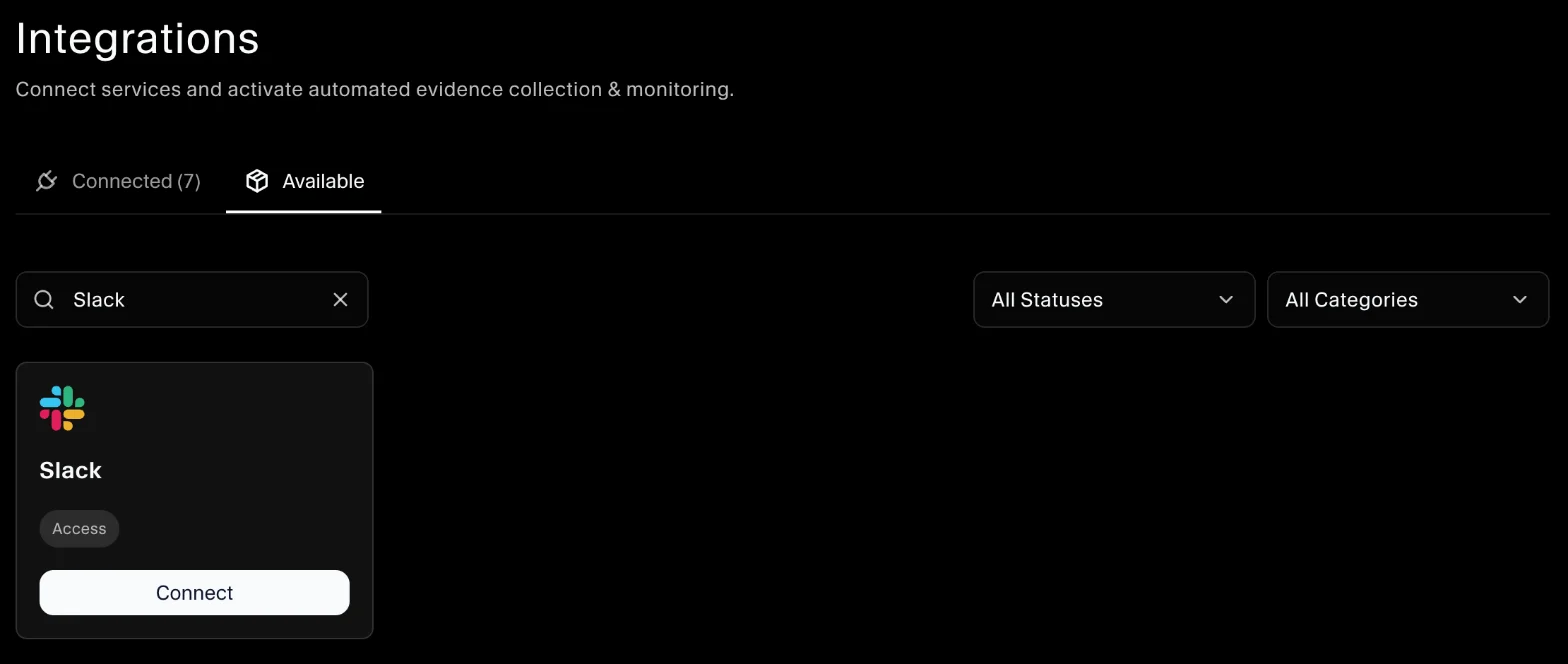
SecureSlate joins the channel and runs the Slack tests. The channel is locked once selected. To change it, disconnect Slack and connect it again.
Send tasks to Slack
Once Slack is connected, you can share new tasks with your team in Slack directly from SecureSlate, from the Dashboard:
- Click Add Task and fill in the task details.
- Under Deliverable, tick Create task in Slack.
- Click Add Task.
SecureSlate posts a New Task Created message with the task's description, owner and due date to the channel you selected.
Automated tests
Once connected, SecureSlate runs automated tests on your Slack data. They cover two-factor authentication and account access, and collect the evidence your auditors need.
To see which tests run and their results, open the Slack integration and click Automated Controls and Tests, or go to Tests.
Troubleshooting
- "Slack authentication failed. Try again!": authorization didn't finish. Click Connect and try again, or ask a Slack admin to approve the app.
- "Failed to process channel selection": SecureSlate couldn't join the channel. Choose a public channel.
- "Slack is not fully configured for task notifications": select a channel in the Slack integration before sending tasks to Slack.
- MFA test says Slack did not report two-factor status: the person who connected Slack isn't a Workspace Owner or Admin. Disconnect Slack and connect it again as an admin.
- A new channel is missing from the list: close and reopen the Slack integration. SecureSlate refreshes the list until a channel is selected.
Get started today at getsecureslate.com to connect Slack and keep workspace access audit-ready.