
Integrations
Connecting SecureSlate & OpenAI
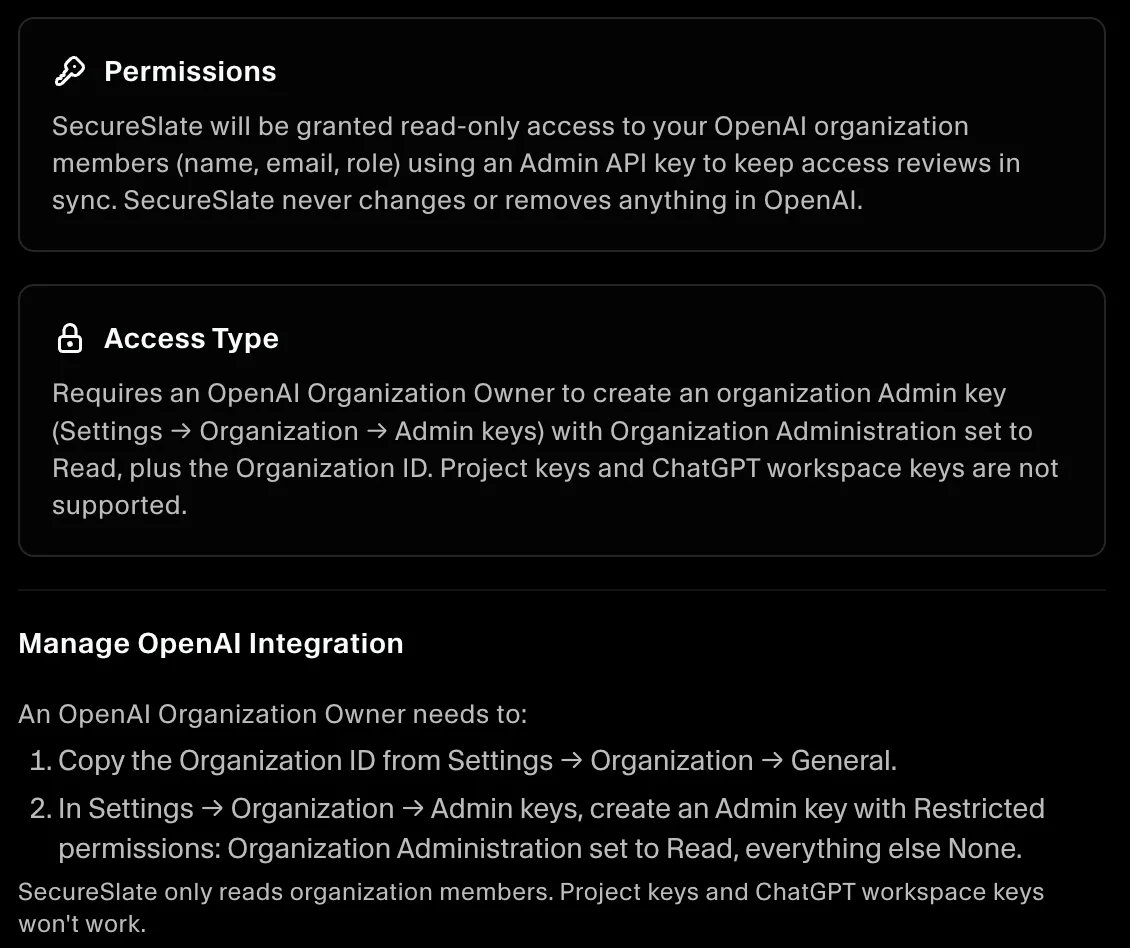
SecureSlate connects to your OpenAI organization with read-only access. We read the list of organization members so you can review who has access to OpenAI and show auditors that accounts are removed when people leave. SecureSlate does not add, change, or remove anything in your OpenAI organization.
Prerequisites
Before you start, make sure you have:
- SecureSlate permissions: access to manage integrations (typically Admin).
- OpenAI permissions: an Organization Owner in OpenAI. Only owners can create the Admin key SecureSlate needs.
Project API keys and ChatGPT workspace keys won't work. The integration needs an organization Admin key.
What SecureSlate syncs
| Data | Where it appears | Purpose |
|---|---|---|
| Organization members | User Access → OpenAI | Review each account, link it to an employee, and track removed accounts |
SecureSlate also adds an OpenAI vendor under Vendor Risk when you connect, if you don't already have one.
Members who are later removed in OpenAI stay in User Access as inactive, so your access history is kept for audits.
Get your Organization ID and Admin key
- In OpenAI, open Settings → Organization → General and copy the Organization ID (it starts with
org-). - Go to Settings → Organization → Admin keys and create a new Admin key.
- Choose Restricted permissions. Set Organization Administration to Read and leave everything else as None.
- Copy the key. OpenAI only shows it once.
Connect OpenAI to SecureSlate
- In SecureSlate, open Integrations.
- Find OpenAI and click Connect.
- Paste the Admin API key and the Organization ID.
- Click Connect.
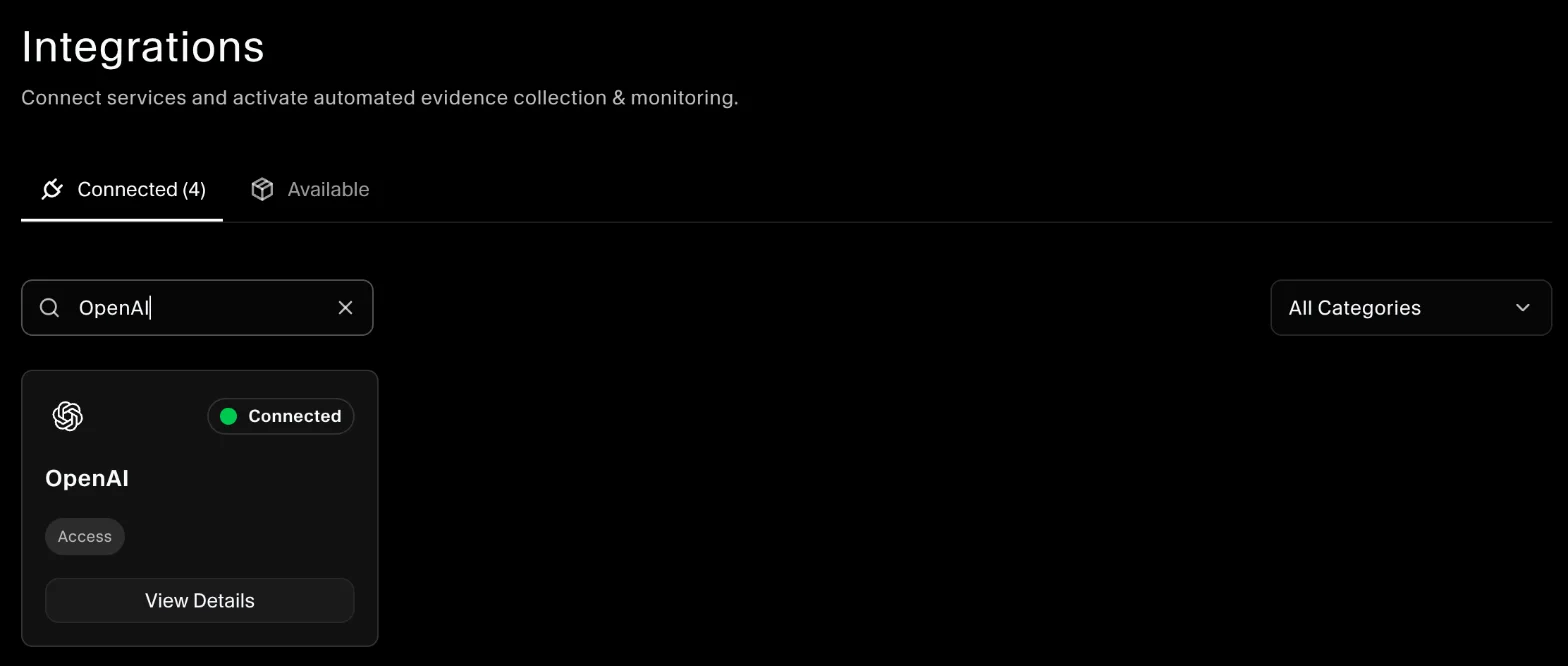
SecureSlate checks the key and starts syncing members right away. Most organizations finish in under a minute.
To use a different key or organization later, disconnect OpenAI and connect it again.
Automated tests
Once connected, SecureSlate runs two automated tests, mapped to ISO 27001:2022 and SOC 2 access controls:
- OpenAI accounts associated with users: every active OpenAI member is linked to an employee. In User Access → OpenAI, assign each account an owner, or use Auto assign to match by email. Remove accounts that don't belong to a current employee.
- OpenAI accounts removed when personnel leave: people who have left your organization no longer have an OpenAI account. If this test fails, remove the person in OpenAI under Settings → Organization → People, then re-run the test.
Because the integration is read-only, SecureSlate flags accounts that should be removed but never removes them for you.
Troubleshooting
If the connection fails:
- "OpenAI rejected the API key": you used a project key or the key was copied incorrectly. Create an organization Admin key and try again.
- "The API key cannot read organization members": set Organization Administration to Read on the Admin key, and check the Organization ID.
- "OpenAI could not find this organization": confirm the Organization ID matches the organization the key was created in.
- Rate limit or timeout messages: wait a few minutes and try again.
Get started today at getsecureslate.com to connect OpenAI and keep access to your AI tools audit-ready.
