
Integrations
Connecting SecureSlate & Office 365
SecureSlate connects to Office 365 through Microsoft Entra ID using OAuth with read-only Microsoft Graph permissions. We read your directory users, groups, domains, and connected enterprise apps so you can review access, check MFA and admin accounts, and import people and vendors. SecureSlate does not add, change, or remove anything in Microsoft 365.
Prerequisites
- SecureSlate permissions: access to manage integrations (typically Admin).
- Microsoft permissions: an Entra account that can grant admin consent. We recommend connecting as a Global Administrator. A Privileged Role Administrator can also grant consent for these permissions.
- A work or school account. Personal Microsoft accounts aren't supported.
SecureSlate asks for these delegated Microsoft Graph permissions, all read-only: User.Read.All, Group.Read.All, Directory.Read.All, RoleManagement.Read.Directory, Policy.Read.All, and Reports.Read.All. The connection fails if any of them isn't granted.
What SecureSlate syncs
| Data | Where it appears | Purpose |
|---|---|---|
| Users (name, email, directory role, enabled or disabled, MFA registration) | User Access → Office 365 | Review each account, link it to an employee, and track removed accounts |
| Groups | Configure Directory Data → Groups | Add groups to SecureSlate |
| Verified domains | Asset Management domains | Track the domains your tenant owns |
| Enterprise apps in your tenant | Configure Directory Data → Vendors | Add the apps you use as vendors |
SecureSlate also adds Office 365 as a vendor under Vendor Risk when you connect, unless you already track it.
Users aren't added to People automatically. Open the integration, click Configure, and click Add next to each user, group, or vendor you want to import. Guest users can't be added to People. Users later removed from your tenant stay in User Access as removed, so your access history is kept for audits.
Grant admin consent in Microsoft
There's nothing to set up in Microsoft before you connect. SecureSlate sends you to the Microsoft sign-in page:
- Sign in with your work account as an admin who can grant consent.
- Review the requested permissions and accept them.
- Microsoft sends you back to SecureSlate.
If you sign in without an admin role, Microsoft tells you the app needs admin approval. Ask a Global Administrator to connect instead.
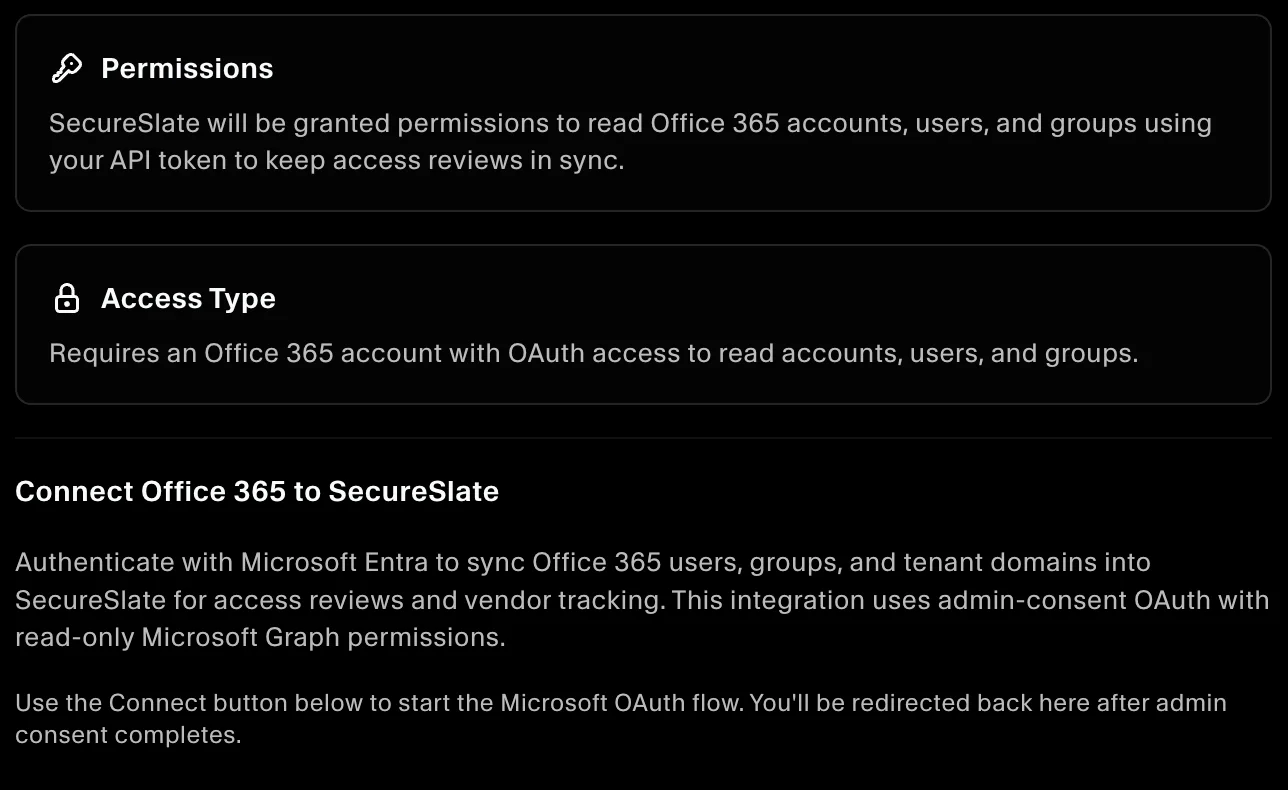
Connect Office 365 to SecureSlate
- In SecureSlate, open Integrations.
- Find Office 365 and click Connect, then click Connect in the drawer.
- Sign in to Microsoft and accept the permissions.
- Back in SecureSlate, open the integration and click Configure to review users, groups, and vendors.
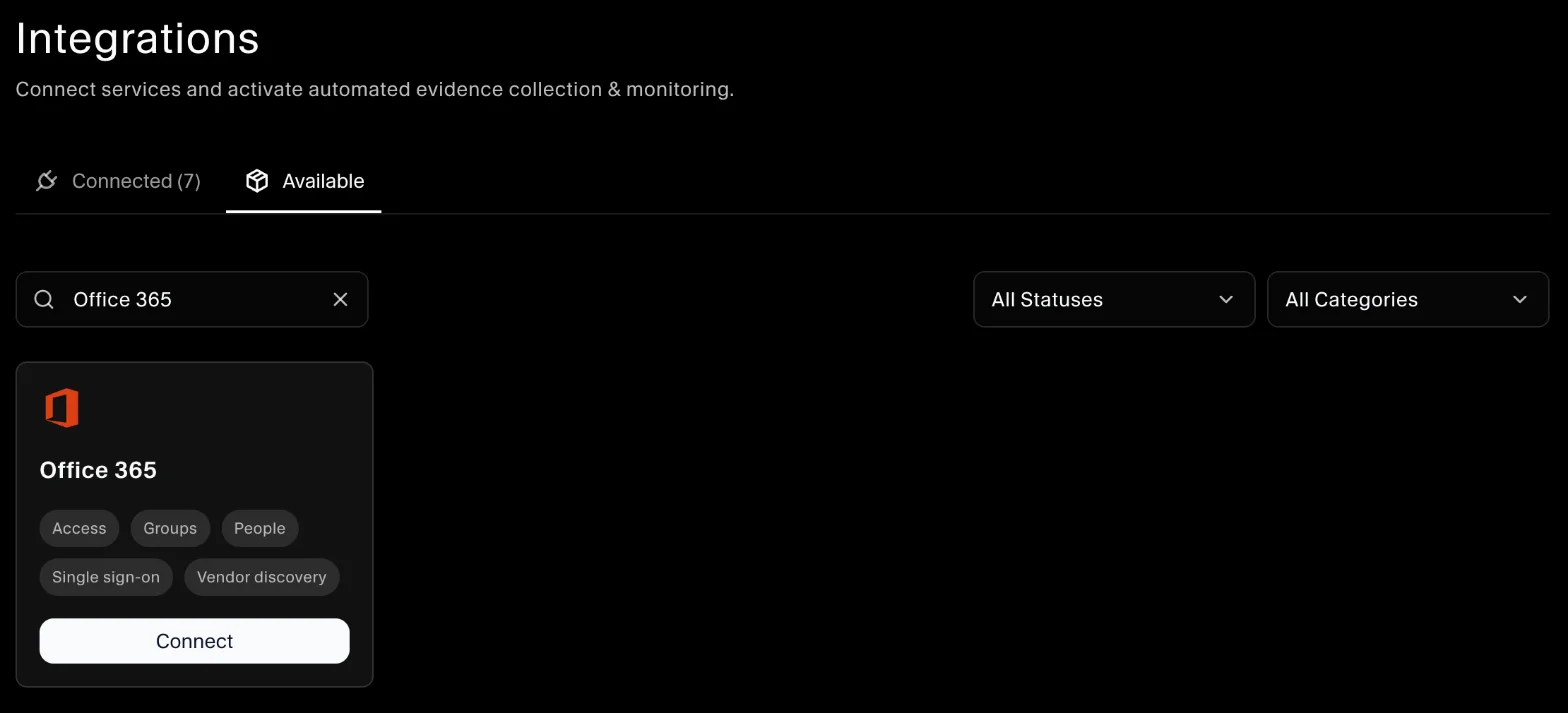
SecureSlate syncs your directory and runs the Office 365 tests right away.
Automated tests
Once connected, SecureSlate runs automated tests on your Office 365 data. They cover MFA, admin and guest accounts, and account access, and collect the evidence your auditors need.
To see which tests run and their results, open the Office 365 integration and click Automated Controls and Tests, or go to Tests.
Troubleshooting
- "Office 365 OAuth is missing required scopes": consent wasn't granted for every permission. Connect again as a Global Administrator and accept all permissions.
- "Access forbidden. Please verify admin consent for the required Microsoft Graph scopes.": the account that connected can't read this data. Connect again as a Global Administrator.
- "Invalid Office 365 access token. Please reconnect the integration.": the connection was revoked or expired. Disconnect Office 365 and connect it again.
- MFA test says registration details were not synced: Microsoft didn't return the MFA registration report. Reconnect as a Global Administrator, then re-run the test.
- "Office 365 authentication or sync failed. Check console for details.": sign-in or the first sync didn't finish. Click Connect and try again.
- "Microsoft Graph rate limit exceeded. Please try again later.": wait a few minutes and try again.
Get started today at getsecureslate.com to connect Office 365 and keep your directory audit-ready.