
Integrations
Connecting SecureSlate & Bitbucket
SecureSlate connects to Bitbucket Cloud using OAuth 2.0. After you authorize access and pick a workspace, SecureSlate imports its repositories and members, then checks branch restrictions, pipelines, and two-step verification for your automated tests. SecureSlate only reads from Bitbucket. It does not change repositories, settings, or members.
Prerequisites
- SecureSlate permissions: access to manage integrations (typically Admin).
- Bitbucket permissions: a workspace admin account. Bitbucket only shows branch restrictions to repository admins, and only shows members' two-step verification status to workspace admins.
What SecureSlate syncs
| Data | Where it appears | Purpose |
|---|---|---|
| Repositories (name, visibility, description, dates) | Assets → Repositories | Keep an inventory of your code and assign owners |
| Workspace members (username, role, two-step verification status) | User Access → Bitbucket | Review each account, link it to an employee, and track removed accounts |
SecureSlate also adds a Bitbucket vendor under Vendor Risk when you connect, unless you already track one.
Branch restrictions and pipeline runs are read from Bitbucket when tests run. Members later removed from the workspace stay in User Access as inactive, so your access history is kept for audits.
Authorize SecureSlate in Bitbucket
- Sign in to Bitbucket as a workspace admin before you start.
- When SecureSlate sends you to Bitbucket, review the requested access and approve it.
- Bitbucket returns you to SecureSlate.
SecureSlate asks for access to your account, workspaces, and repositories, including repository admin access so it can read branch restrictions.
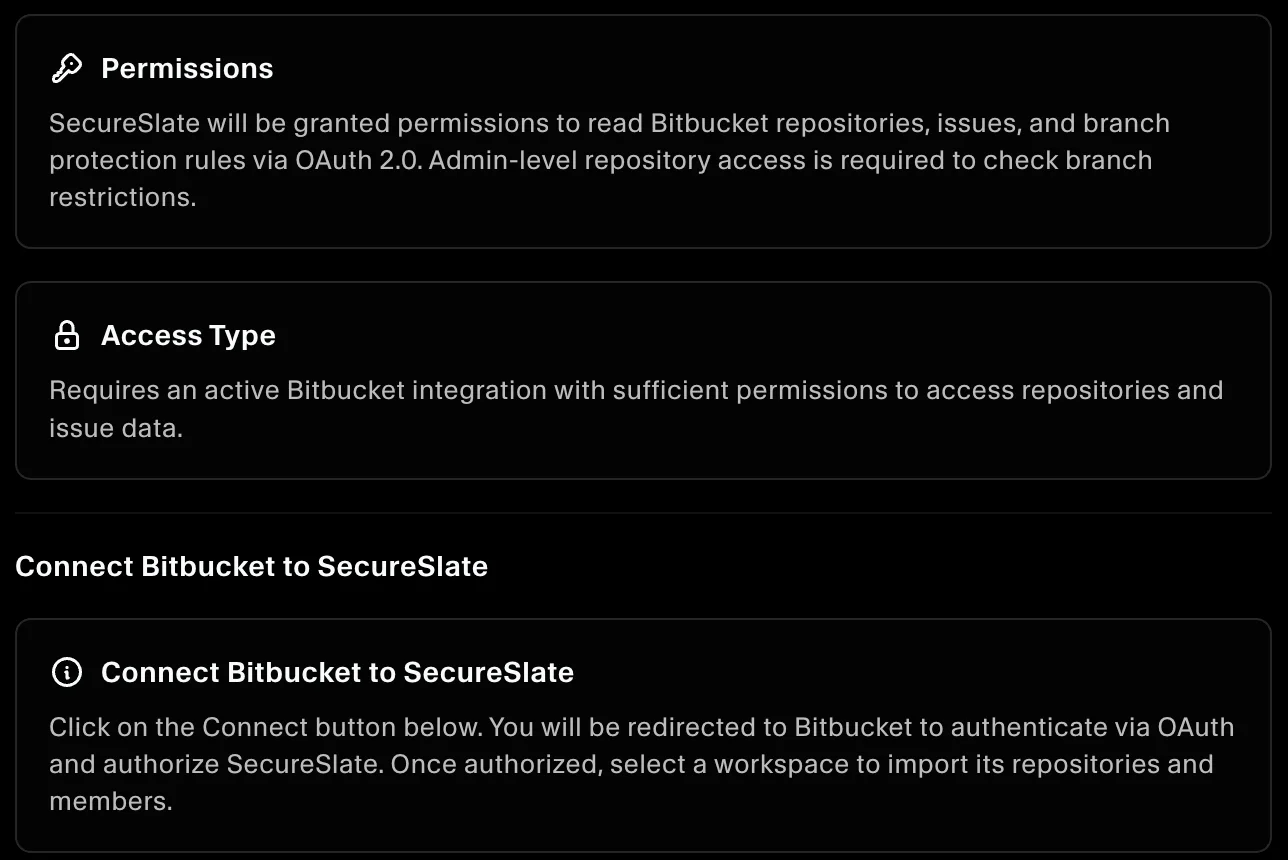
Connect Bitbucket to SecureSlate
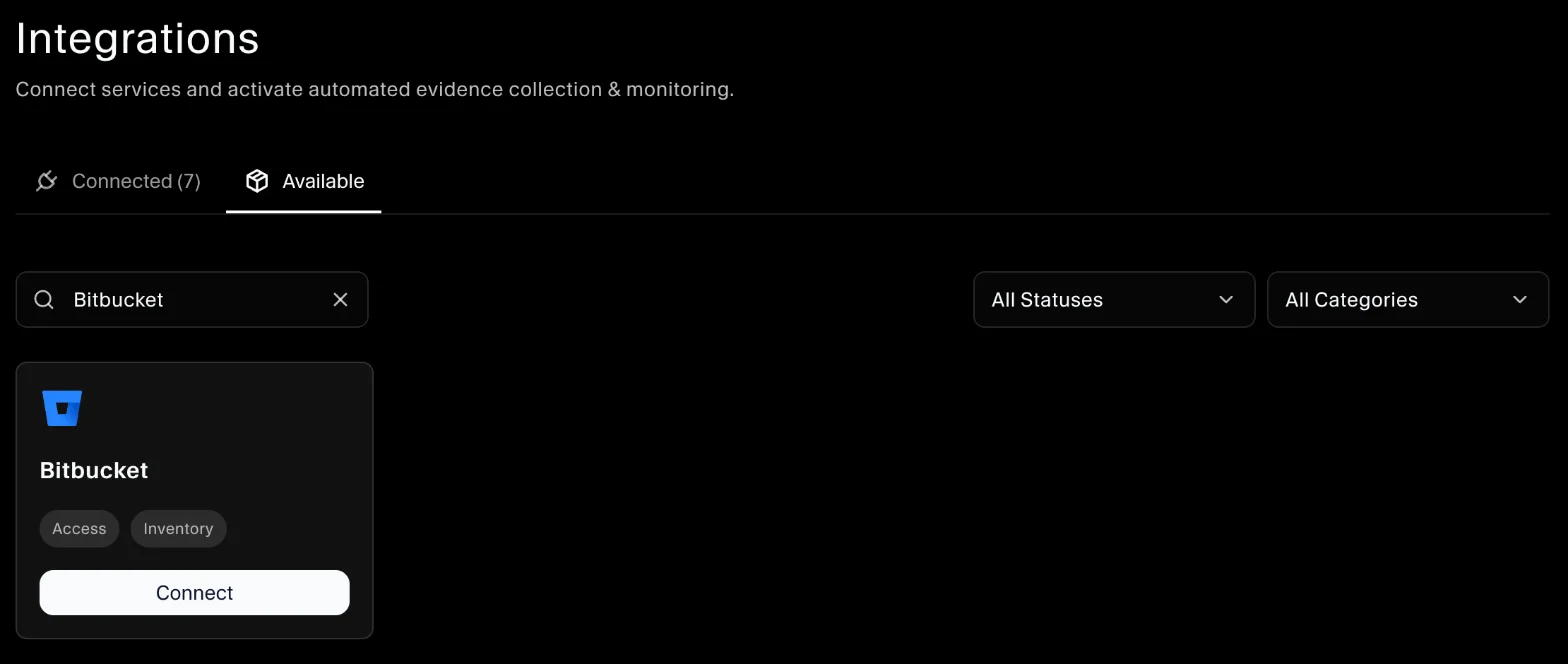
- In SecureSlate, open Integrations.
- Find Bitbucket and click Connect.
- In the drawer, click Connect. You're redirected to Bitbucket to authorize SecureSlate.
- Back in SecureSlate, open the Bitbucket integration. Under Select Workspace, choose the workspace to import.
SecureSlate imports the workspace's repositories and members, then runs the Bitbucket tests. The workspace is locked once selected. To change it, disconnect Bitbucket and connect it again.
Automated tests
Once connected, SecureSlate runs automated tests on your Bitbucket data. They cover code review, branch protection, two-step verification and account access, and collect the evidence your auditors need.
To see which tests run and their results, open the Bitbucket integration and click Automated Controls and Tests, or go to Tests.
Troubleshooting
- "Bitbucket authentication failed": authorization didn't complete. Click Connect again and approve access in Bitbucket.
- "No workspaces found for this user": the Bitbucket account isn't a member of any workspace. Connect with an account in your company workspace.
- "Failed to process workspace selection": SecureSlate couldn't read the workspace. Disconnect, reconnect as a workspace admin, and select the workspace again.
- "Invalid access token. Please reconnect to Bitbucket.": the connection expired or was revoked. Disconnect Bitbucket and connect it again.
- MFA test shows "MFA status not reported by Bitbucket": the account that connected isn't a workspace admin. Reconnect as a workspace admin.
Get started today at getsecureslate.com to connect Bitbucket and keep your code reviews and repository access audit-ready.