
Integrations
Connecting SecureSlate & Vercel
SecureSlate connects to Vercel with an access token and only reads data. We sync your projects, team members, storage and firewall settings so you can keep an asset inventory, review who has access, and run automated security tests. SecureSlate does not change anything in Vercel.
Prerequisites
- SecureSlate permissions: access to manage integrations (typically Admin).
- Vercel permissions: membership in the Vercel team you want to connect.
Use a token scoped to your team. A Full Account token lists only the token's owner, not your team members. A project-scoped token can't read team members.
What SecureSlate syncs
| Data | Where it appears | Purpose |
|---|---|---|
| Projects | Assets → Others | Inventory each project, with an owner |
| Team members (name, email, role) | User Access → Vercel | Review each account, link it to an employee, and track removed accounts |
| Storage stores (KV, Postgres, Blob) and firewall settings | Automated tests | Check encryption, backups, secure access and traffic filtering |
Pending invitations are not synced, since those people don't have access yet.
SecureSlate also adds a Vercel vendor under Vendor Risk when you connect, unless you already have a vendor named Vercel.
When the token is scoped to a single team, members later removed in Vercel stay in User Access as inactive, so your access history is kept for audits.
Create an access token
- Sign in to Vercel and open the Account Tokens page in your account settings.
- Enter a token name you will recognize, for example
SecureSlate. - Open Scope, select your team, then select All Projects. This creates a team-scoped token.
- Choose an expiration. Pick the longest your organization allows, since SecureSlate stops syncing when the token expires.
- Click Create and copy the token. Vercel only shows it once.
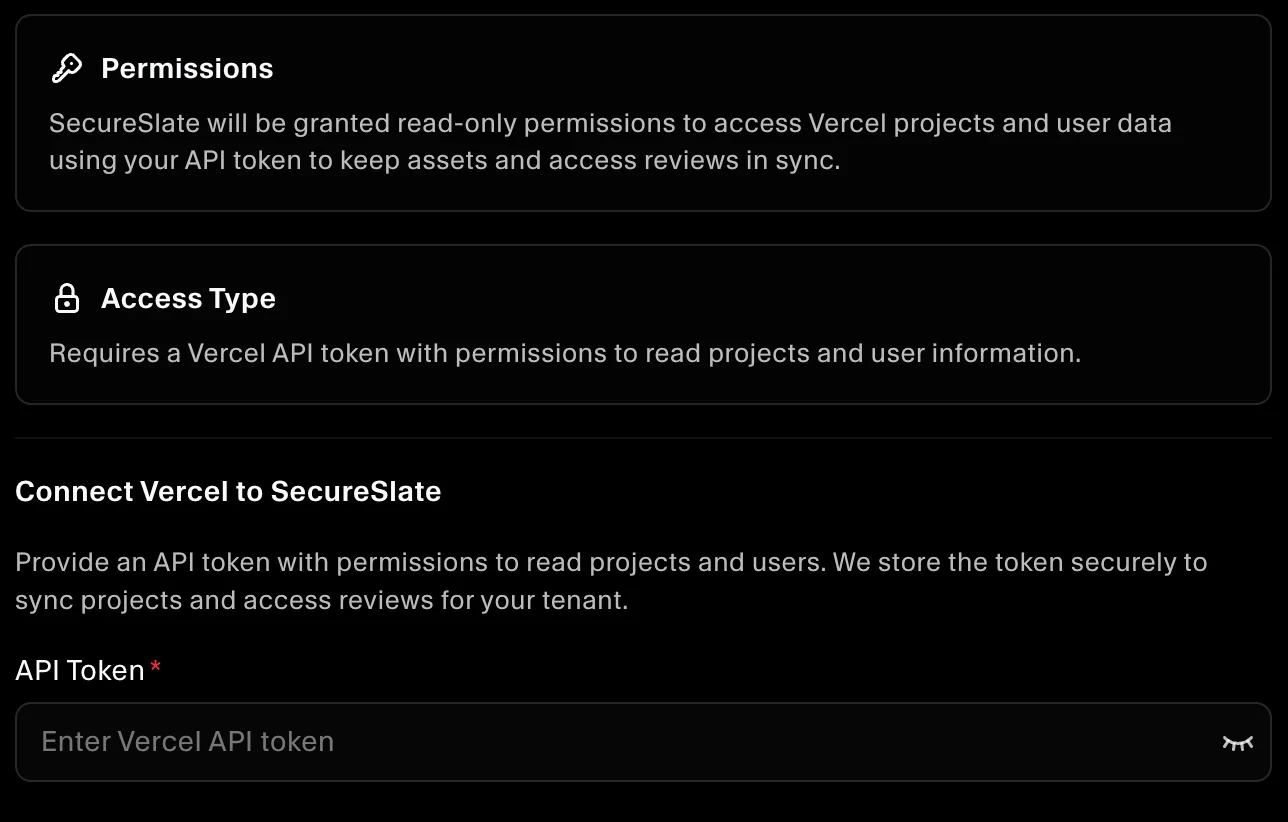
Connect Vercel to SecureSlate
- In SecureSlate, open Integrations.
- Find Vercel and click Connect.
- Paste the token into API Token and click Connect.
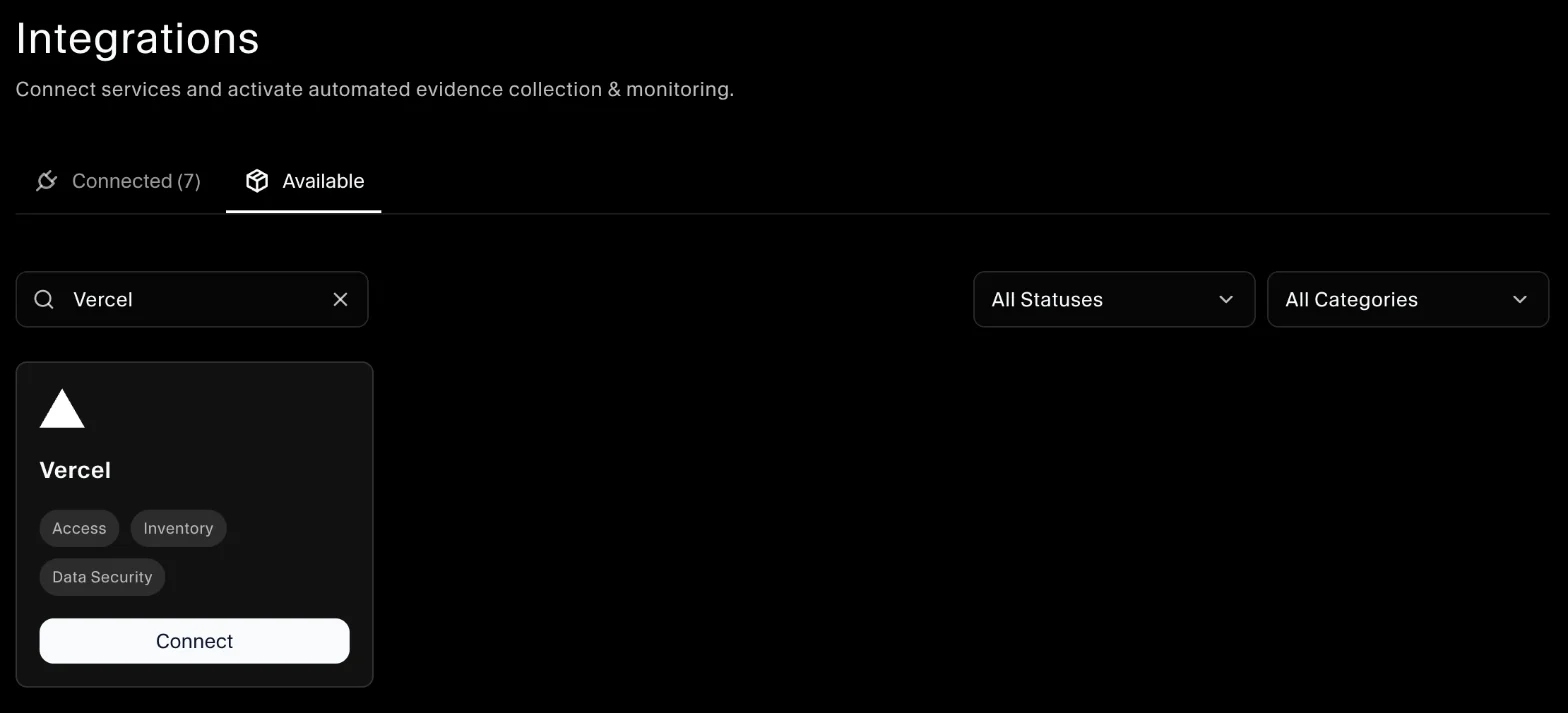
SecureSlate checks the token, syncs your projects and members, and runs the automated tests.
To change the token later, disconnect Vercel and connect it again. Disconnecting removes the synced projects, the Vercel accounts in User Access (including the owners you assigned) and the Vercel vendor.
Automated tests
Once connected, SecureSlate runs automated tests on your Vercel data. They cover storage encryption and backups, firewall settings and account access, and collect the evidence your auditors need.
To see which tests run and their results, open the Vercel integration and click Automated Controls and Tests, or go to Tests.
Troubleshooting
- "Invalid API token or access token. Please check your Vercel token.": the token expired, was deleted or was copied incorrectly. Create a new one.
- "Access forbidden. Please check your API token permissions.": the token can't read the requested data. Create a team-scoped token as described above.
- "This Vercel token is not scoped to a team, so only the token owner is listed...": you used a Full Account token. Create a token scoped to your team.
- "No projects returned from Vercel...": the token's scope doesn't include the team that owns your projects.
- "Members of Vercel team ... could not be read: access denied.": check the token's permissions and any SAML SSO enforcement on the team.
- You can't select your team under Scope: some teams require two-factor authentication or SAML before you can create tokens for them. Vercel tells you when you select the team.
- "Vercel API rate limit exceeded. Please try again later.": wait a few minutes and try again.
Get started today at getsecureslate.com to connect Vercel and keep your projects and team access audit-ready.