
Integrations
Connecting SecureSlate & Linear
SecureSlate connects to Linear using OAuth 2.0 with read and write access. We read your workspace members so you can review who has access, and we read issues in the team you choose to check that security issues are assigned and resolved. SecureSlate writes to Linear in one case only: when you choose to create a Linear issue from a SecureSlate task.
Prerequisites
- SecureSlate permissions: access to manage integrations (typically Admin).
- Linear permissions: a member of the Linear workspace you want to connect, allowed to authorize third-party applications. If your workspace restricts which apps members can authorize, ask a Linear workspace admin to connect instead.
- A Linear team where your security issues are tracked.
What SecureSlate syncs
| Data | Where it appears | Purpose |
|---|---|---|
| Workspace members (name, email) | User Access → Linear | Review each account and link it to an employee |
| Teams | The Linear integration drawer | Choose the team SecureSlate reads issues from |
| Issues in the selected team (title, priority, state, assignee) | Linear test results and evidence | Check that security issues are assigned and resolved |
SecureSlate also adds Linear as a vendor under Vendor Risk when you connect.
Only active, human members are synced. Linear app and service accounts are left out, and members who are deactivated in Linear drop off the list at the next sync.
Authorize SecureSlate in Linear
There's nothing to set up in Linear before you connect. SecureSlate sends you to Linear's authorization screen:
- Sign in to Linear if prompted, and pick the workspace you want to connect.
- Review the requested access (read and write) and approve it.
- Linear sends you back to SecureSlate.
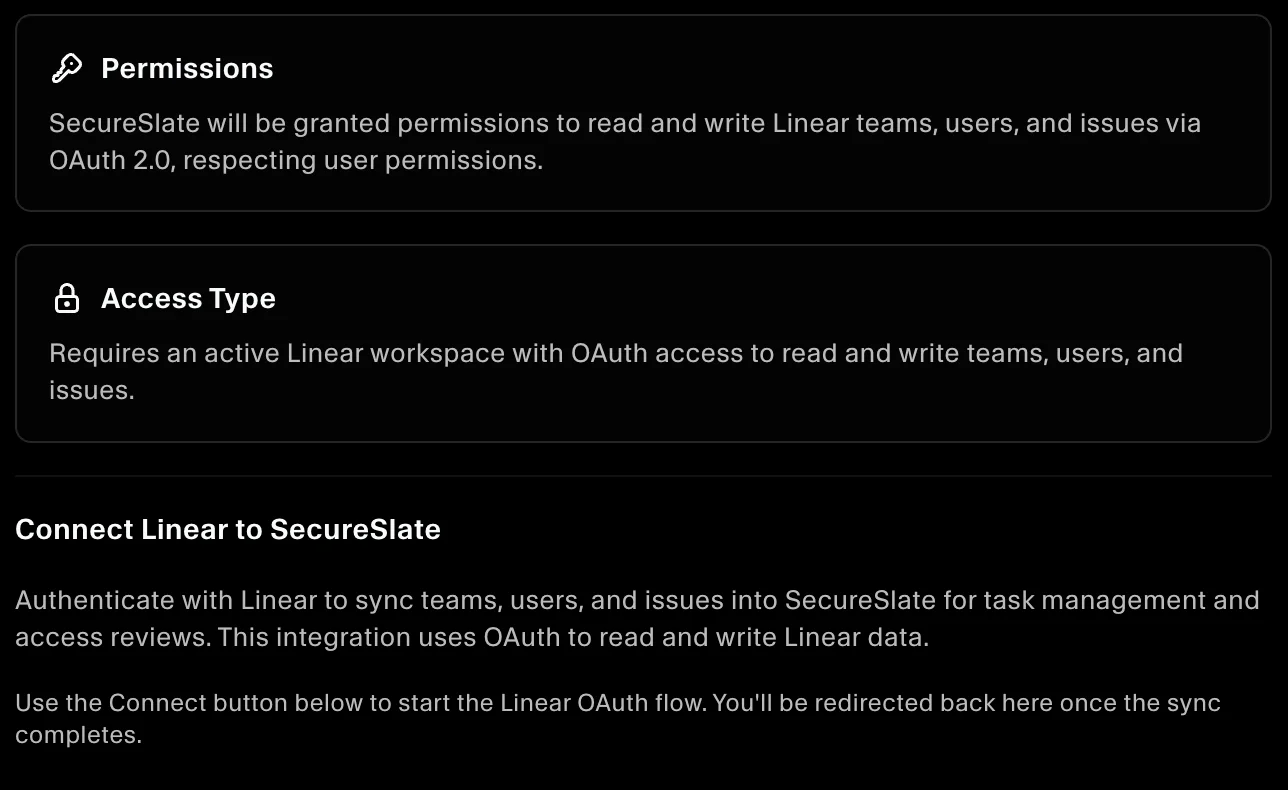
Connect Linear to SecureSlate
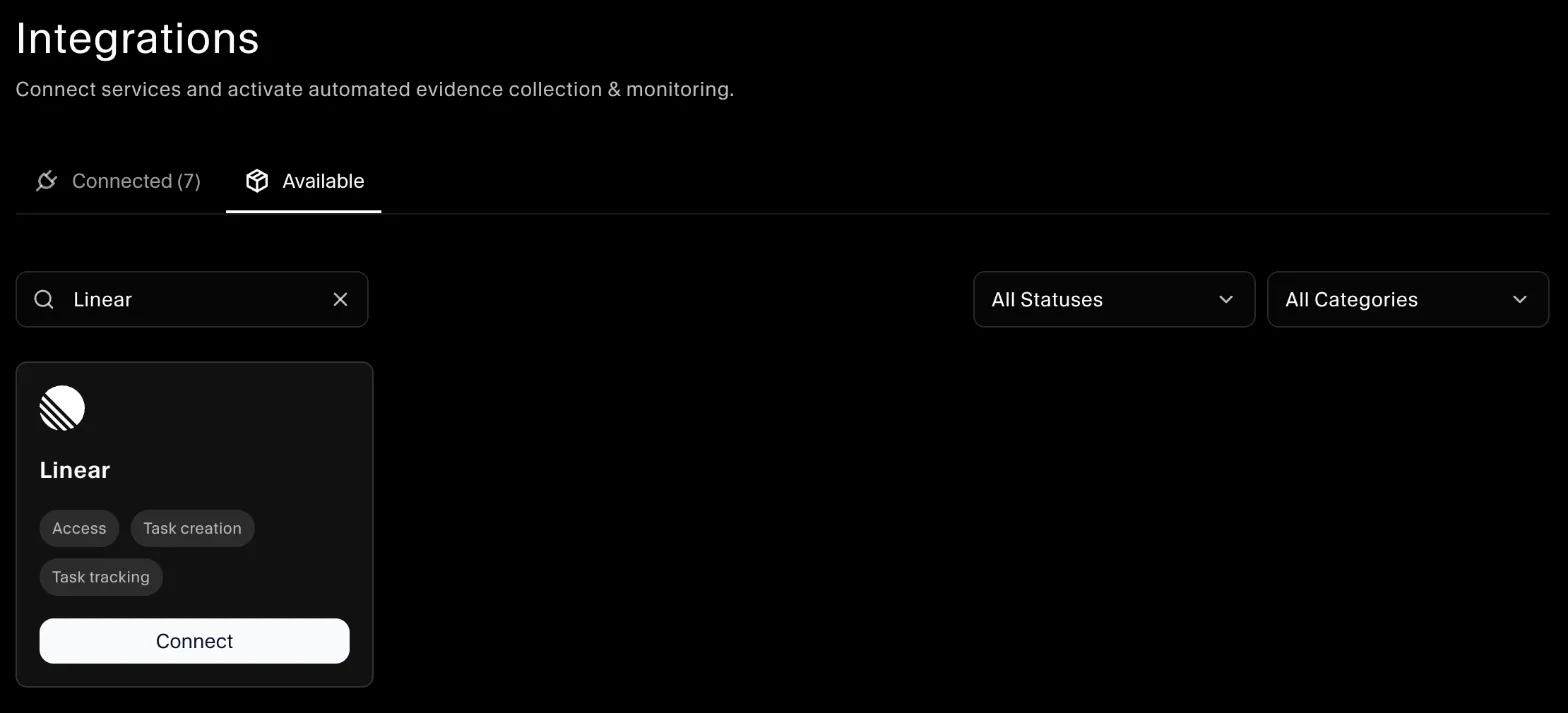
- In SecureSlate, open Integrations.
- Find Linear and click Connect, then click Connect in the drawer to start the OAuth flow.
- Approve access in Linear. SecureSlate fetches your members and teams.
- Open the Linear integration. In Manage Linear Integration, choose your team under Select Team.
Once you pick a team, SecureSlate runs the Linear tests. The team is then locked. To change it, disconnect Linear and connect it again.
Create Linear issues from SecureSlate
Once Linear is connected, you can add tasks to Linear directly from SecureSlate, from the Dashboard:
- Click Add Task and fill in the task details.
- Under Deliverable, tick Create task in Linear.
- Click Add Task.
SecureSlate creates an issue with the task's name, description and priority in the team you selected.
Automated tests
Once connected, SecureSlate runs automated tests on your Linear data. They cover account access and how security issues are tracked and resolved, and collect the evidence your auditors need.
To see which tests run and their results, open the Linear integration and click Automated Controls and Tests, or go to Tests.
Troubleshooting
- "Linear authentication or sync failed": authorization didn't finish or Linear returned an error. Click Connect and try again.
- "Invalid access token. Please reconnect to Linear.": the connection was revoked in Linear. Disconnect Linear in SecureSlate and connect it again.
- "Access forbidden. Please check your access token permissions.": the account that authorized SecureSlate can't read this data. Reconnect with a workspace member who has access to the team.
- "Linear issue evaluation is not available": SecureSlate couldn't read issues. Check that Linear is still connected, then re-run the test.
- "Linear is not fully configured for task creation": select a team in the Linear integration before creating tasks in Linear.
- "Linear API rate limit exceeded. Please try again later.": wait a few minutes and try again.
Get started today at getsecureslate.com to connect Linear and keep your security issues audit-ready.