
SecureSlate Device Agent
Troubleshooting
I can't see the Agent's icon
- macOS: check your menu bar (top right of the screen). If your menu
bar is crowded, some icons can be hidden; try widening your display or
removing other menu bar items. - Windows: check the system tray (bottom right, near the clock). Click
the small ^ arrow to see hidden tray icons if it's not immediately
visible.
If it's not running at all, reopen it from Applications (macOS) or the
Start menu (Windows).
Accessing the Agent's logs
If SecureSlate support asks for the Agent's log file:
- Right-click (or two-finger click) the Agent's icon.
- Hover Help, then click View Logs.
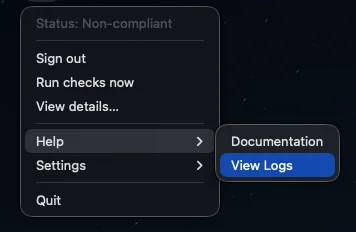
- Save or share the file that opens with support.
macOS or Windows blocks the app on first launch
This is expected on first install. See Setup
for the steps to approve the app.
Sign-in seems stuck
Signing in opens your browser to confirm your identity. If that page
doesn't finish, or you closed the tab before confirming, open the Agent
menu and choose Sign in… again.
The Agent shows "Non-compliant" and I'm not sure why
Click the Agent's icon to see each check's pass/fail status. Click a
failing check for guidance on how to fix it. Most fixes are a change in
your computer's own settings.
Disk encryption shows as failing even though it's turned on
Windows only reports disk encryption status to administrators. If the
Agent is not running as an administrator, it cannot confirm your status,
so it reports that rather than assuming your device is fine.
To check your own status, open Settings > Privacy & security > Device
encryption. For the exact detail, open PowerShell as an
administrator and run:
manage-bde -status C:
Look at Protection Status. It needs to read Protection On. If it
reads Protection Off, your drive is not protected yet even if it
shows as encrypted, usually because encryption is still finishing or is
waiting on a step such as signing in with a Microsoft account. The check
passes once that completes.
To have the Agent record a result, quit it from the system tray, then
right-click SecureSlate Device Agent and choose Run as
administrator. Starting it normally, or at login, means it runs without
administrator rights again. If this affects several devices, contact your
SecureSlate administrator.
Do I need to reinstall to get updates?
Use the Agent menu's Settings → Check for Updates. If a newer version
is available, download it and run the installer. You do not need to
uninstall first.
Still stuck?
Contact your SecureSlate administrator or reach out to support.
