
Risk Management
Customize Risk Scoring and Categories
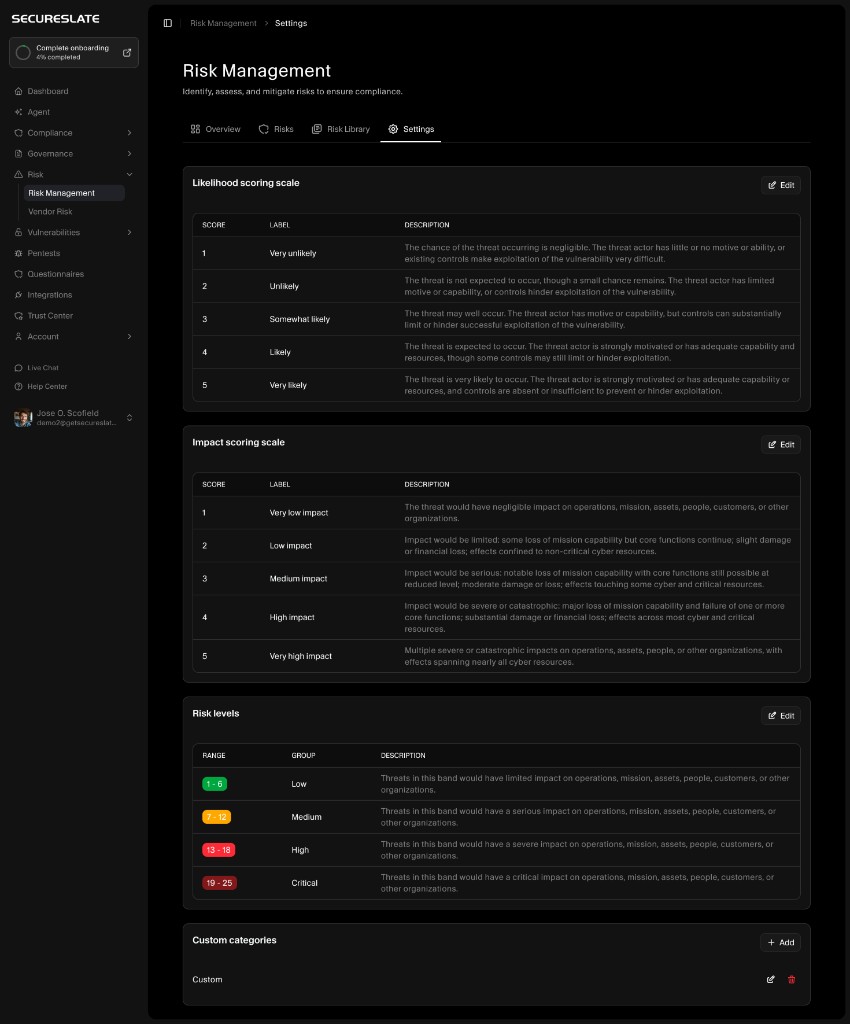
SecureSlate lets you customize how risks are scored and grouped so the Risk Management workspace reflects your organization’s risk methodology. In Settings, you can adjust likelihood and impact scales, define risk level bands (Low, Medium, High, Critical), and add custom categories.
From the sidebar, go to Risk → Risk Management → Settings.
Configure likelihood scoring
The Likelihood scoring scale defines how likely a risk is to occur.
Here you can:
- Set the score range (for example, 1–5)
- Give each score a label (e.g., Very unlikely, Unlikely, Somewhat likely, Likely, Very likely)
- Add a description that explains what each level means for your organization
Example:
- 1 – Very unlikely: Minimal chance of occurrence; strong controls and low exposure.
- 3 – Somewhat likely: Could occur occasionally; moderate exposure or gaps.
- 5 – Very likely: Expected to occur without additional controls or remediation.
Use clear, concrete descriptions so different risk owners apply likelihood consistently.
Configure impact scoring
The Impact scoring scale defines how severe the consequences would be if the risk occurs.
You can:
- Set the score range (for example, 1–5)
- Name each level (e.g., Very low impact, Low impact, Medium impact, High impact, Very high impact)
- Describe the business impact at each level (operations, data, customers, legal/regulatory, financial)
Example:
- 1 – Very low impact: Negligible effect; minor inconvenience, no external impact.
- 3 – Medium impact: Noticeable service disruption, limited customer impact, manageable remediation effort.
- 5 – Very high impact: Severe or catastrophic impact on operations, customers, or regulatory standing.
These descriptions feed into the risk heatmap and make scoring more defensible during audits.
Define risk levels (Low/Medium/High/Critical)
The Risk levels section lets you group combined likelihood × impact scores into bands.
Typical configuration:
- Low: Score range 1–6. Limited impact; monitor with basic controls.
- Medium: Score range 7–12. Important to track; prioritize remediation in normal planning.
- High: Score range 13–18. Serious risk; requires strong controls and active monitoring.
- Critical: Score range 19–25. Top priority; demands immediate mitigation, avoidance, or transfer.
You can edit the range, label, and description for each band so they match your internal risk appetite and escalation thresholds.
Add custom risk categories
At the bottom of Settings, you can define Custom categories to better group related risks.
Use categories that mirror how your teams think about risk, such as:
- Cloud & infrastructure
- Third‑party / vendor
- Application & product
- Privacy & data protection
- AI/ML
- Physical security
Once created, these categories are available when you add or edit risks and when you import scenarios from the Risk Library, making it easier to slice and report on risk by theme.
Best practices for customizing scoring
- Align with existing frameworks: Where possible, map your scoring to regulatory or internal standards you already use (e.g., existing ERM or GRC processes).
- Document your scales: Keep descriptions clear so different teams score risks the same way over time.
- Review annually: Revisit Settings at least once a year or after major changes (new products, geographies, or frameworks).
- Train owners: Walk risk owners through your likelihood, impact, and level definitions so scores are consistent across the organization.
