
Integrations
Connecting SecureSlate & Google Workspace
SecureSlate connects to Google Workspace through OAuth 2.0 with read-only permissions. This integration brings your identity and directory data into SecureSlate automatically (users, groups, organizational units, and domains), so your team keeps working in Google Workspace while SecureSlate handles evidence collection and compliance monitoring.
Overview
What you can do with this integration
- Automatically verify that terminated employees have had their Google Workspace accounts deactivated.
- Track whether users have enrolled in 2-Step Verification (MFA).
- Confirm all Google Workspace accounts are linked to SecureSlate user records.
- Add users to your employee directory and groups to personnel groups from your workspace data.
- Discover third-party apps (vendors) authorized by users in your domain and add them to your vendor management.
Connection details
| Detail | Value |
|---|---|
| Connection type | OAuth 2.0. SecureSlate connects using a Google OAuth app |
| Access level | Read-only. SecureSlate does not modify your directory or user accounts |
| Who should connect | A Google Workspace super administrator |
| Estimated setup time | Under 10 minutes |
Prerequisites
Before connecting, confirm:
- Google Workspace edition: Business Starter/Standard/Plus, Enterprise, Education, or Nonprofits. Personal Gmail (
@gmail.com) is not supported. - Super administrator access: Only super admins can authorize the OAuth scopes SecureSlate needs. Limited admin roles cannot grant all required permissions.
- SecureSlate admin access: Permission to manage integrations in SecureSlate.
- (If applicable) Third-party app access is not restricted: If your domain restricts OAuth apps, you may need to mark SecureSlate as Trusted in Google Admin → Security → Access and data control → API Controls → Manage third-party app access. Without this, the connection may fail with a
400: admin_policy_enforcederror.
Setup guide
Step 1: Open the Google Workspace integration
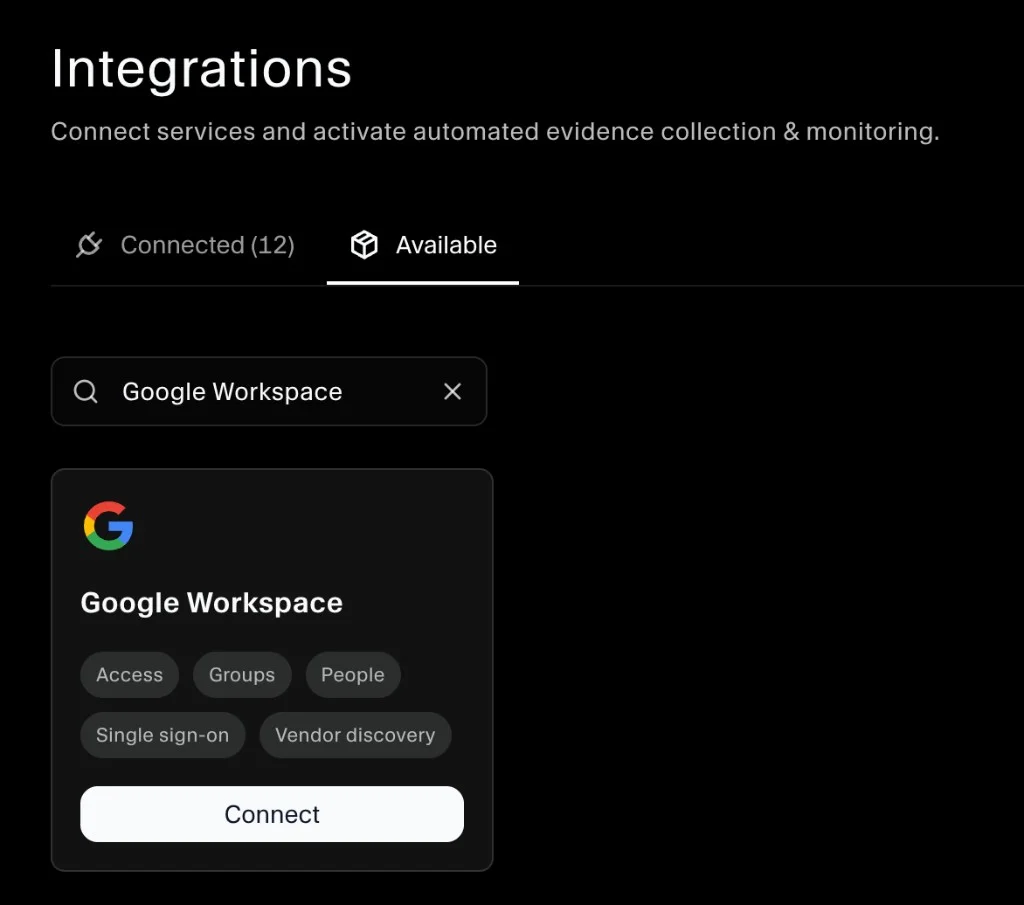
- In SecureSlate, open Integrations from the left sidebar.
- Go to the Available tab.
- Search for Google Workspace.
- Click Connect on the Google Workspace card.
Step 2: Review integration details
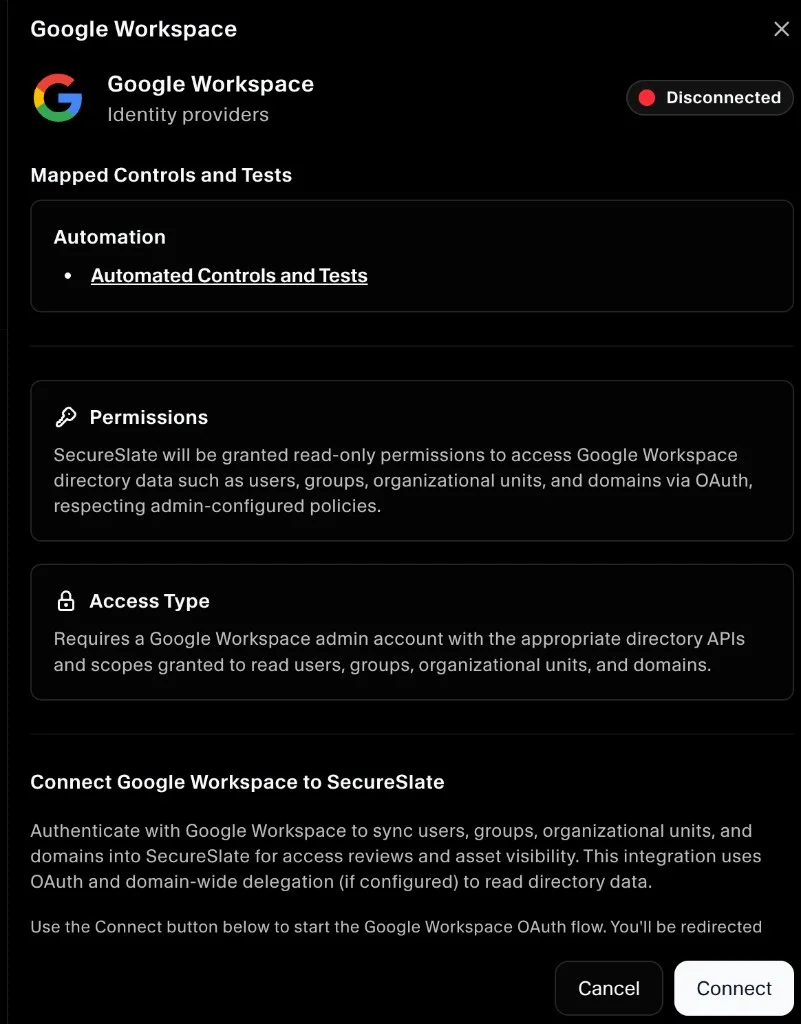
Before proceeding, review the information shown:
- Category: Identity providers
- Mapped Controls and Tests: Automated Controls and Tests
- Permissions: Read-only access to users, groups, organizational units, and domains via OAuth, respecting admin-configured policies
- Access Type: Requires a Google Workspace admin account with the appropriate directory APIs and scopes
Click Connect to start the OAuth flow.
Step 3: Authorize the connection
- SecureSlate redirects you to Google's OAuth consent screen.
- Sign in with your Google Workspace super administrator account.
- Review the permissions SecureSlate is requesting:
| Permission | Required? | What it enables |
|---|---|---|
| View all users in your directory | Required | User sync |
| View all groups in your directory | Required | Group sync, access reviews |
| View user OAuth token data | Optional (recommended) | Third-party app / vendor discovery |
| View admin roles and assignments | Optional | Surfaces admin roles on user records |
- Click Allow to grant permissions and complete the OAuth flow.
Note: If you decline the user security permission, third-party app discovery will not work and vendor data will not appear. To add it later, you must reconnect the integration.
Step 4: Confirm the connection
After approving, you are redirected back to SecureSlate. SecureSlate will:
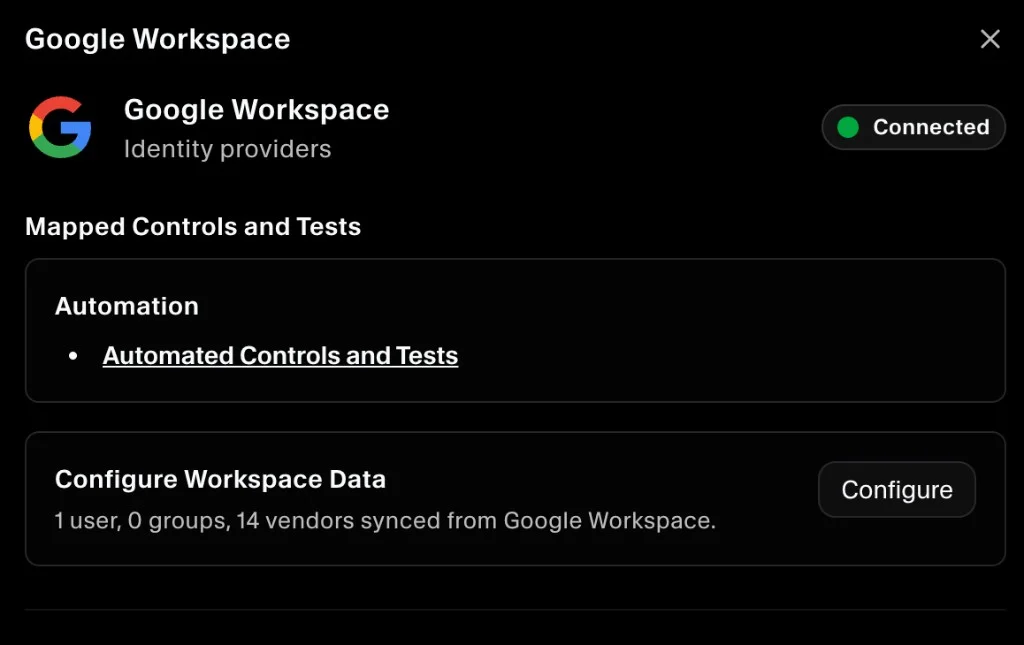
- Complete the connection and show Google Workspace as Connected.
- Automatically open the integration drawer.
- Open the Configure Workspace Data panel so you can immediately review synced users, groups, and vendors.
Configure workspace data
Once connected, SecureSlate syncs your directory and automatically opens the Configure Workspace Data panel. This panel has three tabs, Users, Groups, and Vendors, each showing data pulled from your workspace. Nothing is added to SecureSlate automatically; you choose what to bring in by clicking Add on each row.
| Tab | What it shows | Where it goes in SecureSlate |
|---|---|---|
| Users | Directory users with email, name, Google role, 2FA status, and active/suspended status | Employees: added to your employee directory with a role you assign. Add users who are in your audit scope to ensure they are covered by access reviews and automated compliance tests. |
| Groups | Google Workspace groups with name, email, and member count | Employees → Groups: added as personnel groups |
| Vendors | Third-party OAuth apps authorized by users in your domain, with how many users granted access | Vendor Management: added as vendor records with pre-filled metadata where available. Add vendors that are in your audit scope to include them in vendor risk assessments and compliance evidence. |
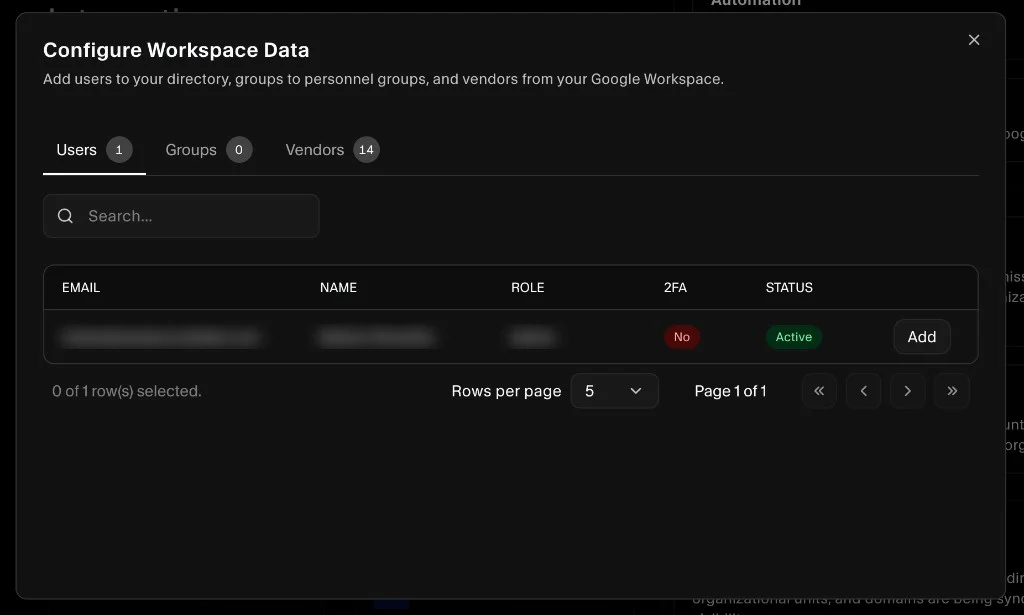
Rows already added to SecureSlate are shown as Added and dimmed. You can return to this panel at any time from the integration drawer to add more.
Verification and validation
After setup, allow up to one hour for the initial sync, then confirm:
- Integration is active: Google Workspace shows Connected with a recent sync timestamp on the Integrations page.
- Users added: Employees you added via the Configure panel appear in the People section linked to their Google Workspace records.
- Compliance tests populating: MFA, deprovisioning, and account-linking tests show data under Tests.
- Groups added: Groups you added via the Configure panel are visible in access-review workflows and on user records.
- Vendors added: Vendors you added via the Configure panel appear in the Vendor Management section (requires the user security permission to have been granted during OAuth).
Use cases and capabilities
| Resource / Capability | Supported | How it is used |
|---|---|---|
| Users | Yes | Personnel management, access reviews, automated tests |
| Groups | Yes | Access reviews, user scoping |
| Roles / Entitlements | Yes (requires role permission) | Access reviews, user records |
| Last login | Yes | Access reviews, activity checks |
| MFA enrollment status | Yes | Automated tests |
| Account suspension / deactivation | Yes | Automated tests, personnel lifecycle |
| Third-party app discovery | Yes (requires user security permission) | Vendor management |
Automated controls and tests
Once connected, SecureSlate automatically maps this integration to relevant compliance controls and runs automated tests against the synced data. These cover areas such as account deprovisioning, MFA enforcement, account-to-personnel linking, privileged access visibility, group membership reviews, and third-party app discovery.
To see which tests are active and how they map to your framework controls (SOC 2, ISO 27001, etc.), open the Google Workspace integration and click Automated Controls and Tests.
Access reviews
- Google Workspace users you have added to the employee directory appear in access reviews.
- Groups you have added as personnel groups are surfaced alongside individual user records.
Vendor discovery
- Third-party OAuth apps authorized by your domain users are discovered and listed in the Configure panel.
- Click Add on any vendor to add it to Vendor Management. Pre-filled metadata (category, website, policy URL) is applied automatically where available.
- Each app record shows how many users in your domain have granted it access.
Limitations and edge cases
| Limitation | Detail |
|---|---|
| Sync is not real-time | Changes reflect after the next scheduled sync (hourly) |
| SecureSlate cannot deprovision users | Offboarding must be completed directly in Google Workspace |
| MFA detection does not work through external SAML | If users authenticate through Okta/other SAML IdPs, MFA enforced at the SAML layer is not visible |
| Archived accounts excluded | Archived Google Workspace accounts are not synced |
| Vendor discovery scoped to active users | Apps authorized by suspended users are excluded |
| Role sync requires re-auth if not granted at setup | Reconnect the integration to add the role management permission |
Troubleshooting
Connection fails with admin_policy_enforced
Your domain restricts third-party OAuth apps. In Google Admin → Security → Access and data control → API Controls → Manage third-party app access, mark SecureSlate's OAuth app as Trusted, then retry.
Integration disconnects unexpectedly
The connecting admin account was suspended, lost super admin privileges, or the OAuth token was revoked. Reconnect using an active super admin account. Use a stable, monitored admin account to prevent recurrence.
Users are missing after sync
- Confirm users are not archived in Google Workspace.
- If group-based scoping is enabled, confirm the missing users are members of the designated group.
- Wait for the next hourly sync and check again.
MFA test failing for users with MFA enabled
- Confirm users have enrolled in 2-Step Verification on their individual accounts (enforcement at org level requires the user to complete setup).
- If users authenticate through an external SAML provider, SecureSlate cannot detect MFA at the SAML layer.
- Allow one full sync cycle after enrollment before checking.
Third-party apps not appearing
- Confirm the user security permission was approved during OAuth setup.
- If missing, reconnect the integration and approve it on the Google consent screen.
Deprovisioning test failing
- Confirm the terminated user's account is suspended with an explicit reason or deleted entirely in Google Workspace.
- Accounts suspended by automated processes without a recorded reason are treated as active.
Permissions reference
| Permission | Required / Optional | What happens without it |
|---|---|---|
| View users | Required | Integration will not sync |
| View groups | Required | Group data and scoping will not work |
| User security / OAuth token data | Optional (recommended) | Vendor discovery disabled |
| Role management (read-only) | Optional | Admin roles not visible on user records |
SecureSlate uses read-only access. No changes are made to your Google Workspace directory, user accounts, or security settings.
