
Vendor Risk Management
Import Vendors
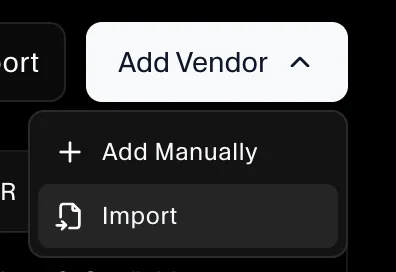
Use Add Vendor → Import when you want to add multiple vendors at once using the Vendor Template.
From the sidebar, go to Risk → Vendor Risk, make sure you are on the Active tab, then click Add Vendor → Import.
Step 1: Download the Vendor Template
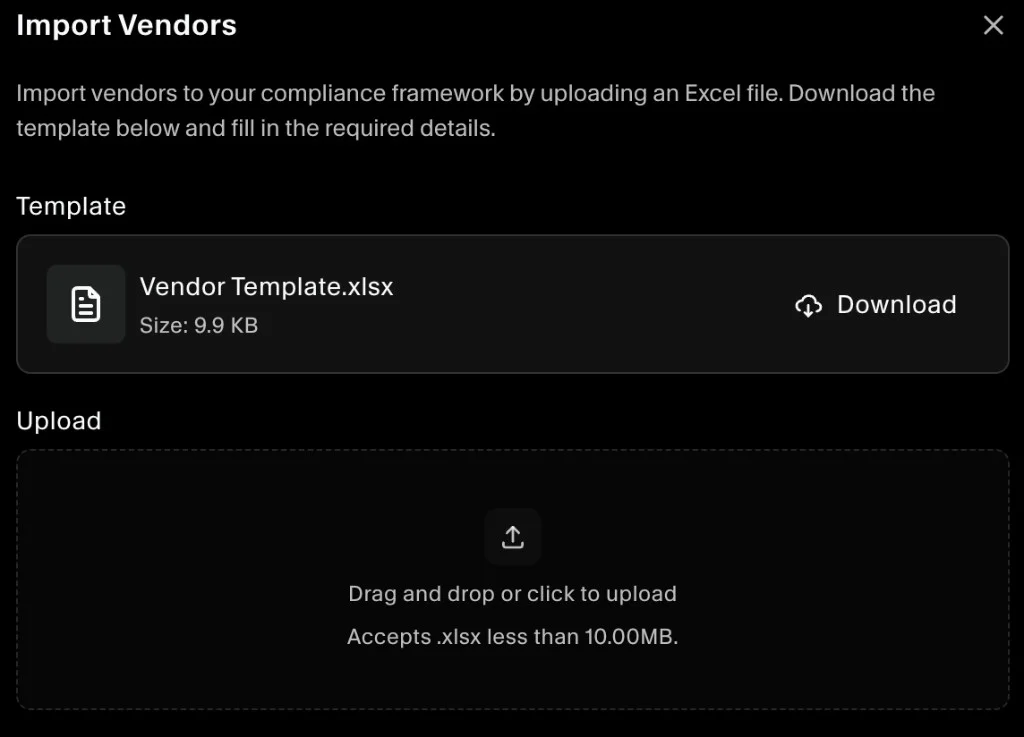
In the Import Vendors dialog, download the template:
- Under Template, click Download.
- Open
Vendor Template.xlsxand fill in the required vendor details.
Step 2: Upload the completed template
Back in the Import Vendors dialog:
- Under Upload, drag and drop your completed
.xlsxfile (or click to upload). - Confirm the upload to import the vendors.
After the import completes, the vendors are added to your Active vendor list.
Step 3: Edit vendor details after import
After importing, click a vendor from the Active list to open its details and update the same information as in Add a Vendor Manually, including:
- Basic vendor information (name, website, category, privacy/terms URLs, owner)
- Authentication details (authentication type, 2FA)
- Impact assessment (data types handled)
- Operational reliance and risk level
