
Integrations
Connecting SecureSlate & Cloudflare
SecureSlate connects to Cloudflare through the Cloudflare API, using read-only access. We retrieve account members and zones (domains) for access reviews, domain asset inventory, and automated compliance tests. SecureSlate does not create, modify, or delete any configuration in your Cloudflare account.
To use this integration, you need a Cloudflare API token scoped to your account with specific read-only permissions (listed below).
What SecureSlate syncs
| Data | Where it appears | Purpose |
|---|---|---|
| Account members | User Access → Access Reviews | Track who has access to your Cloudflare account. |
| Zones (domains) | Asset Management → Domains | Inventory all domains managed through Cloudflare. |
Automated controls and tests
Once connected, SecureSlate runs automated tests against your Cloudflare data. Tests evaluate live Cloudflare configuration on every sync.
Access and identity
- Cloudflare accounts associated with users
- Cloudflare accounts deprovisioned when personnel leave
- MFA enabled on Cloudflare accounts
Domain security (live on every sync)
- WAF protection enabled
- DDoS protection enabled
- Bot management (Super Bot Fight Mode) configured
- IP access rules enabled
- Zone-level firewall rules configured
- HTTP to HTTPS redirection enabled
- HTTPS serving enabled
- SSL/TLS encryption enforced
- Unwanted traffic filtered
Notifications
- Cloudflare alert notifications enabled
Asset inventory
- Cloudflare inventory items have active owners
- Cloudflare inventory items classified for user data
Prerequisites
Before you connect SecureSlate, confirm you have:
- Cloudflare account access with permission to create API tokens (Super Administrator or Administrator role).
- At least one zone (domain) active in Cloudflare so SecureSlate has data to sync.
- Permission to create integrations in SecureSlate (typically Admin or Owner role).
Create a Cloudflare API token
Open API Tokens
- Sign in to dash.cloudflare.com.
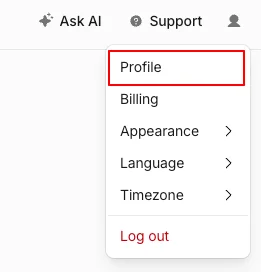
- Click your profile icon in the top-right corner.
- Select My Profile.
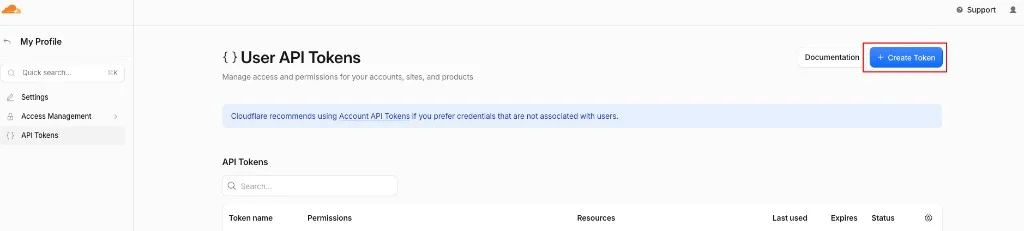
- In the left sidebar, click API Tokens.
Create a new token
- Click Create Token.
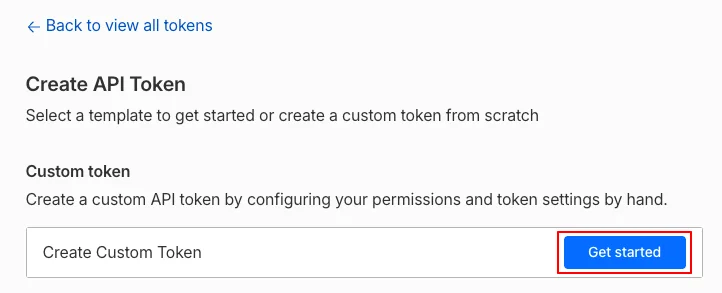
- Select Create Custom Token (at the bottom of the template list), then click Get started.
Name the token
Under Token name, enter a name you will recognize, for example SecureSlate Read-Only.
Add permissions
Under Permissions, add the following six rows. For each row, click + Add more and select the values below:
| Category | Permission | Access |
|---|---|---|
| Account | Account Settings | Read |
| Account | Notifications | Read |
| Zone | Zone | Read |
| Zone | Zone Settings | Read |
| Zone | Firewall Services | Read |
| Zone | Bot Management | Read |
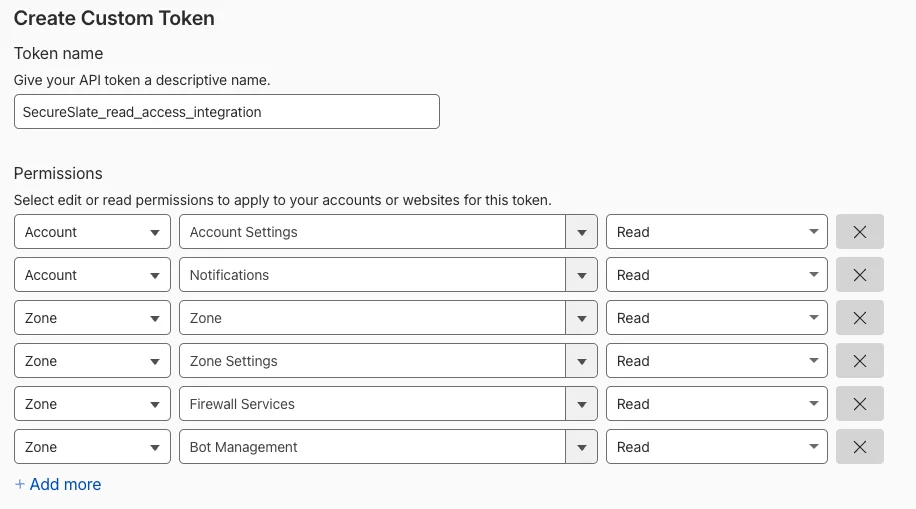
Important: Do not select Edit or Write for any permission. SecureSlate only needs read access.
Set account scope
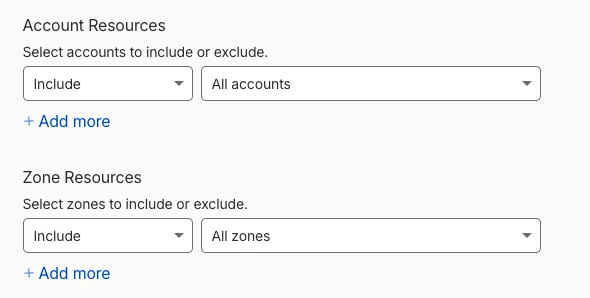
Under Account Resources, set the token to apply to your specific account (or all accounts if you manage multiple). Scoping to a single account is recommended for least-privilege access.
Under Zone Resources, set it to All zones (or restrict to specific zones if preferred).
Generate and copy the token
- Click Continue to summary.
- Review the permissions summary.
- Click Create Token.
- Copy the token immediately: Cloudflare shows the full token only once.
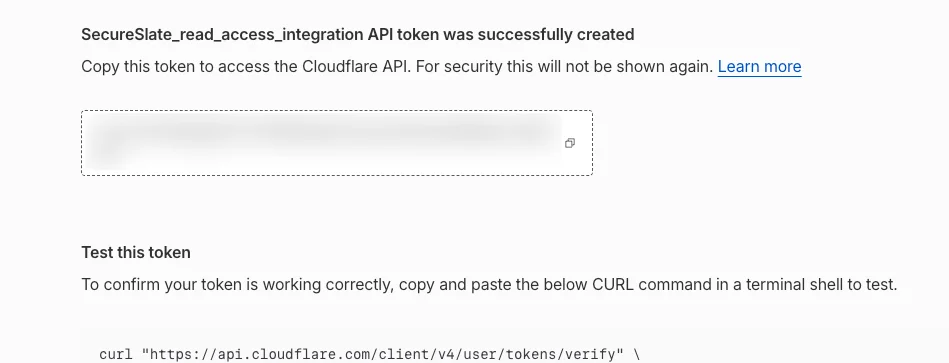
Store the token securely (for example, in your password manager). You will paste it into SecureSlate in the next section.
Connect Cloudflare to SecureSlate
Open the integration
- In SecureSlate, open Integrations from the left sidebar.
- Go to the Available tab.
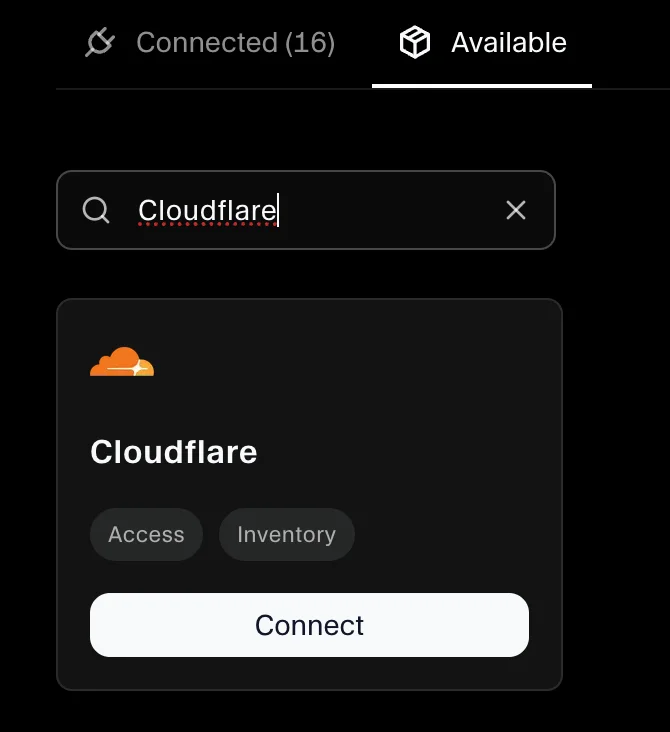
- Search for Cloudflare.
- Click Connect on the Cloudflare card.
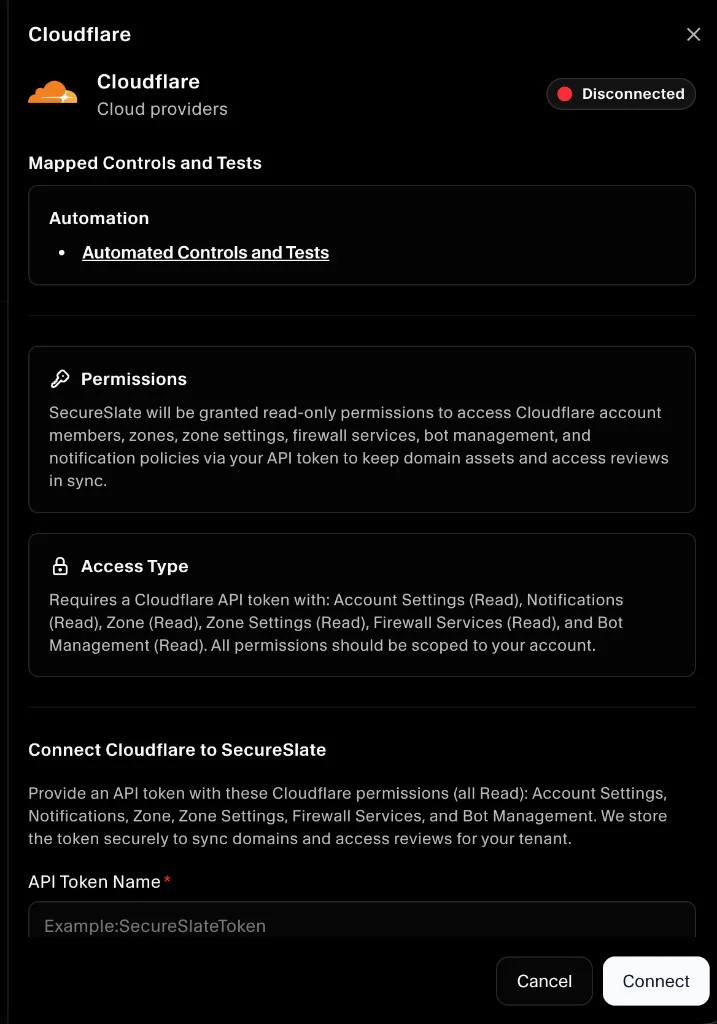
Review the integration details:
- Category: Cloud Providers
- Permissions: Read-only access to account members, zones, zone settings, firewall services, bot management, and notification policies
- Access type: Cloudflare API token with Account Settings, Notifications, Zone, Zone Settings, Firewall Services, and Bot Management (all Read)
Enter your API token
- In the API Token Name field, enter a label for the token, for example
SecureSlate Read-Only. This is for your reference inside SecureSlate only. - In the API Token field, paste the token you copied from Cloudflare.
- Click Connect.
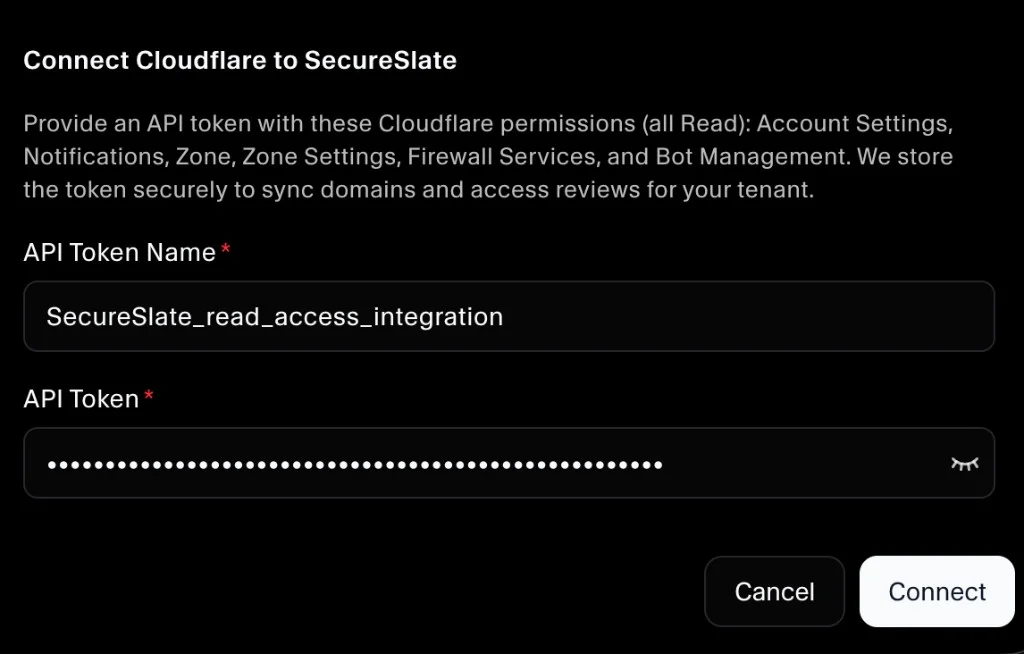
SecureSlate validates the token with Cloudflare, fetches your account members and zones, and runs the initial set of automated compliance tests.
Note: If your token is missing a required permission, SecureSlate will show a warning toast indicating which data could not be synced. The integration will still connect with whatever data was accessible.
Verify the integration
After a successful connection:
- The Cloudflare integration appears under Connected on the Integrations page.
- Account members sync to User Access → Access Reviews under the Cloudflare platform.
- Zones sync to Asset Management → Domains with zone status and account metadata.
- Automated tests begin running and controls update based on the results.
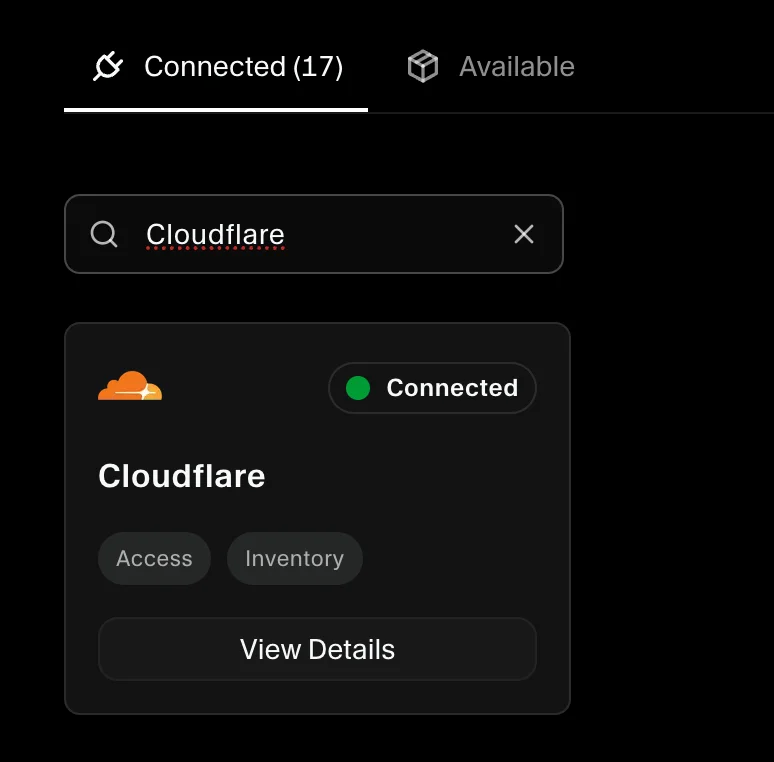
Initial sync time depends on the number of zones and members in your Cloudflare account.
Disconnecting Cloudflare
If you disconnect Cloudflare from SecureSlate:
- The integration record and API token are removed.
- Synced domain assets linked to the integration are removed from Asset Management.
- Cloudflare access review records are removed from User Access.
- Cloudflare automated tests are removed from your workspace.
Troubleshooting
"No accounts found in Cloudflare access review" / access review controls failing
Your token is missing Account > Account Settings: Read permission. This permission is required for SecureSlate to discover your account ID and list account members. Regenerate your token with all six permissions listed above and reconnect.
Domains not appearing in Asset Management
Your token is missing Zone > Zone: Read permission. Without it, SecureSlate cannot list your zones. Regenerate the token with Zone: Read and reconnect.
WAF / SSL / bot management controls failing after you made changes in Cloudflare
These controls call the Cloudflare API live on every sync. Click Sync on the Cloudflare integration to re-evaluate them against your current configuration. If they still fail, confirm the relevant feature is enabled in your Cloudflare zone dashboard.
Warning toast on connect
SecureSlate will show a warning if a permission is missing but will still connect with the data it could access. Check the toast message to identify which permission needs to be added, then regenerate the token and reconnect.
Token invalid or connection fails
- Confirm you copied the full token (tokens cannot be viewed again after creation in Cloudflare).
- Confirm the token has not been revoked in Cloudflare → My Profile → API Tokens.
- Confirm the token scope includes the account and zones SecureSlate should access.
- If the token was rotated or deleted, generate a new token and disconnect/reconnect the integration in SecureSlate.
