
SecureSlate Device Agent
Setup
You can install the SecureSlate Device Agent from the Device Setup step
of your SecureSlate onboarding, or from the link your admin sent you.
macOS
System requirements
- A current, supported version of macOS
- Apple silicon (M-series) or Intel processor
- Download the
.dmginstaller from the Device Setup page. - Open the downloaded file and drag SecureSlate Device Agent into your
Applications folder.
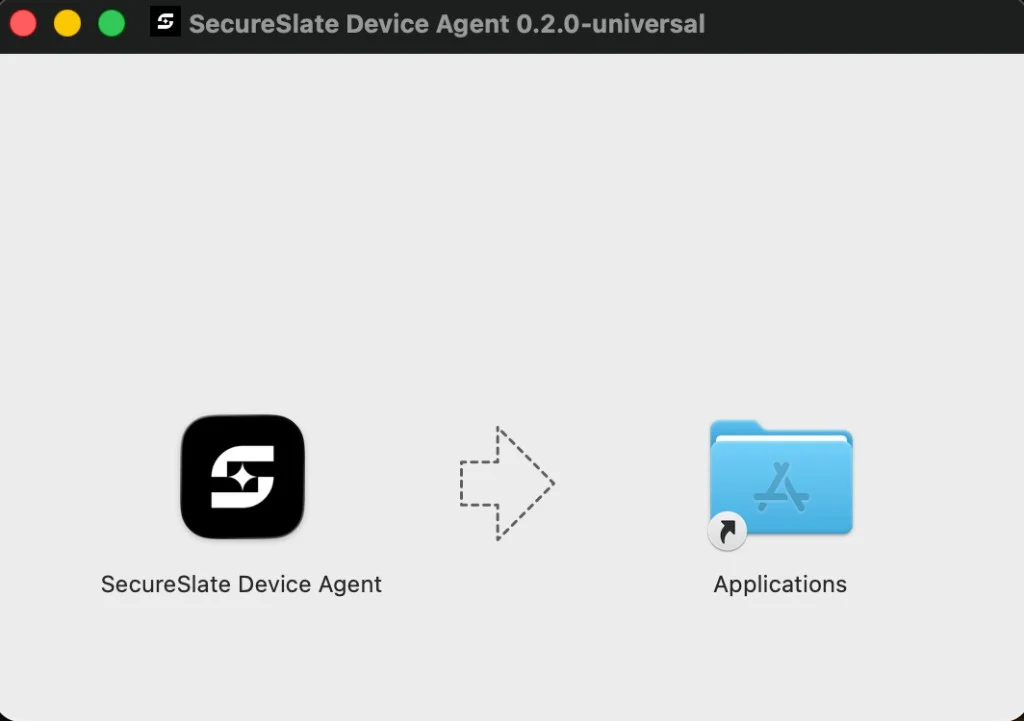
- Open SecureSlate Device Agent from Applications (or Spotlight).
- If macOS shows an "Apple could not verify..." warning, follow the
steps below, then continue. - Sign in with your SecureSlate account when prompted. The Agent icon
appears in your menu bar (top right).
If macOS blocks the app on first launch
This can happen the first time you open the app. Approve it once:
- Click Done on the blocked dialog.
- Open System Settings → Privacy & Security.
- Click Open Anyway next to SecureSlate Device Agent, then confirm
Open.
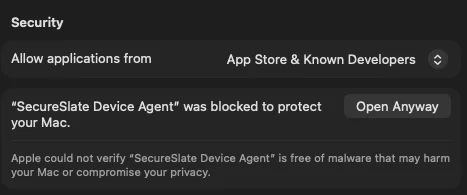
Do this soon after downloading. The Open Anyway option disappears
after a short time, and you'd need to re-download to see it again.
Uninstalling on macOS
Quit the Agent from its menu, then drag SecureSlate Device Agent.app
from Applications to the Trash.
Windows
System requirements
- Windows 10 or Windows 11, 64-bit
- Any edition, including Home
- Administrator rights are needed for the disk encryption check only, see
Troubleshooting
- Download the
.exeinstaller from the Device Setup page. - Run the downloaded installer and follow the setup wizard.
- If Windows shows a "Windows protected your PC" warning, follow the
steps below, then continue. - Open SecureSlate Device Agent and sign in with your SecureSlate
account. The Agent icon appears in your system tray.
If Windows blocks the app on first launch
This can happen the first time you run the installer. Approve it once:
- Click More info on the warning.
- Click Run anyway.
- Follow the setup wizard to finish installing.
Uninstalling on Windows
Open Settings → Apps → Installed apps, find SecureSlate Device
Agent, and choose Uninstall.
Linux
Linux support isn't available yet. If your company requires Linux device
compliance today, use manual evidence upload instead: see
Manual evidence uploads for personnel asset compliance check.
Signing in
Signing in opens your browser to confirm your identity, then returns you
to the Agent. Once signed in, the Agent checks your device automatically.
You don't need to do anything else.
