
Getting Started
Getting Started with SecureSlate Audits
SecureSlate Audits Page
The Audits Page in SecureSlate is your central spot for handling all things compliance audits, from timelines and reports to seamless auditor collaboration. Perfect for startups and small teams chasing SOC 2, ISO 27001, or other standards. Dive in to keep your audits on track and stress-free!
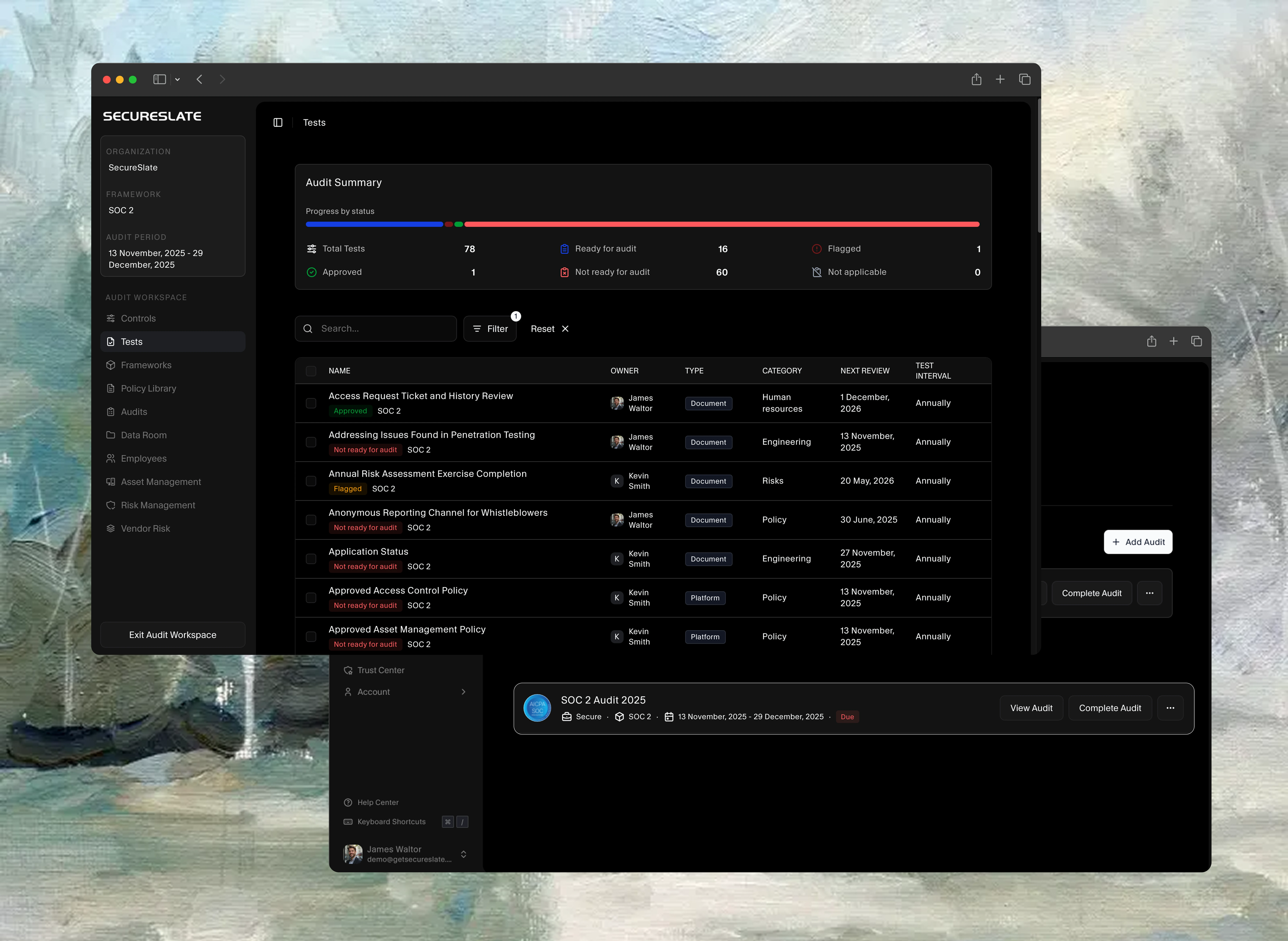
Audits Page at a Glance
From the main dashboard, click Audits in the sidebar.
You'll see two tabs: Active (for current audits) and Completed (for past ones and reports).
The Active tab shows live audits with key details, while Completed lets you revisit history and grab reports.
Filter by Audit Firm, Framework, or Status, or use the search bar for quick finds.
Download reports or delete audits via the three-dot menu on each item.
Kickstarting Your Audit
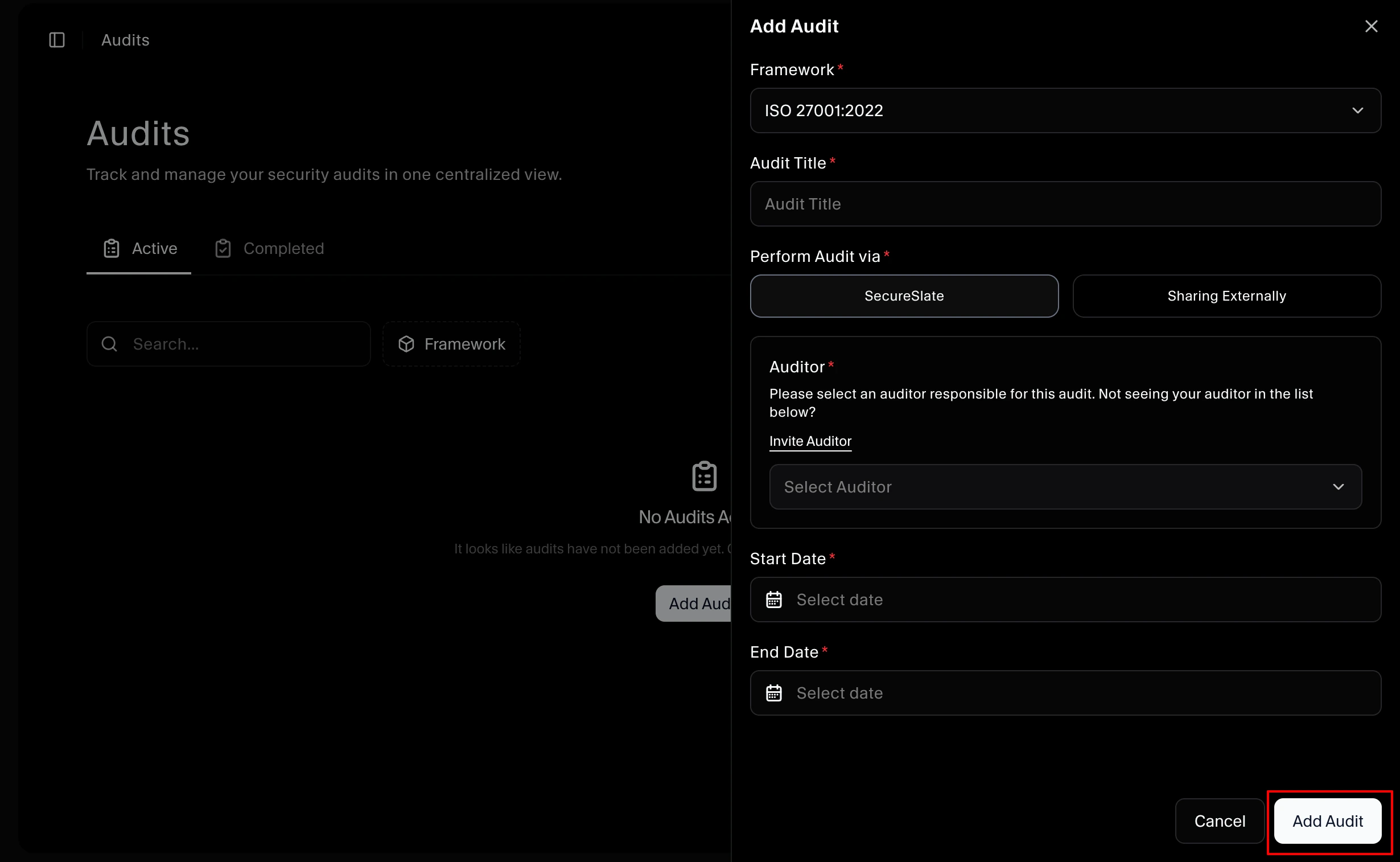
- Start fresh by clicking + Add Audit.
- Pick your Framework and Auditor (or skip auditor for now and add later via the three-dot menu > Invite Auditor).
- Enter the audit firm's full domain, select the performer, and set your audit window dates.
- Auditors get read-only access to controls, evidence (tests, docs, policies), and real-time updates, but only within the audit window.
- They can request custom evidence if needed, but no peeks at sensitive employee info or user changes.
- Set an early access date for a pre-audit readiness review (great for spotting gaps early!).
- Hit Add Audit. It'll pop up in the Active tab.
- Edit dates or check timelines anytime (just confirm with your auditor first).
For SOC 2 Audits:
- Need Trust Services Criteria (TSCs)? Reach out to our support crew. They'll flip it on for you.
- When setting up SOC 2, toggle TSCs on/off as needed (editable until the audit kicks off, no changes mid-audit).
Tracking Audit Progress
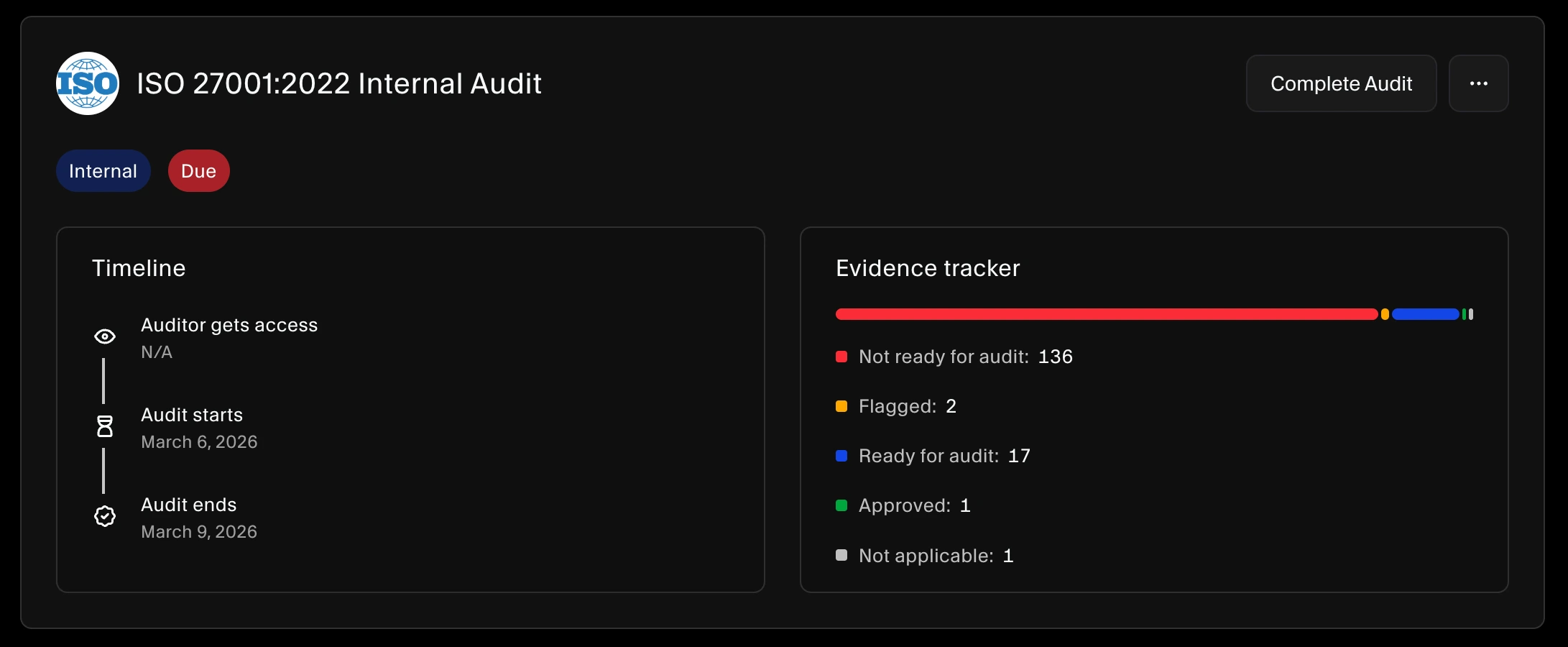
The progress bar gives a real-time snapshot of your readiness: flagged items, accepted evidence, or N/A statuses.
(Remember, N/A is auditor-only for irrelevant evidence.)
To tweak dates: Three-dot menu > Edit Audit Dates > Enter new info > Edit Audit.
Pro Tip: Only document uploads can get retroactive status bumps (e.g., a late-passing test stays "Not Ready" once the window opens).
Simulating Auditor Access
Click View Audit to see exactly what your auditor views in SecureSlate.

In the Evidence tab, check their assessments, with all your collected proof in one spot for quick insights.
Chatting with Auditors
SecureSlate's built-in comments keep audit convos tidy and in one place. No more email hunts!
- From the Audits Page, hit Preview as Auditor on an ongoing audit.
- In the Evidence tab, click an item > Comments sub-tab.
- Read/reply to auditor notes. Admins and editors get pings on new ones, and auditors on yours.
Why Use the Audits Page?
- Free and Straightforward: No-cost setup for quick audits, ideal for growing teams.
- Real-Time Collaboration: Live updates and comments speed up feedback loops.
- Audit-Proof Simplicity: Early access and progress bars make readiness a snap.
- Secure by Design: Auditors see just what they need, keeping your data safe.
Jump into the Audits Page at getsecureslate.com and ace your next compliance check!
