
Policies
Assign Policies to Employee Onboarding
Use a checklist to choose which policies your employees accept during onboarding. This guide walks admins and owners through the four steps.
Step 1: Approve the policy
Only approved policies can be added to a checklist.
- Go to Policies and click the policy.
- Set the Owner Name.
- Under Policy Evidence, upload your policy document.
- The policy owner clicks Approve.
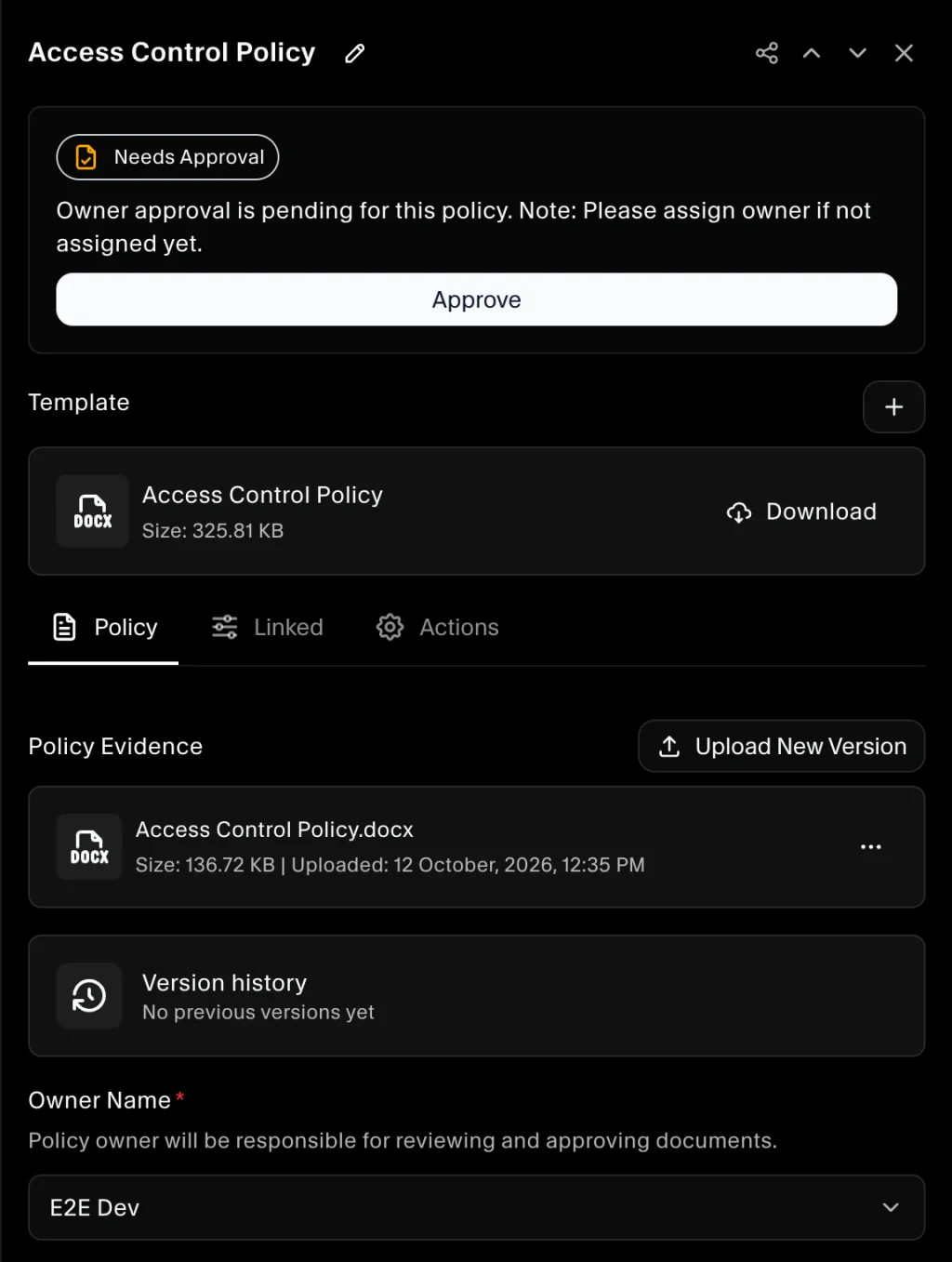
Note: Only the policy owner sees the Approve button.
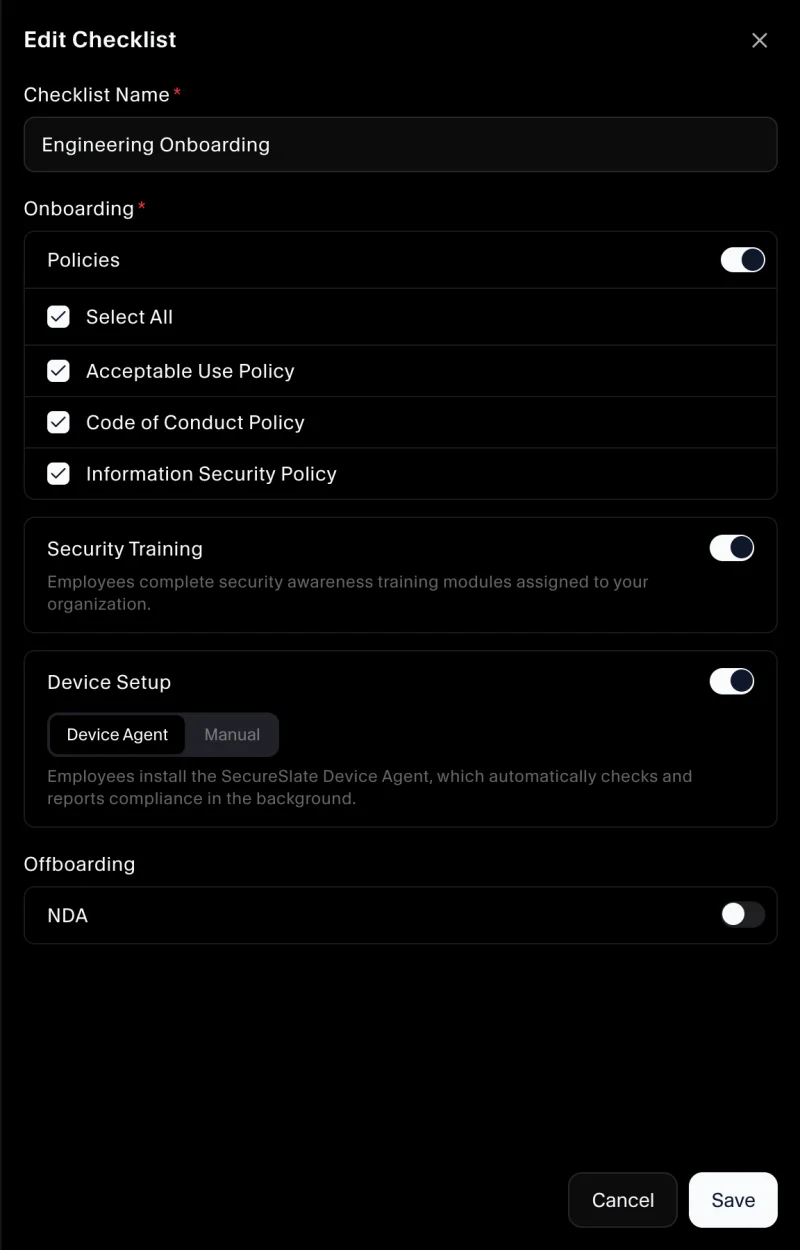
Step 2: Add the policy to a checklist
- Go to Employees and open the Checklist tab.
- Click ⋯ next to a checklist and select Edit Checklist, or click Add Checklist to create a new one.
- Under Onboarding, turn on Policies.
- Tick the policies employees should accept, or tick Select All.
- Click Save.
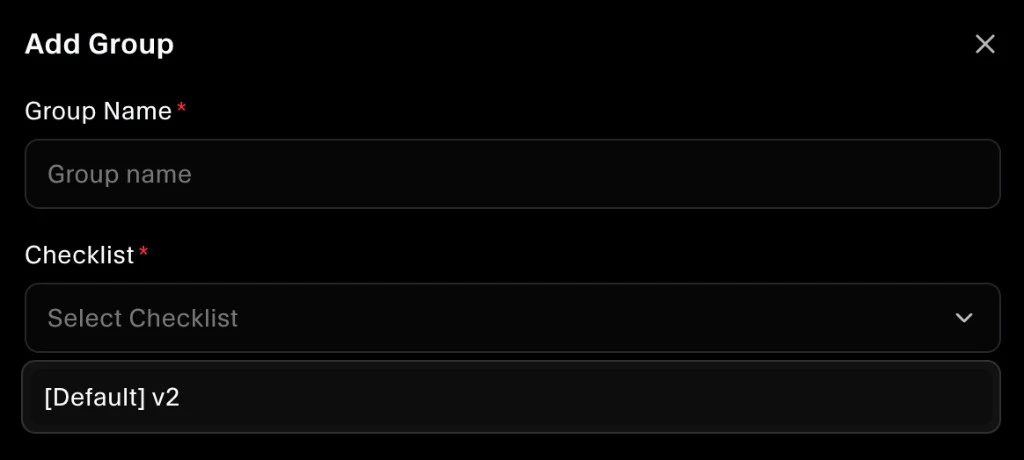
Step 3: Assign the checklist to a group
- Go to Employees and open the Group tab.
- Click ⋯ next to the group and select Edit Group.
- Choose the checklist and click Save.
Step 4: Add the employee to the group
New employees: choose the Group when you click + Add Employee.
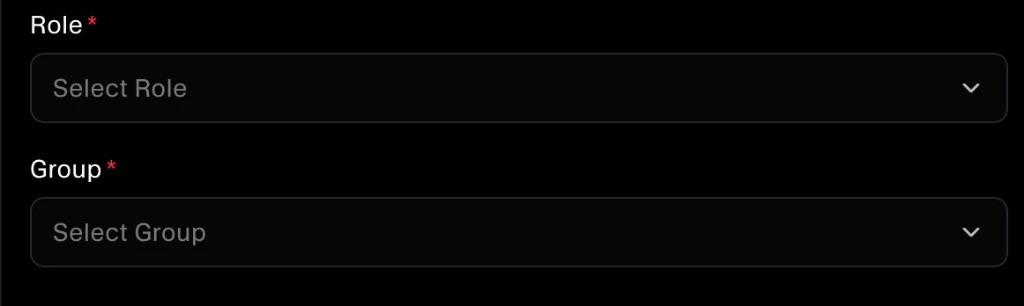
Existing employees: on the All Employees tab, click the employee's name and pick a Group.
What the employee sees
The policies appear under Policies on the employee's Employee Onboarding page. The employee opens each policy, reads it, and clicks Mark as Accepted.
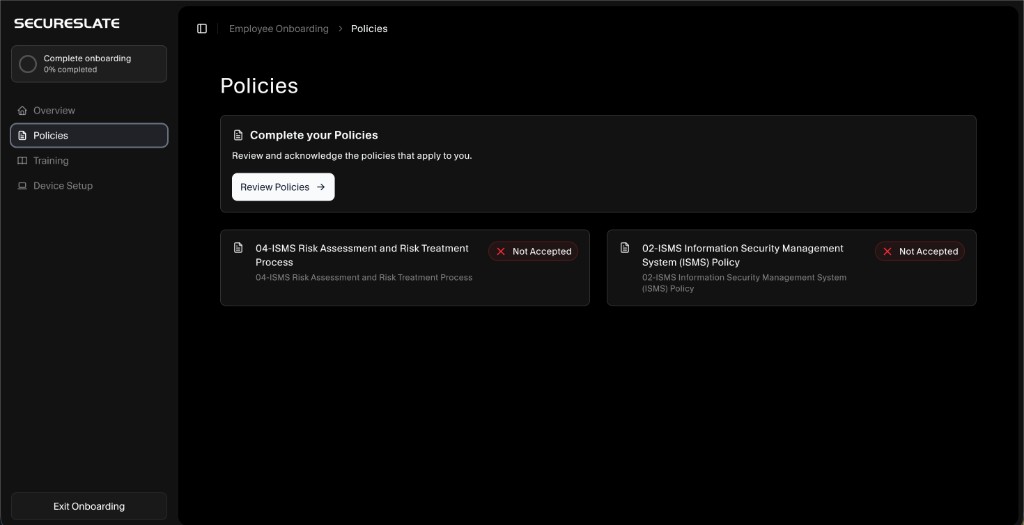
To check progress, click the employee's name on All Employees and open the Onboarding tab.
Adding a policy later
When you add a policy to a checklist, employees in groups that use the checklist must accept the new policy. Their onboarding shows as Incomplete until they do. Policies they already accepted stay accepted.
To remind them, click ⋯ next to the employee on All Employees and select Send Onboarding Reminder.
Policy not showing in onboarding?
Check that:
- The policy is Approved.
- The policy is ticked on the checklist, and Policies is turned on.
- The employee's group uses that checklist.
- The employee is in that group.
Still stuck? Click the Live chat button in the bottom-left corner to chat with us.
