
Integrations
Connecting SecureSlate & Jira
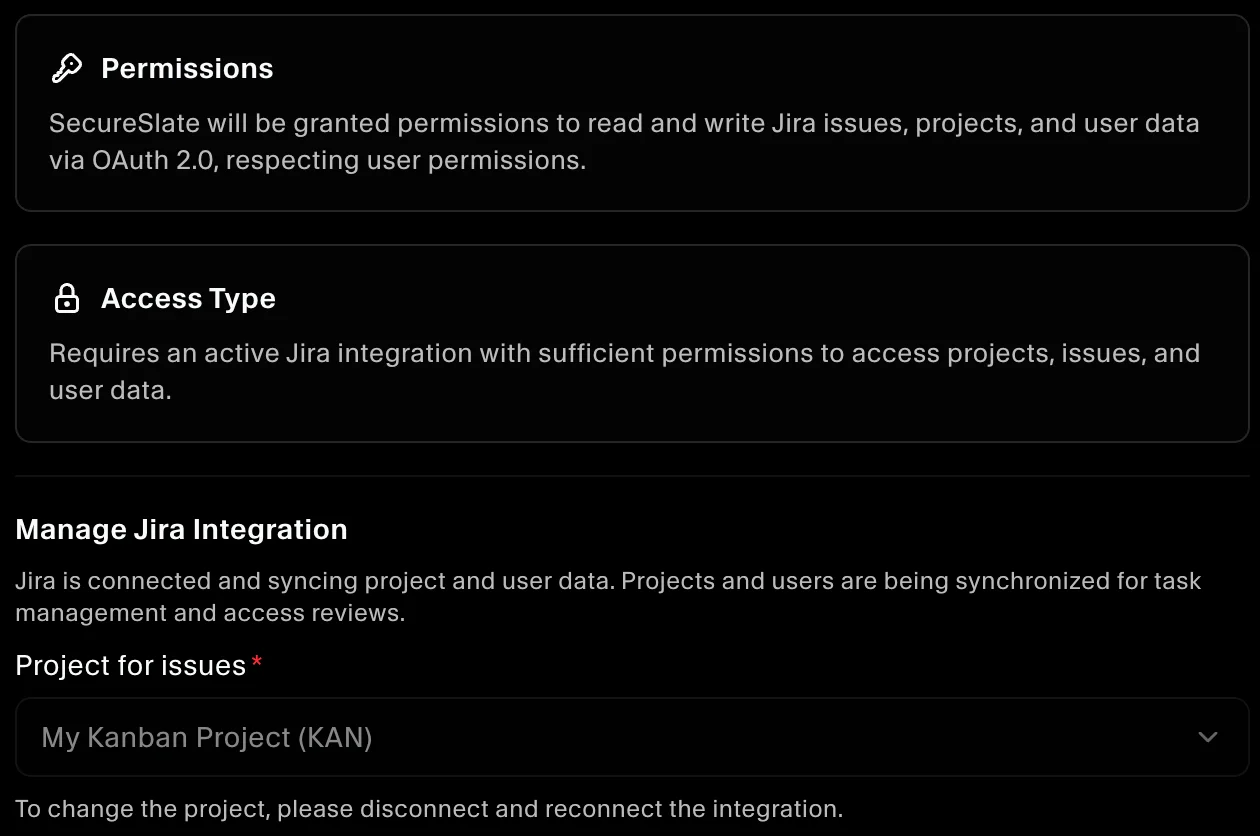
SecureSlate connects to Jira Cloud using OAuth 2.0. We read your site's users for access reviews and the issues in a project you choose for automated tests. SecureSlate also has write access: it creates Jira issues when you ask it to, and updates the priority and title prefix of linked issues when you change a finding's severity in SecureSlate. It doesn't delete issues or change users.
Prerequisites
- SecureSlate permissions: access to manage integrations (typically Admin).
- Jira permissions: an account on your Jira Cloud site that can see all users and the project you want to track. A Jira admin account works best.
- A Jira project that holds your security issues. Create one first if you don't have it.
What SecureSlate syncs
| Data | Where it appears | Purpose |
|---|---|---|
| Site users (name, email, active or deactivated) | User Access → Jira | Review each account, link it to an employee, and track removed accounts |
| Issues in the selected project (priority, status, assignee, type) | Tests | Check that security issues are tracked, assigned, and resolved |
SecureSlate also adds a Jira vendor under Vendor Risk when you connect, unless you already track one.
Users later deactivated or removed in Jira stay in User Access as inactive, so your access history is kept for audits. Issues are read from Jira each time the tests run.
Authorize SecureSlate in Jira
- Sign in to Atlassian with the account you want to connect.
- When SecureSlate sends you to Atlassian, select the Jira site to connect and accept the requested access.
- Atlassian returns you to SecureSlate.
SecureSlate asks to read Jira users, read and write Jira work (projects and issues), and stay connected with a refresh token.
Connect Jira to SecureSlate
- In SecureSlate, open Integrations.
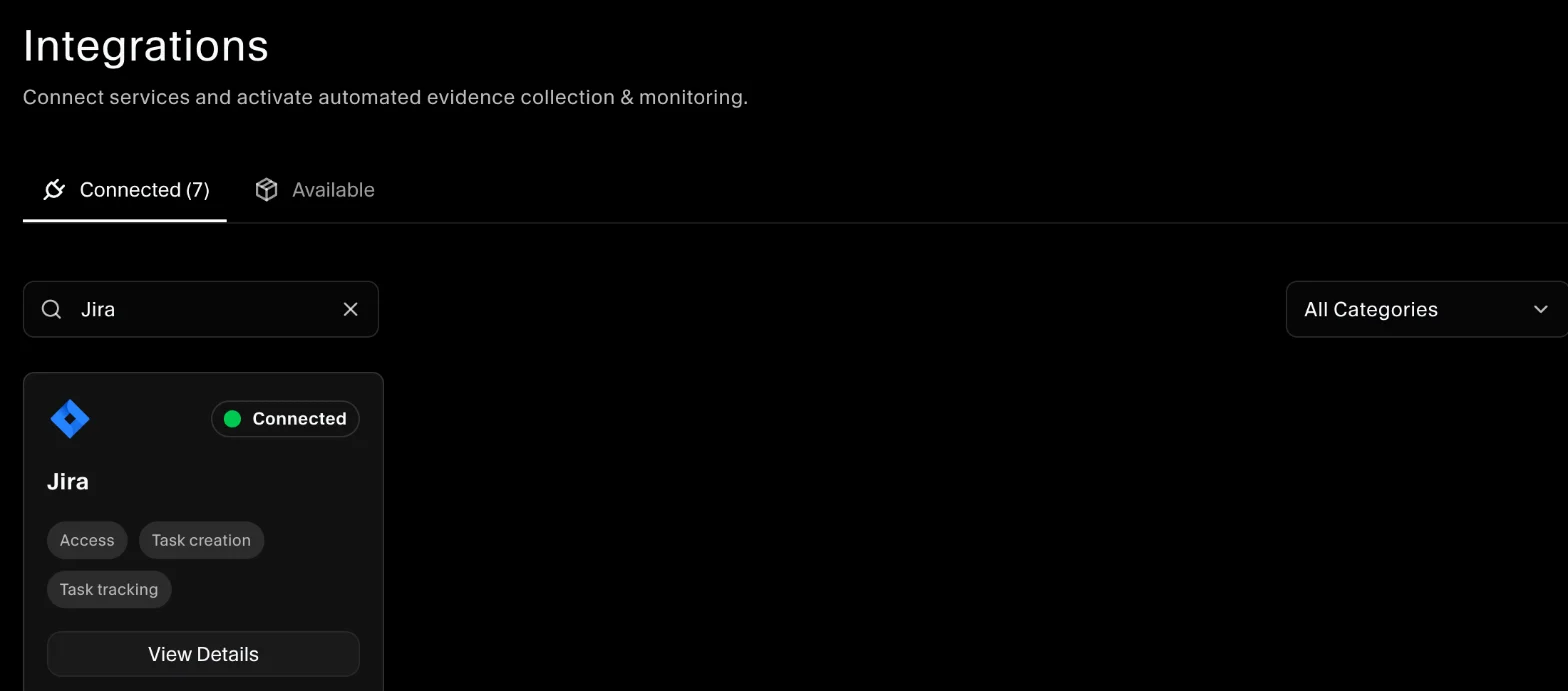
- Find Jira and click Connect.
- In the drawer, click Connect. You're redirected to Atlassian to authorize SecureSlate.
- Back in SecureSlate, open the Jira integration. Under Project for issues, choose the project that holds your security issues.
- Optional: click Create test task to check that SecureSlate can create issues in that project.
SecureSlate saves the project and runs the Jira tests. The project is locked once selected. To change it, disconnect Jira and connect it again.
Create Jira issues from SecureSlate
Once Jira is connected, you can turn work in SecureSlate into Jira issues in the project you selected, without leaving SecureSlate.
From a vulnerability finding: in Vulnerabilities, open Issues, or the scan results for a cloud, domain or repository. Click the menu on a finding's row and choose Create Jira task. SecureSlate creates the issue and links it to the finding. If you later change the finding's severity, SecureSlate updates the linked issue's priority.
From the Dashboard:
- Click Add Task and fill in the task details.
- Under Deliverable, tick Create task in Jira.
- Click Add Task.
To check the connection, click Create test task in the Jira integration.
Automated tests
Once connected, SecureSlate runs automated tests on your Jira data. They cover account access and how security issues are tracked and resolved, and collect the evidence your auditors need.
To see which tests run and their results, open the Jira integration and click Automated Controls and Tests, or go to Tests.
Troubleshooting
- "Jira authentication or sync failed": authorization didn't complete. Click Connect again and accept access in Atlassian.
- "No projects found in your Jira site": create a project in Jira, then disconnect and connect Jira again.
- "Jira issue evaluation is not available": no project is selected. Choose one under Project for issues.
- "Jira connection expired or was revoked. Reconnect Jira in Integrations.": disconnect Jira and connect it again.
- "Jira issues could not be read": the connected account can't read the selected project. Reconnect with an account that has access to it.
- Multiple Jira sites: SecureSlate connects to one site. Select the site you want when you authorize.
Get started today at getsecureslate.com to connect Jira and keep your security issues and user access audit-ready.