
Settings
Roles and Permissions
Every person in your workspace has one role. The role decides which pages they see and what they can change.
The six roles
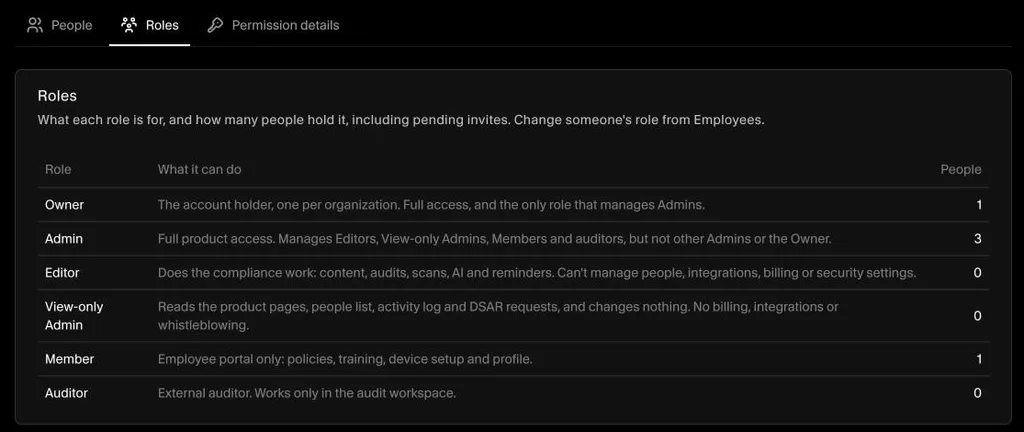
| Role | Who it's for | What they can do |
|---|---|---|
| Owner | The account holder. There is one per organization. | Everything, and the only role that can manage Admins. |
| Admin | People who run the compliance program. | Everything except managing other Admins or the Owner. |
| Editor | People who do the day-to-day compliance work. | Edit frameworks, controls, tests, policies, risks, vendors, assets, audits and the Trust Center. Run scans and use AI. Can't manage people, integrations, billing or security settings. |
| View-only Admin | Leaders or reviewers who need to see everything. | View every product page, the people list, the activity log and DSAR requests. Can't change anything. |
| Member | Regular employees and contractors. | The employee portal only: accept policies, complete training, set up their device and edit their profile. |
| Auditor | Your external auditor. | Works only in the audit workspace. |
See the roles in your workspace
- Go to Settings → Users.
- Open the Roles tab to see each role and how many people hold it, including pending invites.
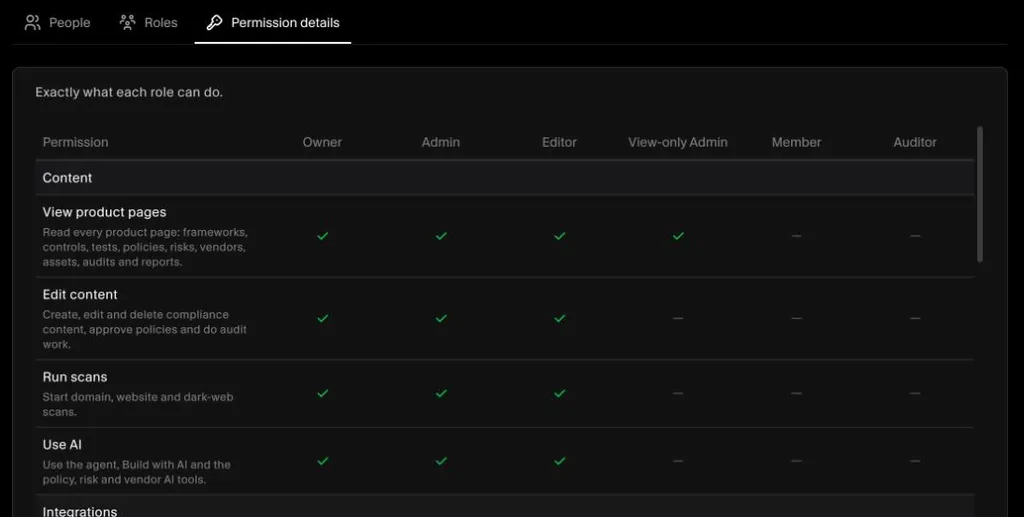
- Open the Permission details tab for the full list of what each role can and can't do.
Who can give which role
- The Owner can give any role, including Admin.
- Admins can give Editor, View-only Admin and Member, to people below Admin.
- The Owner role can't be given from a role list. It moves only when the Owner transfers ownership.
- Auditors are added from Settings → Users → Auditors, not from a role list. See User Management.
