
Asset Management
Getting Started with Asset Management
The Asset Management page helps you monitor devices and other assets that fall within your audit scope. From here you can see key endpoint security checks (encryption, antivirus, password policy, screen lock, firewall) and whether each asset is in scope for audits.
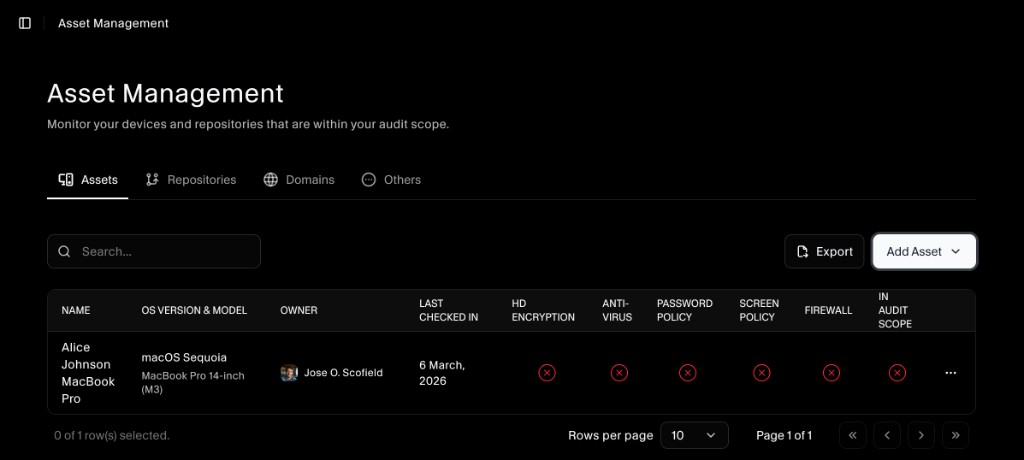
There are four tabs across the top: Assets, Repositories, Domains, and Others.
Assets tab: manage devices in scope
The Assets tab lists endpoints such as laptops or workstations.
Columns typically include:
- Name: The asset or user/device name.
- OS version & model: Operating system and hardware details.
- Owner: The person responsible for the device.
- Last checked in: When SecureSlate last received data for this asset.
- HD encryption, Antivirus, Password policy, Screen policy, Firewall: Compliance checks for key security controls.
- In audit scope: Whether the asset is included in your current audit programs.
You can search, filter, and export the list, and you can add assets using Add Asset.
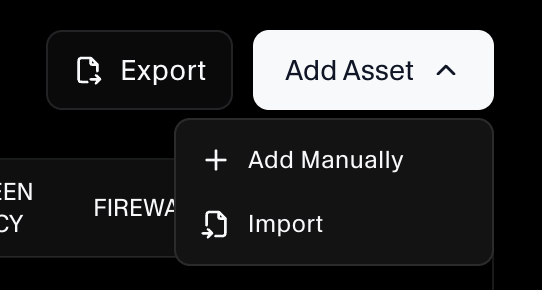
Add assets manually
To create a single asset record:
- Go to Asset Management → Assets.
- Click Add Asset → Add Manually.
- Fill in the asset details (for example, name, OS version, owner, and scope fields).
- Save to add the device to the table.
Use manual adds for one‑off devices or when you need to quickly bring a specific asset into scope.
Import assets from a template
To bulk‑load devices:
- Click Add Asset → Import.
- Download or use the provided template (usually an Excel file).
- Populate the template with your asset list (name, OS, owner, etc.).
- Upload the file to import assets into SecureSlate.
Import is ideal when migrating from an existing CMDB or spreadsheet.
Repositories, Domains, and Others tabs
The other tabs (Repositories, Domains, and Others) are automatically populated from your connected integrations:
- Repositories: Code repositories discovered from integrations such as GitHub, GitLab, Bitbucket, or similar tools.
- Domains: Domains associated with your organization, often discovered via cloud or DNS‑related integrations.
- Others: Additional asset types detected through integrations that don’t fall into the first three buckets.
These tabs reflect what SecureSlate learns from your connected tools, so you don’t need to maintain them manually. As you add or update integrations, new assets appear here for visibility and evidence.
How Asset Management supports audits
- Ensures all in‑scope devices and other assets are visible and tracked.
- Surfaces gaps in endpoint controls (encryption, antivirus, screen lock, etc.).
- Provides a single exportable list for auditors showing which assets are covered and how.
Combine this page with the evidence collection guides for asset controls to keep your environment ready for audits year‑round.
