
Integrations
Connecting SecureSlate & Okta
SecureSlate connects to your Okta org as a read-only Okta API Services app. We read your users, their MFA factors, password policies, groups and apps so you can review access, onboard people from your directory, and show auditors that accounts are removed when people leave. SecureSlate does not change, suspend, or deactivate anything in Okta.
Prerequisites
Before you start, make sure you have:
- SecureSlate permissions: access to manage integrations (typically Admin).
- Okta permissions: an Okta Super Administrator, to create the app SecureSlate connects with and give it a role.
- Your Okta domain, for example
acme.okta.com. Okta orgs on a custom domain are not supported yet.
What SecureSlate syncs
| Data | Where it appears | Purpose |
|---|---|---|
| Users | User Access → Okta | Review each account, link it to an employee, and track removed accounts |
| Users, groups and apps | Integrations → Okta → Configure Directory Data | Add users to People, groups to personnel groups, and apps as vendors |
| MFA factors and password policies | Stored on the connected integration | Run the MFA and password policy tests |
SecureSlate also adds an Okta vendor under Vendor Risk when you connect, if you don't already have one.
Deactivated and suspended users stay in User Access as inactive, so your access history is kept for audits.
Create a read-only API Services app
SecureSlate signs in as an Okta app with a private key, not as a person. The app belongs to your org, so it doesn't expire when it isn't used or stop working when an admin leaves. Its role and scopes keep it read-only.
- In the Okta Admin Console, go to Applications → Applications and click Create App Integration.
- Choose API Services, name it (for example
SecureSlate) and click Save. Keep the Okta-generated Client ID. - Under Client Credentials, click Edit, choose Public key / Private key, then Add key → Generate new key. Copy the private key in PEM format and click Done, then Save. Okta only shows the private key once.
- On the Okta API Scopes tab, grant these read scopes:
okta.users.read,okta.factors.read,okta.policies.read,okta.groups.readandokta.apps.read. - On the Admin roles tab, click Edit assignments and assign only the Read-only Administrator role.
Leave Require Demonstrating Proof of Possession (DPoP) turned on; SecureSlate supports it.
Connect Okta to SecureSlate
- In SecureSlate, open Integrations.
- Search for Okta and click Connect.
- Enter your Okta domain (for example
acme.okta.com, not the-adminaddress), the app's Client ID, and paste the private key. - Click Connect.
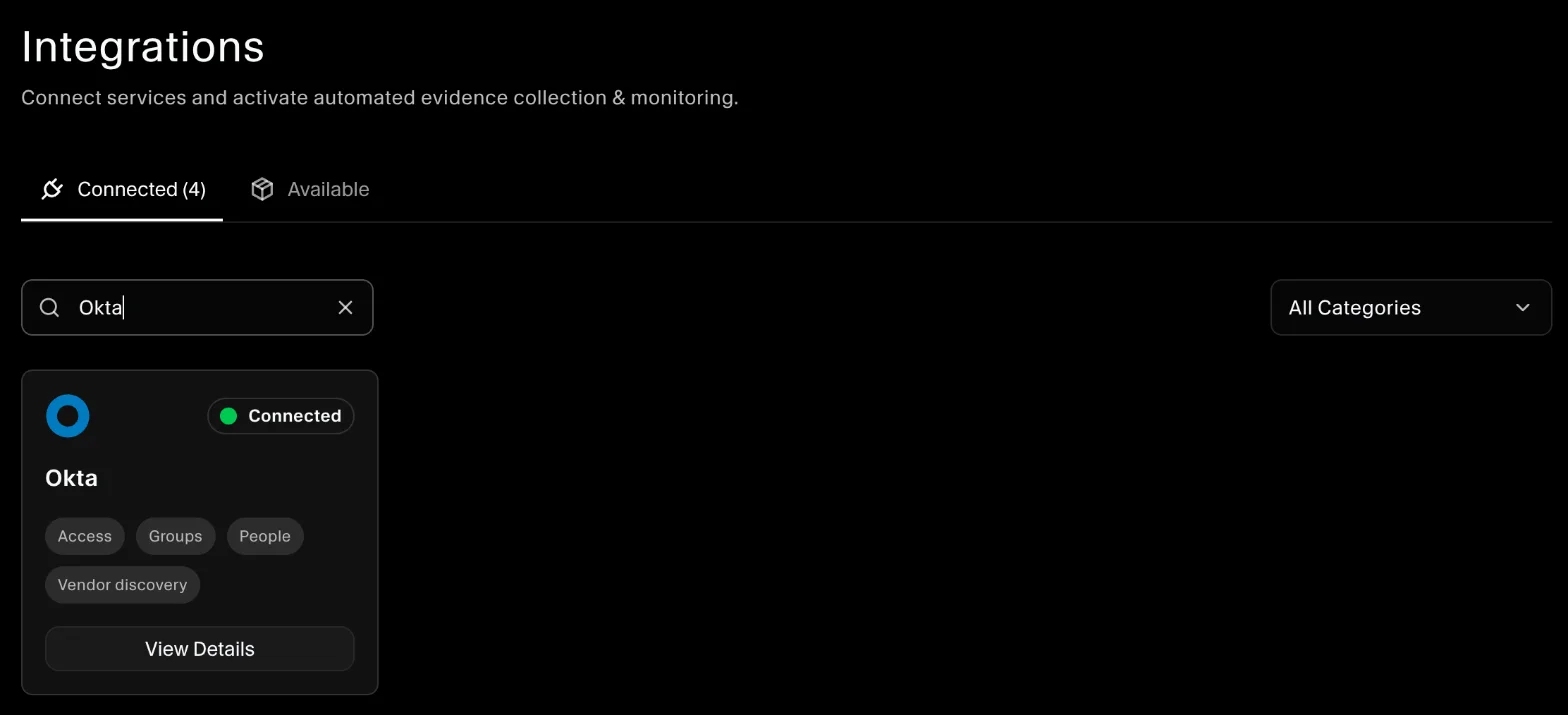
SecureSlate signs in as the app and starts syncing right away. Larger orgs can take a few minutes because MFA factors are read for each user.
The private key is sent once, when you connect, and is stored on SecureSlate's servers. It is never shown in the app again, and only SecureSlate's backend uses it to sign in to Okta. Disconnecting Okta deletes it.
To use a different app, key or domain later, disconnect Okta and connect it again. If you rotate the app's key in Okta, reconnect with the new private key. One Okta org can be connected at a time.
Keep Okta data up to date
SecureSlate re-reads your Okta org when you re-run an Okta test (the refresh icon next to Updated on the test) or run User Access Sync. New users, groups and apps then appear in Configure Directory Data, and the access review and tests use the latest data.
Add people, groups and apps from Okta
After connecting, open the Okta card in Integrations and click Configure under Configure Directory Data:
- Users: add an Okta user to People. Choose their role and personnel group, and they get an invite email.
- Groups: add an Okta group as a personnel group with its own onboarding checklist.
- Vendors: add apps from your Okta org as vendors in Vendor Risk.
Automated tests
Once connected, SecureSlate runs automated tests on your Okta data:
- Identity provider linked to SecureSlate: Okta is connected and its users are synced.
- Okta accounts associated with users: every Okta user who can sign in belongs to a current employee. In User Access → Okta, assign an owner to service or shared accounts, and deactivate accounts no current employee is responsible for.
- Okta accounts deprovisioned when personnel leave: people who have left can no longer sign in to Okta. If this test fails, deactivate the person in Okta under Directory → People, then re-sync.
- MFA on Okta: every activated user who can sign in has an MFA factor besides email or a security question, such as Okta Verify, a security key or an authenticator app.
- Okta user accounts have a password policy enforced: every active password policy requires at least 8 characters and locks accounts after 10 or fewer failed attempts. Update it in Okta under Security → Authenticators → Password.
Because the integration is read-only, SecureSlate flags what needs fixing but never changes Okta for you.
Troubleshooting
If the connection fails:
- "Okta did not accept the app sign-in" or "Okta rejected the app's sign-in": check the Client ID, and that the private key belongs to that app and its public key is Active under Client Credentials.
- "The private key could not be read": paste the whole RSA private key, including the
-----BEGIN PRIVATE KEY-----and-----END PRIVATE KEY-----lines. - "The Okta app is missing scopes": grant the read scopes listed above on the app's Okta API Scopes tab.
- "This Okta app cannot use the client credentials flow": the app isn't an API Services app. Create one as described above.
- "SecureSlate cannot read Okta users": give the app the Read-only Administrator role on its Admin roles tab and grant
okta.users.read. - "Okta could not find this org": check the Okta domain. Use
acme.okta.com, notacme-admin.okta.com. - "Okta returned no active users": the app reads a different org, or no user in it can sign in. Check the domain and that the app was created in this org.
- "Okta is connected to … Disconnect it first": one Okta org can be connected at a time. Disconnect the current one before connecting another.
- "SecureSlate has no saved Okta app credentials for this org": disconnect Okta and connect it again with the app's Client ID and private key.
- "This Okta org has more than 1500 users": orgs with more than 1,500 users who are not deactivated are not supported yet.
- Rate limit or timeout messages: wait a few minutes and try again.
Get started today at getsecureslate.com to connect Okta and keep identity access audit-ready.